
Search Our Database
How to Block and Unblock IP Addresses using IP Blocker in cPanel
Introduction
The IP Blocker feature in cPanel allows you to deny access to your website from specific IP addresses or ranges, protecting your site from malicious traffic, spam bots, and repeated unauthorized access attempts. Whether you need to block a suspicious visitor or restore access for a legitimate user who was blocked in error, the IP Blocker provides a simple interface to manage these restrictions. This guide explains how to block and unblock IP addresses using the Security > IP Blocker section in cPanel.
Prerequisite
- Access to your cPanel with user privileges.
- The IP address(es) or IP range(s) you wish to block or unblock.
Step-by-Step Guide
Step 1: Log in to cPanel
- Access your cPanel and log in with your user credentials.
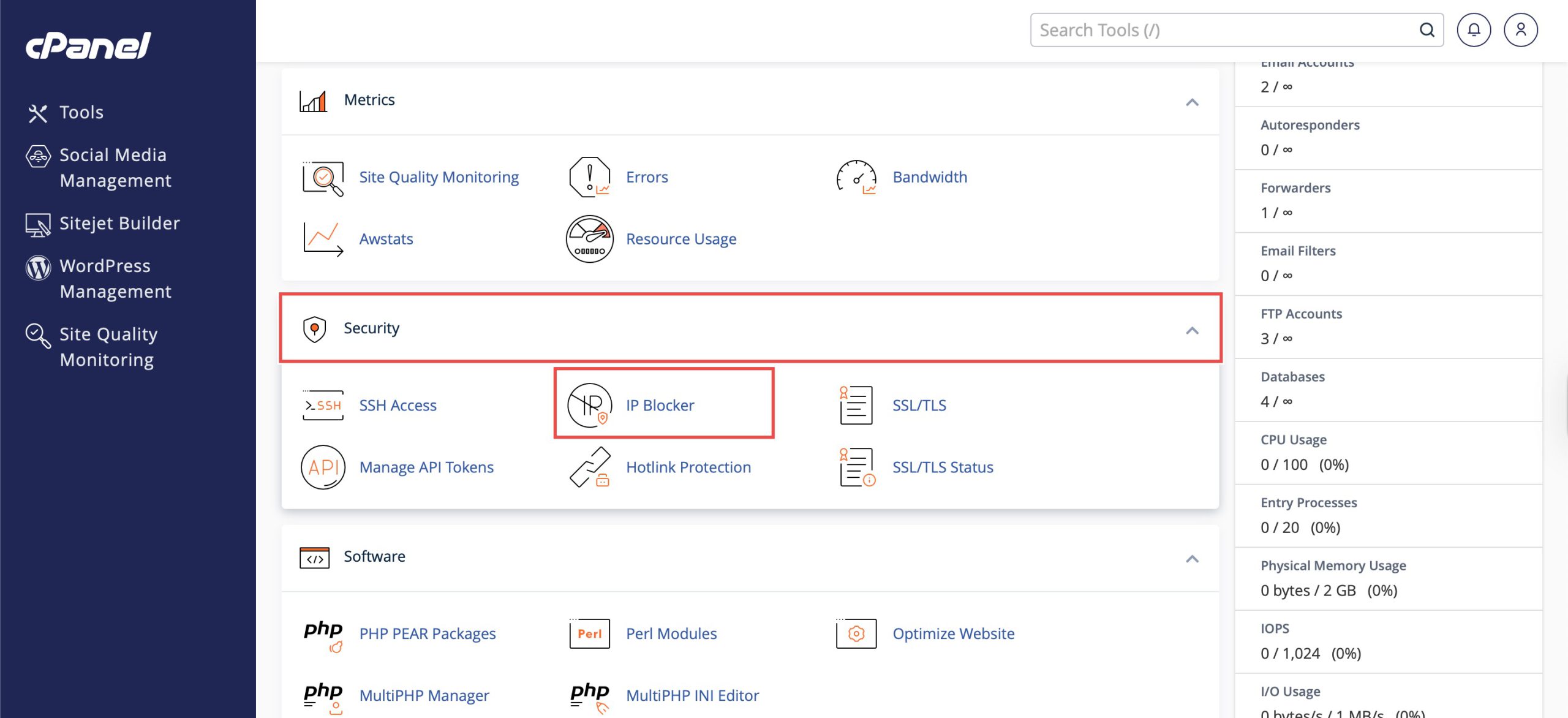
Step 2: Access IP Blocker
- Under the Security section, click IP Blocker. You will see a field to add IP addresses and the list of Currently-Blocked IP Addresses.
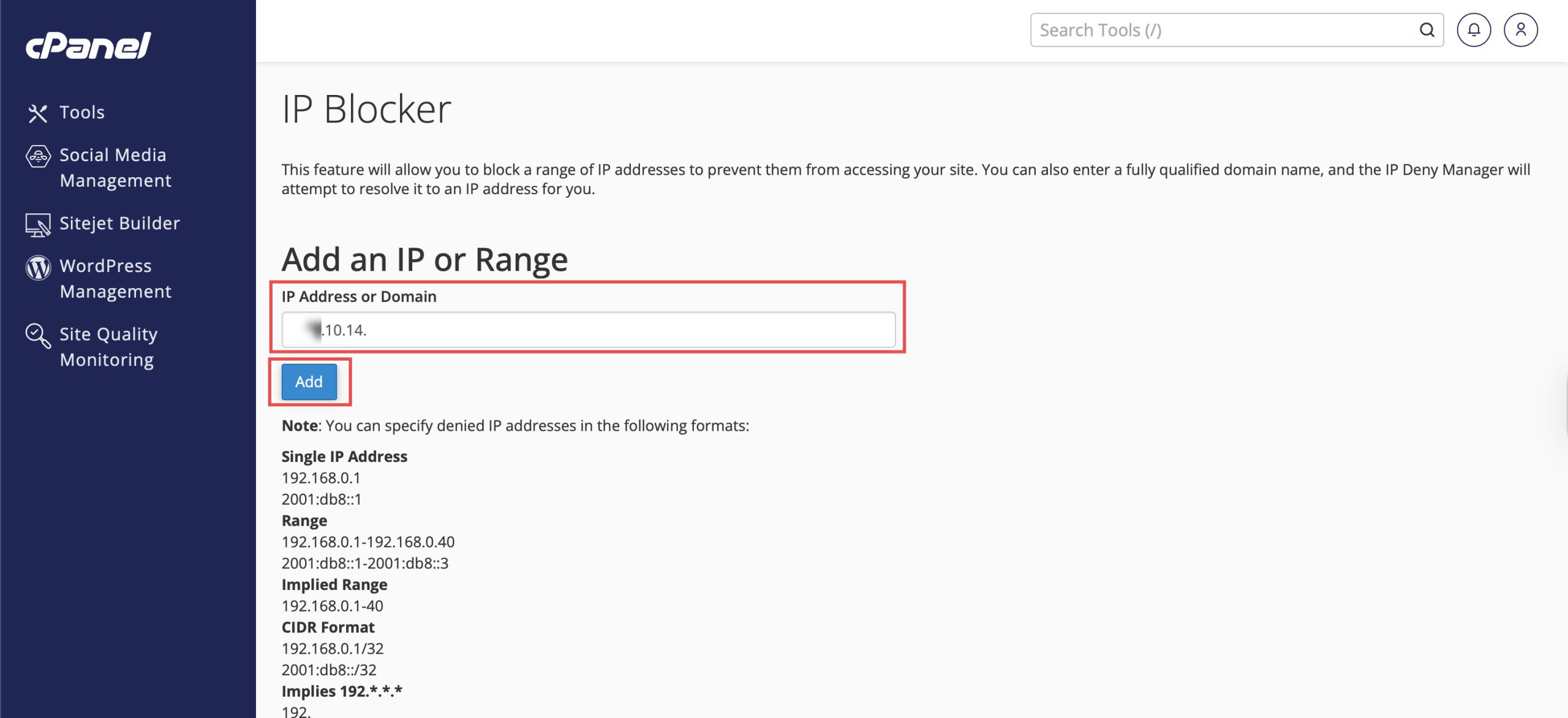
Step 3: Block or Unblock an IP Address
From the IP Blocker page, choose the action you want to perform:
- In the IP Address or Domain field, enter the address or range you want to block. You can use several formats:
- Single IP Address: 10.5.3.33
- IP Range: 10.5.3.3-10.5.3.40 or 10.5.3.3-40
- CIDR Format (Recommended): 10.5.3.3/32 (for a single IP)
- Implied IP: 10.
- Click Add.
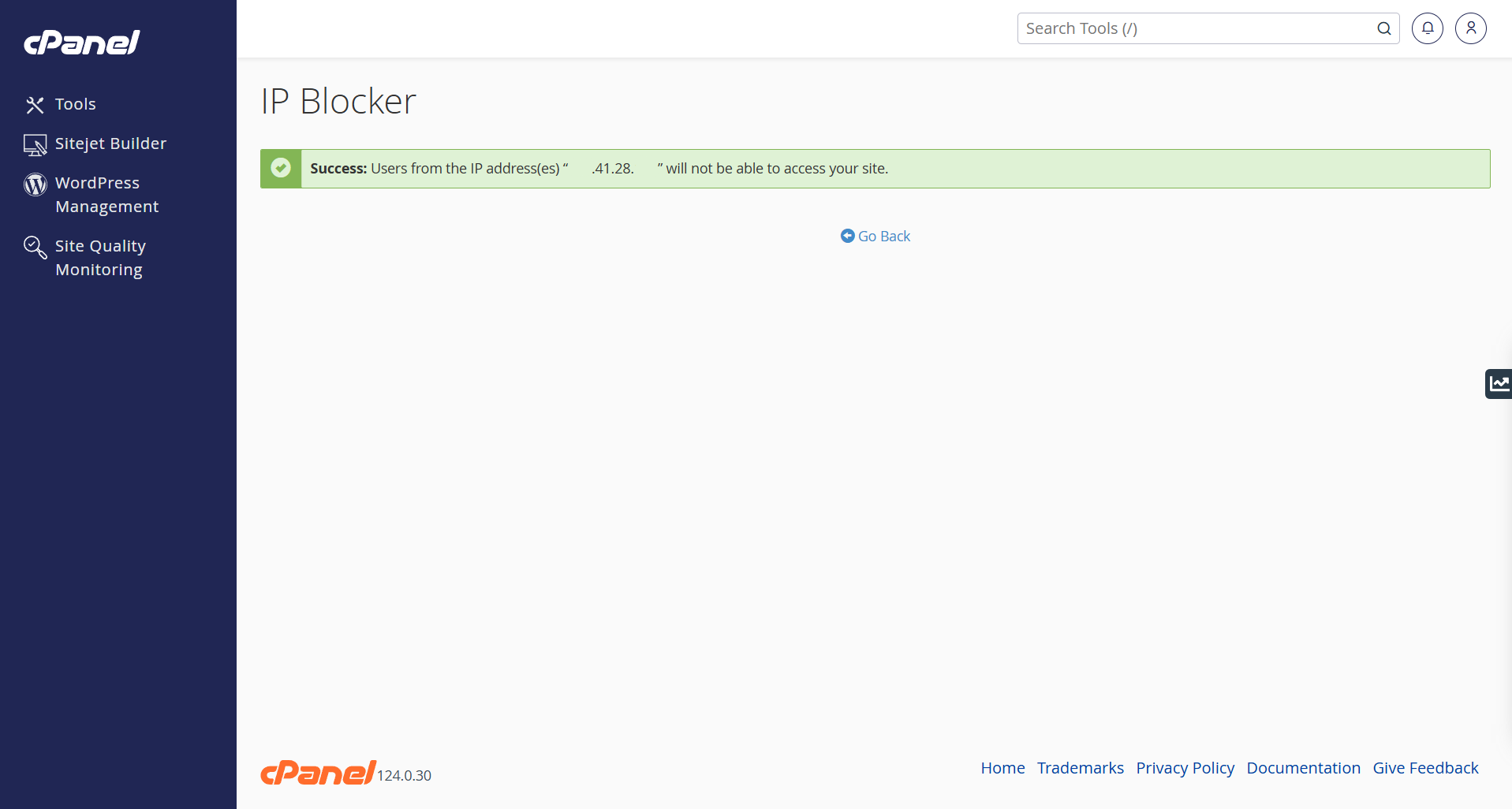
- If the IP address is added successfully, you will see a green confirmation banner.
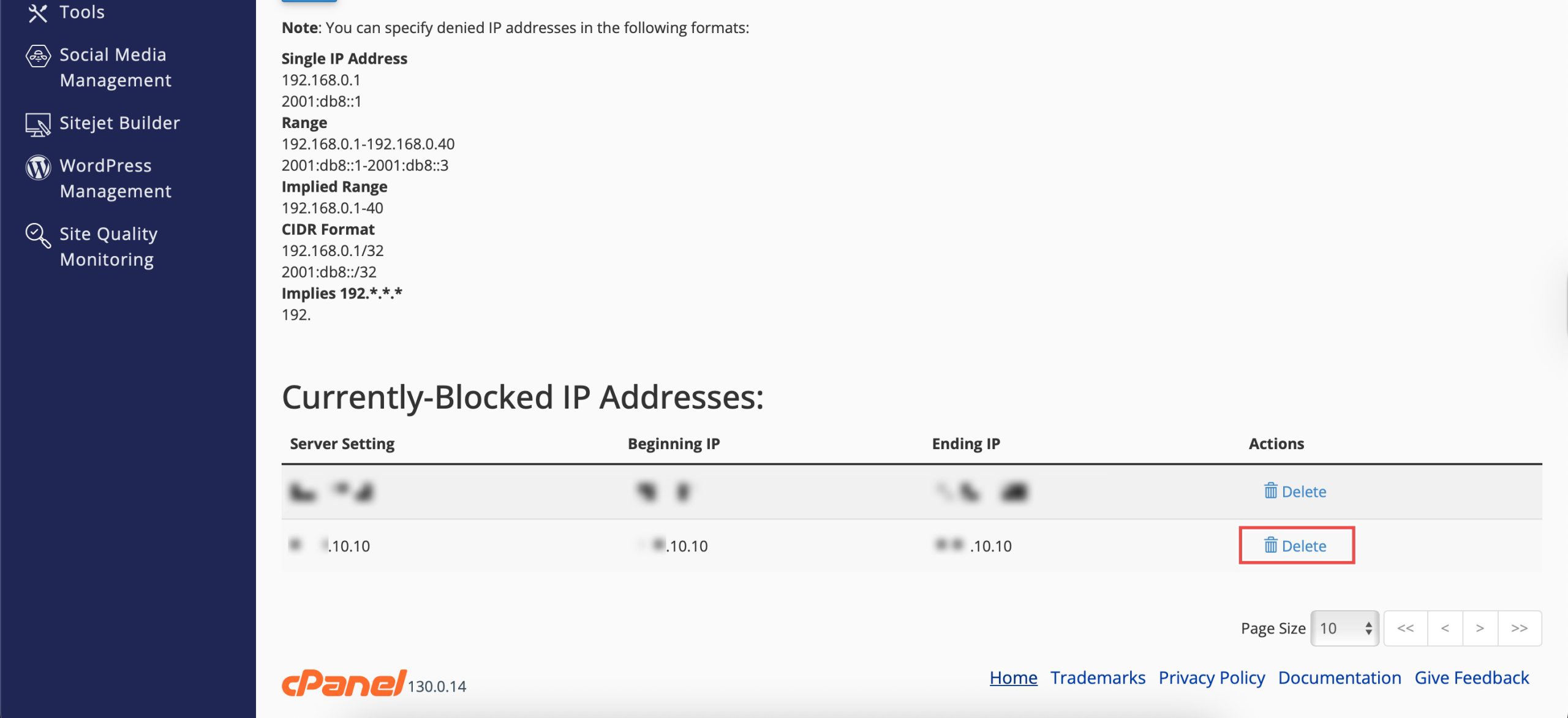
- Scroll down to Currently-Blocked IP Addresses and locate the IP address you wish to unblock.
- Click Delete on the right side of the row.
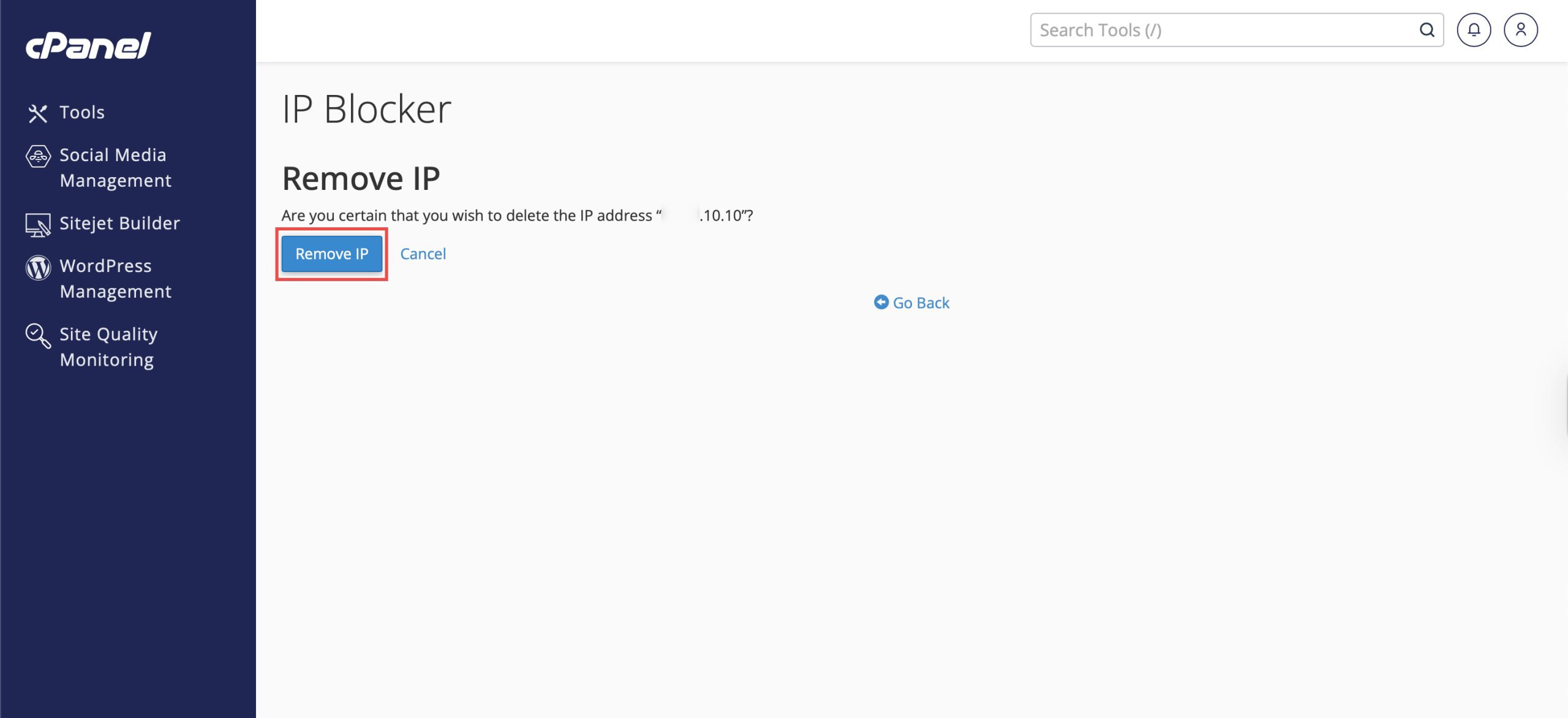
- Then, click Remove IP when prompted to confirm the action.
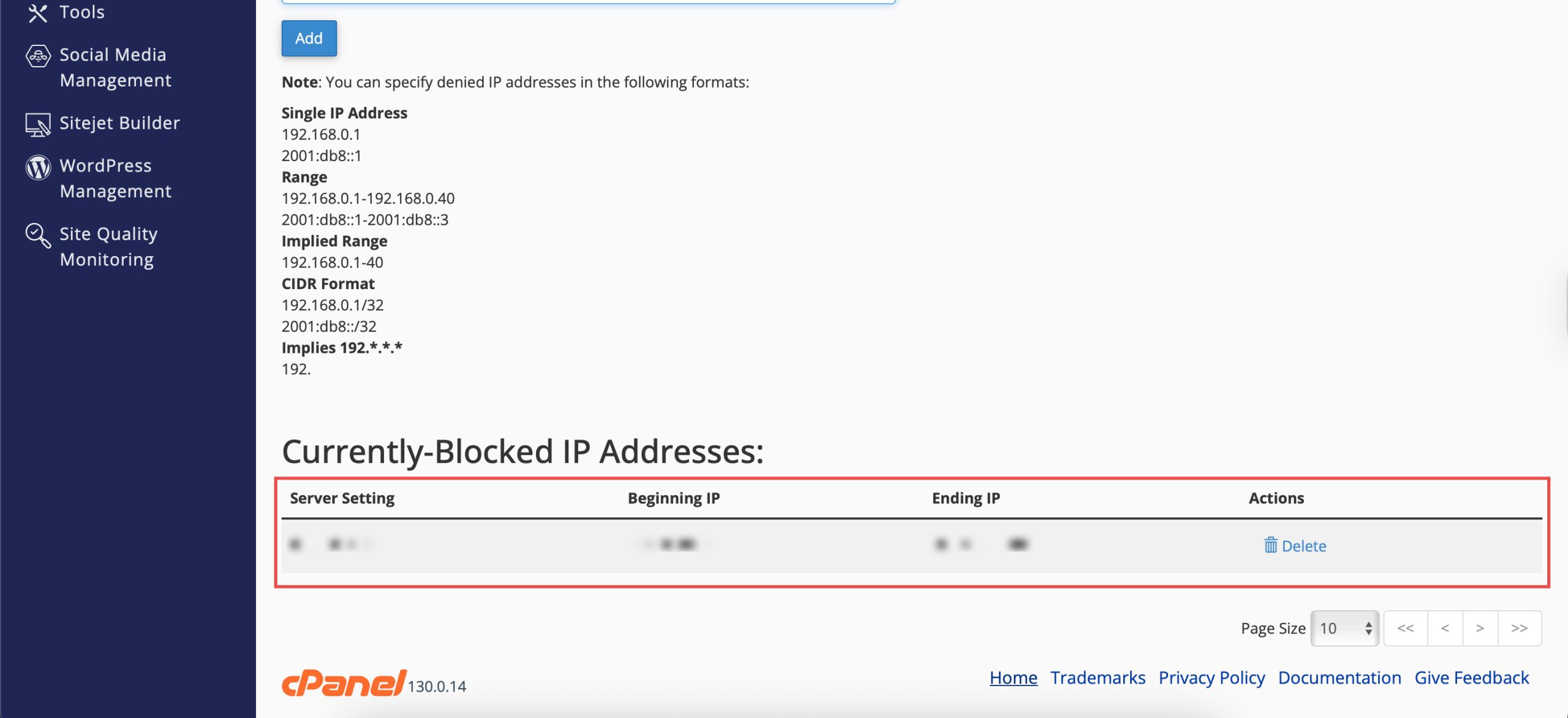
- Verify that the IP address is no longer visible in the Currently-Blocked IP Addresses table — it should now be allowed to access your website again.
Conclusion
By following this guidance, you can block and unblock IP addresses in cPanel to control who can access your website. Only block the IP addresses that are necessary and review your blocked list regularly to avoid unintentionally restricting legitimate users.
If you encounter any issues or require further assistance, please feel free to open a ticket through your portal account or contact us at support@ipserverone.com.
Article updated on 12 November 2026 by Johnny