
Search Our Database
How to initiate domain ownership transfer through the IP ServerOne Customer Portal
Introduction
This guide explains how to transfer domain ownership using the IP ServerOne Customer Portal. It’s designed for IP ServerOne customers who wish to transfer a domain name to another person or account. This guide will walk you through what to do, from logging into the portal and initiating the transfer to confirming ownership, entering the new owner’s details, and securely completing the transfer for both parties.
Steps on how to transfer domain ownership:
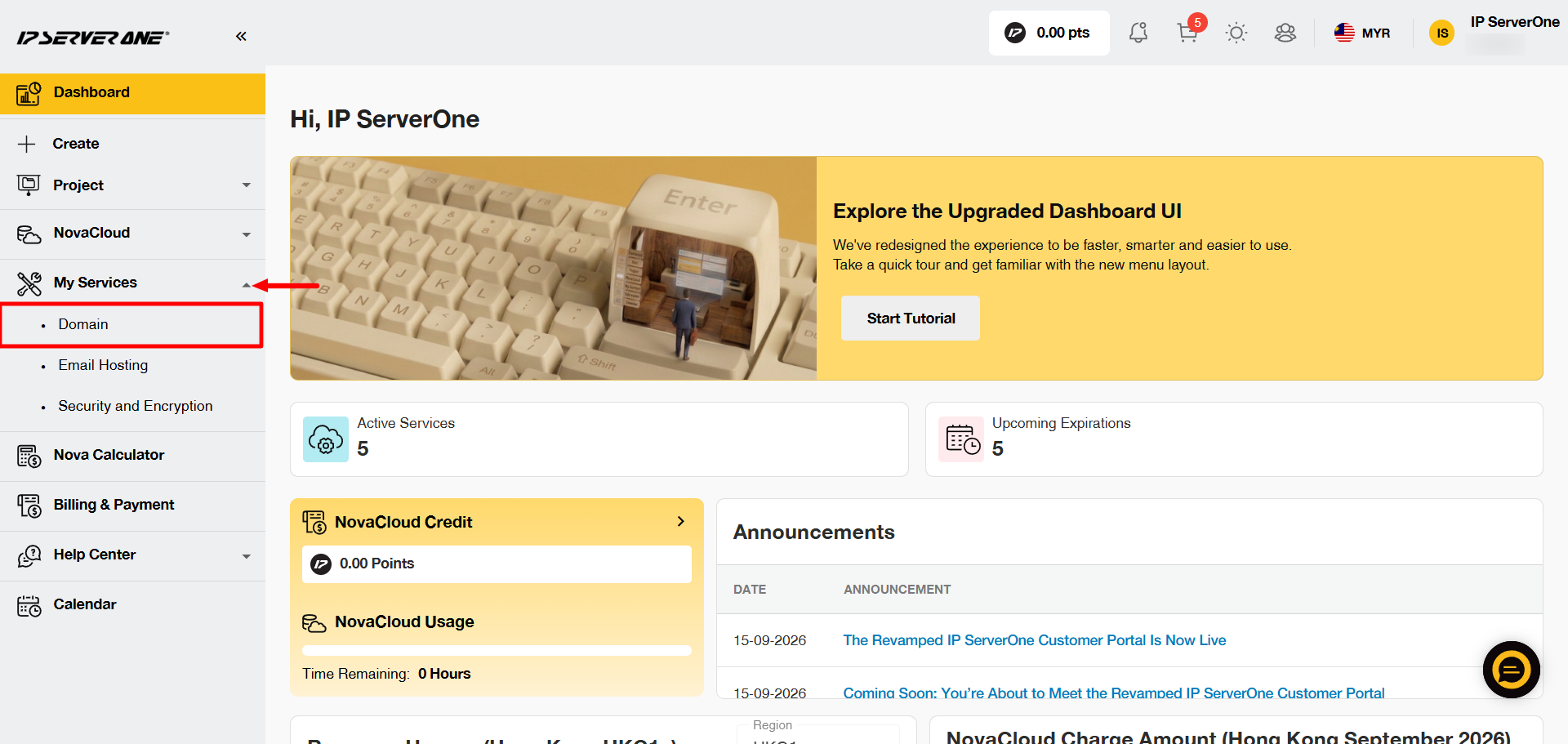
Then, click the domain name to continue.
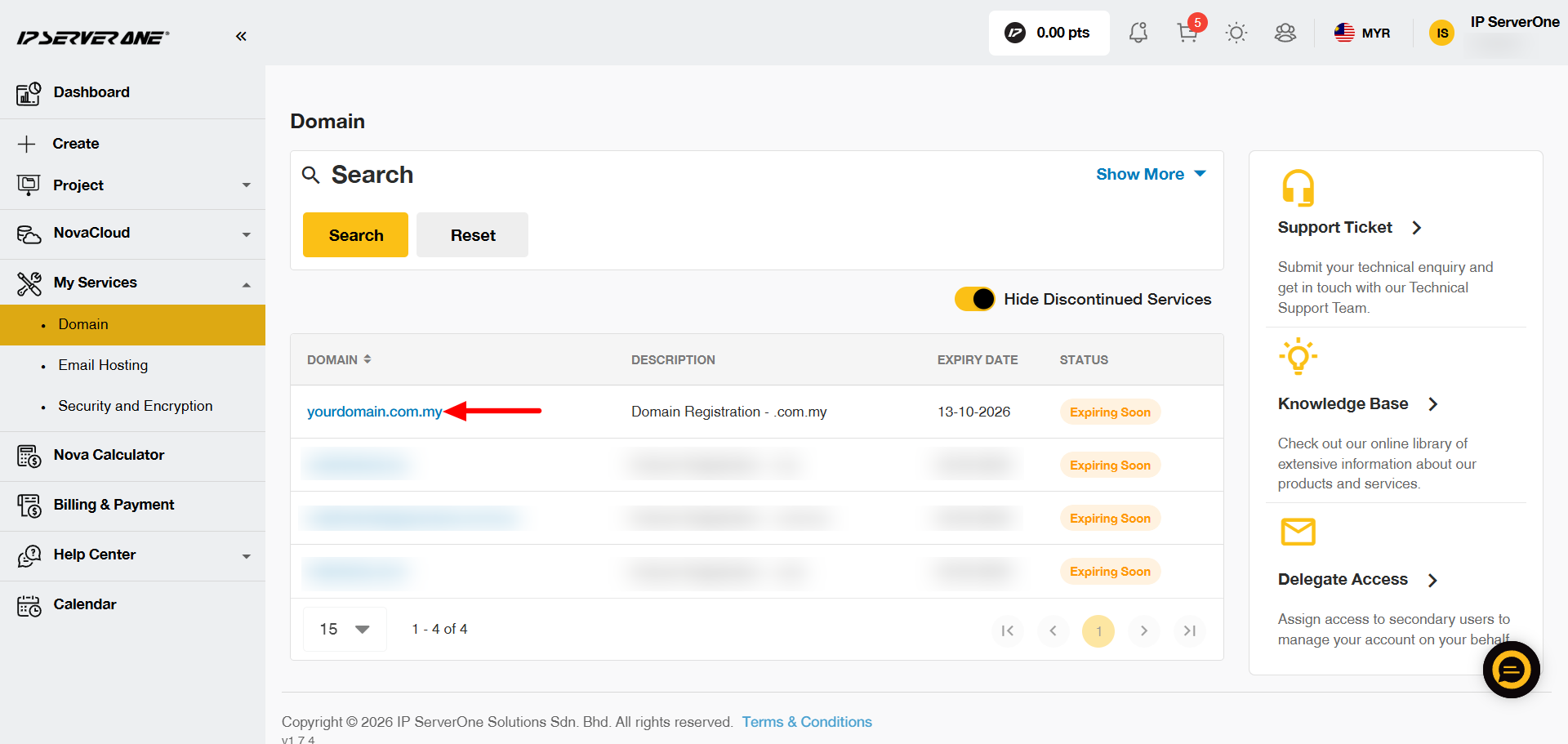
Step 3: Open Domain Management
On the domain page, click More Actions, then select Manage Domain.
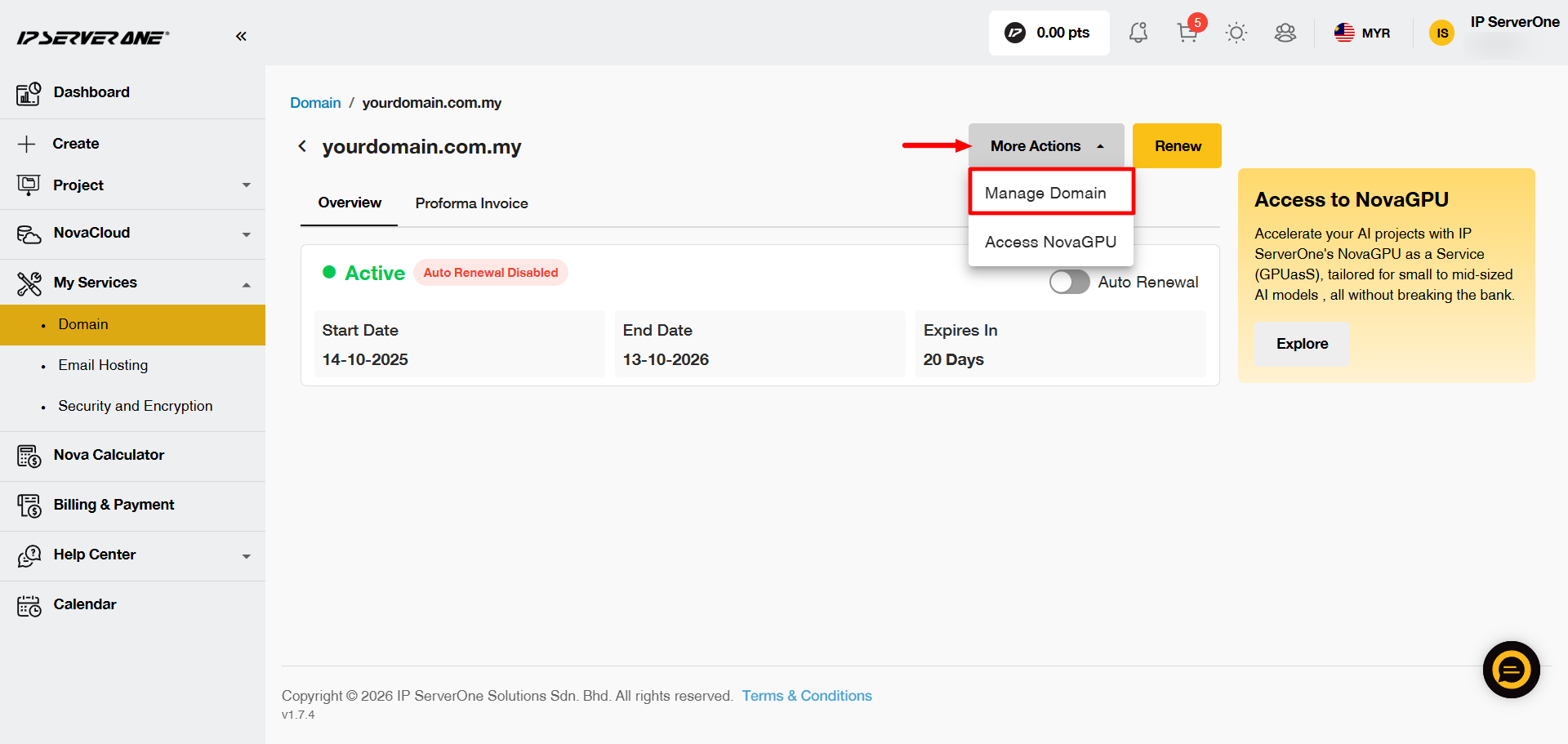
Step 4: Request Domain Ownership Transfer
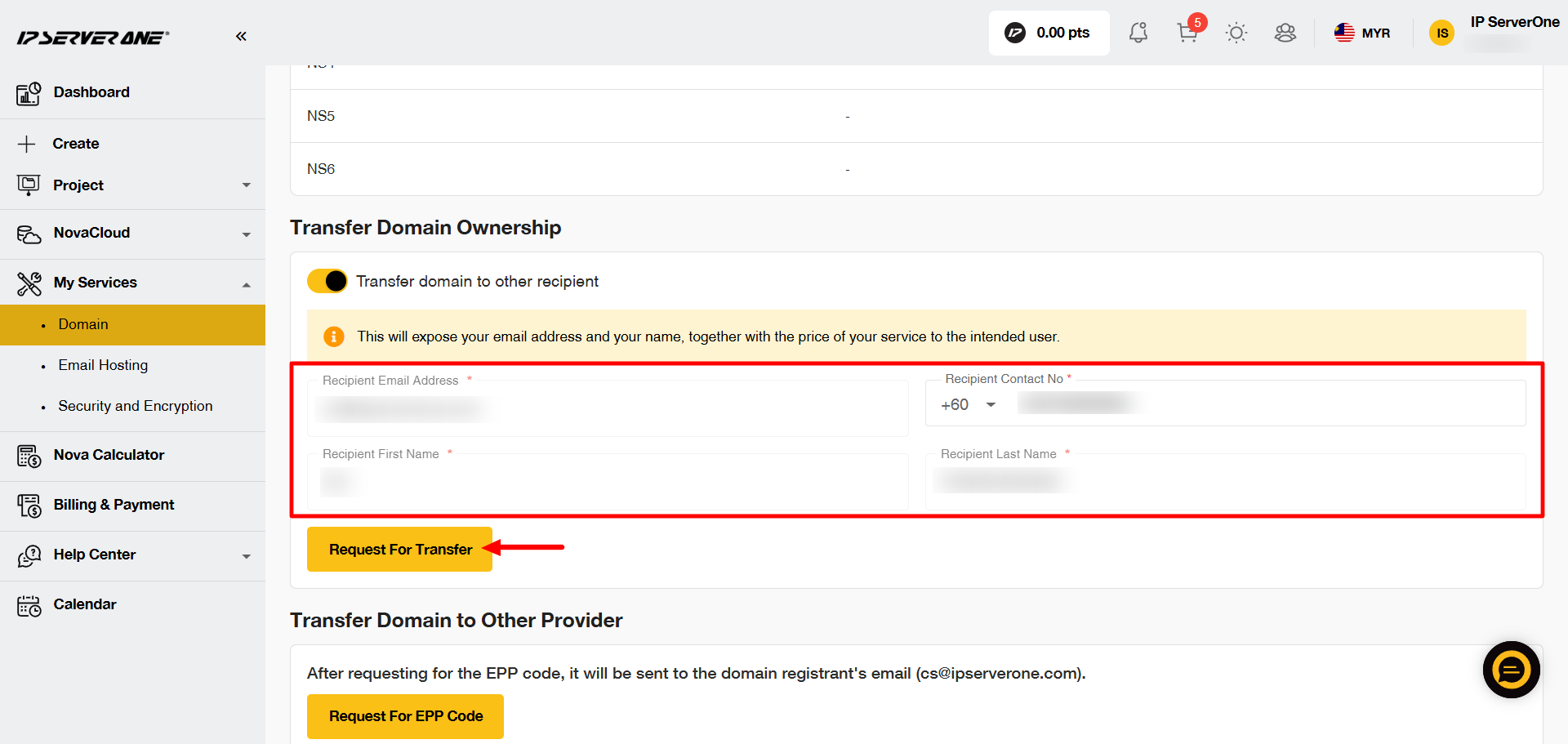
Scroll down to the Transfer Domain Ownership section. Click the slider to enable the transfer option, then fill in all the required information.
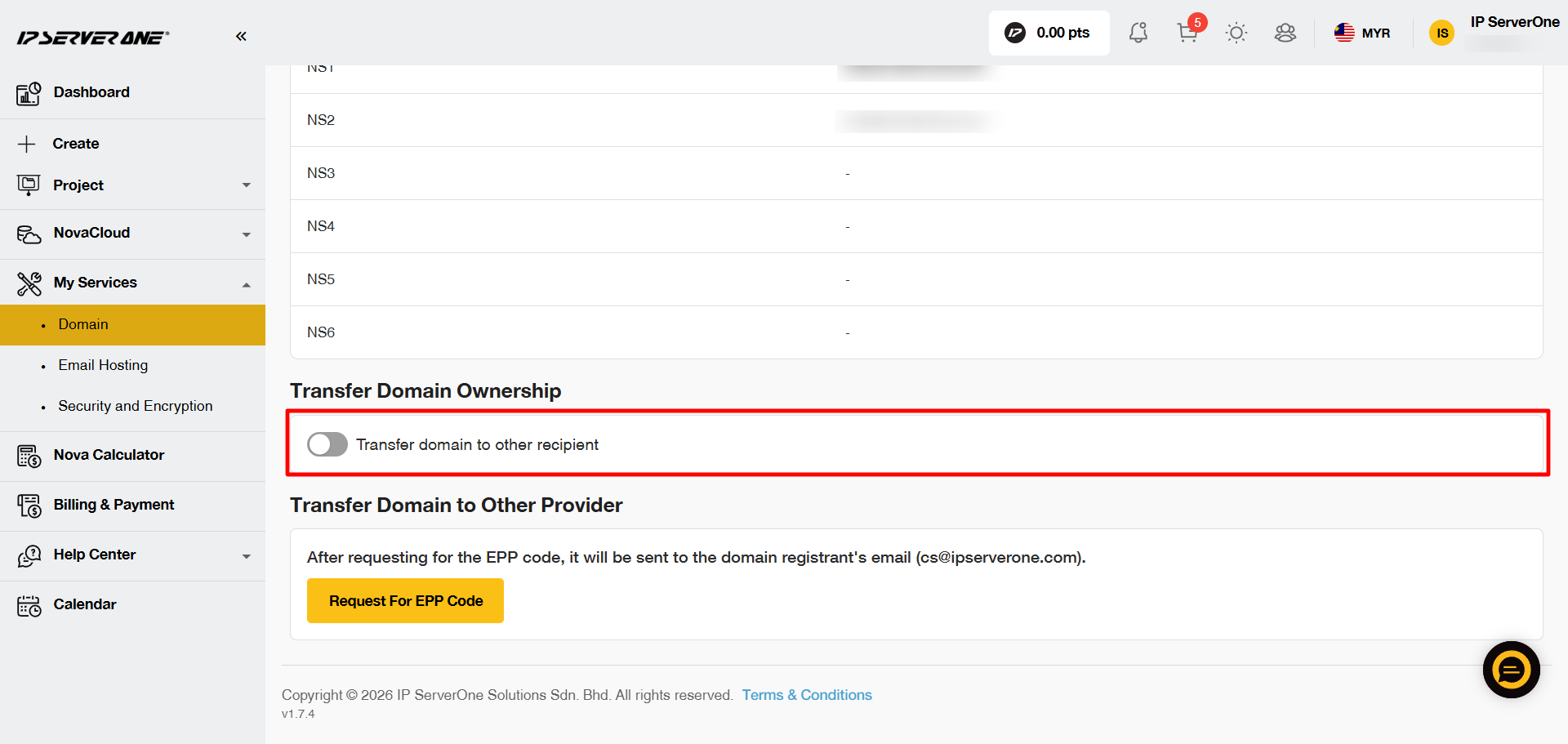
Fill up all the information required. Once completed, click Request for Transfer.
Step 5: Submit the Transfer Request
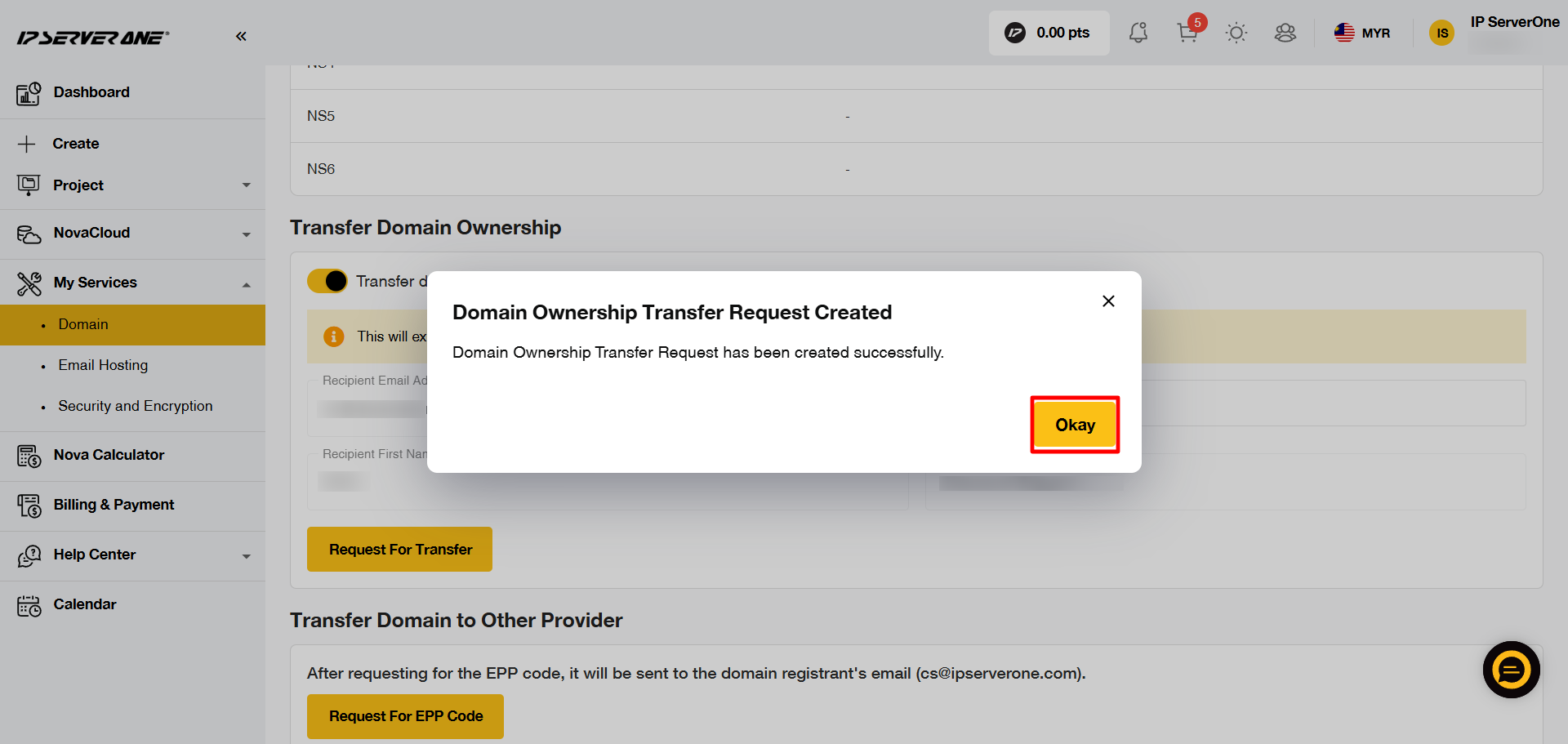
Once the request has been submitted, click Okay.
The recipient will receive an email notification about the domain ownership transfer request.
Step 6: Check the Transfer Status
You can check the status of the domain ownership transfer from the same section.
Note: The transfer request will expire after 5 days if the recipient does not accept it within this period.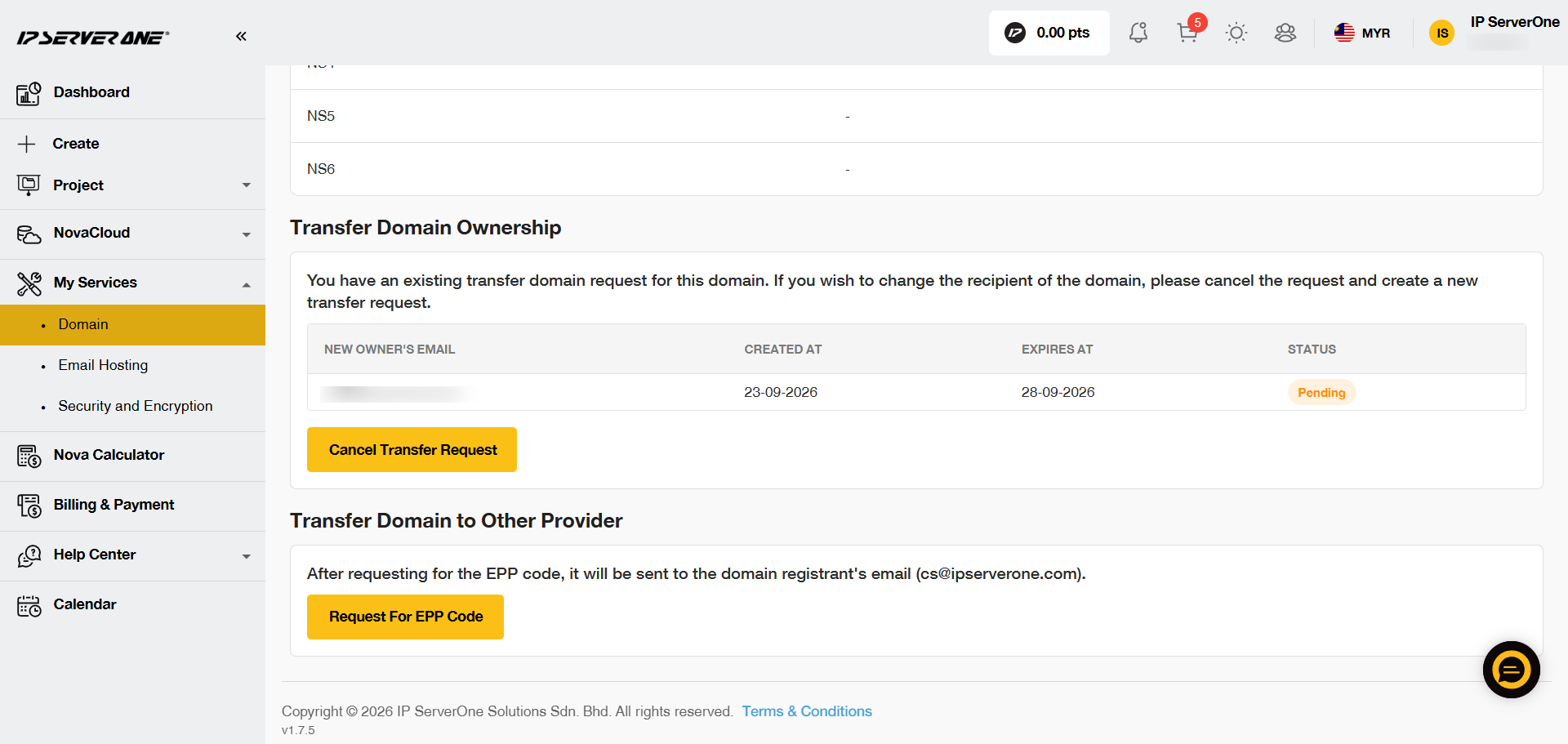
Conclusion
You have successfully submitted a request to transfer domain ownership through the IP ServerOne Customer Portal.
If you need further assistance, please contact our Customer Support team at cs@ipserverone.com.
Thank you for your cooperation and for choosing our services. We look forward to continuing to serve you.
Last edited by Nurul, September 23, 2026