
Search Our Database
How to setup FTP Account in cPanel
Introduction
Managing FTP (File Transfer Protocol) accounts is an essential task for web hosting users who need to grant developers, client managers, or team members secure access to specific directories on their website. With cPanel, administrators can easily create new FTP accounts, modify existing credentials and storage quotas, or remove access when it is no longer required. Following proper procedures for managing FTP accounts ensures your server files remain organized while maintaining optimal access control and security. This guide provides a step-by-step walkthrough for creating, managing, and deleting FTP accounts in cPanel.
Prerequisite
- Access to cPanel
- Active domain configured in cPanel
- Basic understanding of file transfer protocols (FTP)
Step-by-step guide
Step 1: Access to FTP Accounts in cPanel
- Access and log in to your cPanel account using your username and password.
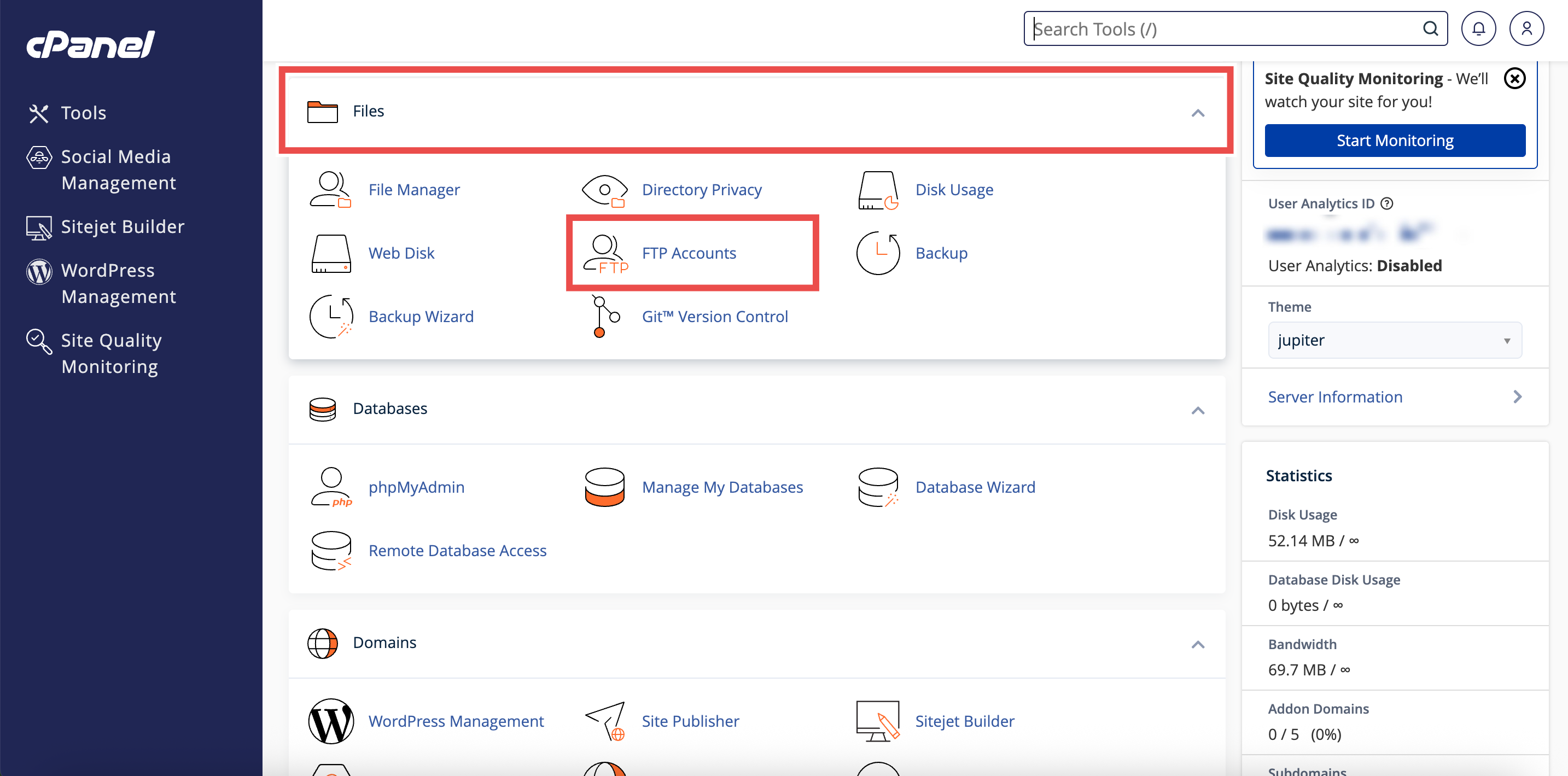
- Navigate to the Files section and click FTP Accounts.
Step 2: Managing FTP Accounts
Create and Set Up an FTP Account in cPanel
This method explains how to add a new FTP user and assign directory permissions.
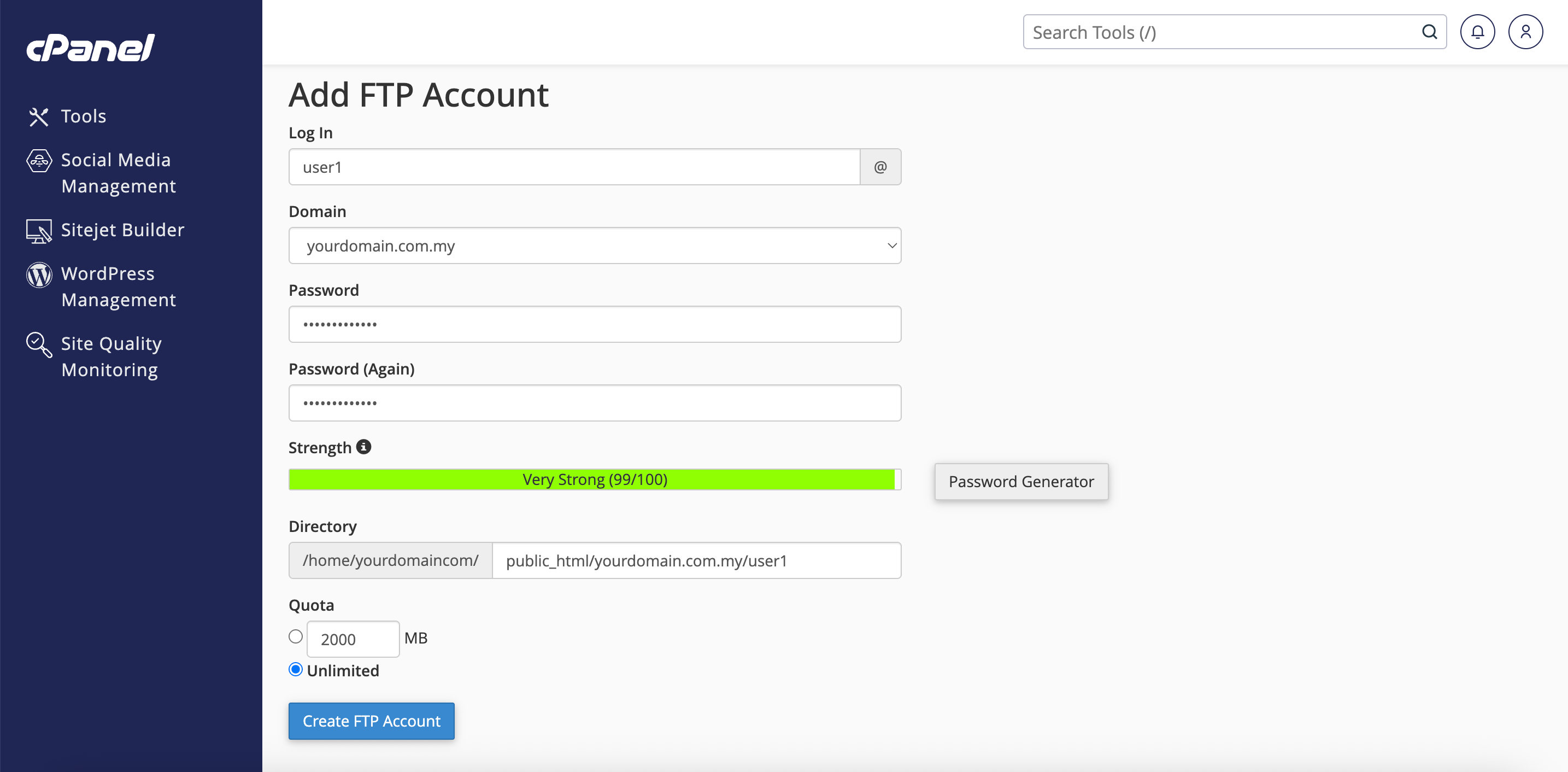
- Under the Add FTP Account section, fill in the required fields:
- Log In: Enter the desired username for the FTP account.
- Domain: Select the domain from the dropdown list.
- Password / Password (Again): Enter a strong password or use Password Generator.
- Directory: Define the root folder access for this FTP account (cPanel auto-populates this, but you can customize it).
- Quota: Set a storage limit in MB or select Unlimited.
- Click Create FTP Account.
Change Quota for an FTP Account in cPanel
This method details how to update storage limits for existing FTP accounts.
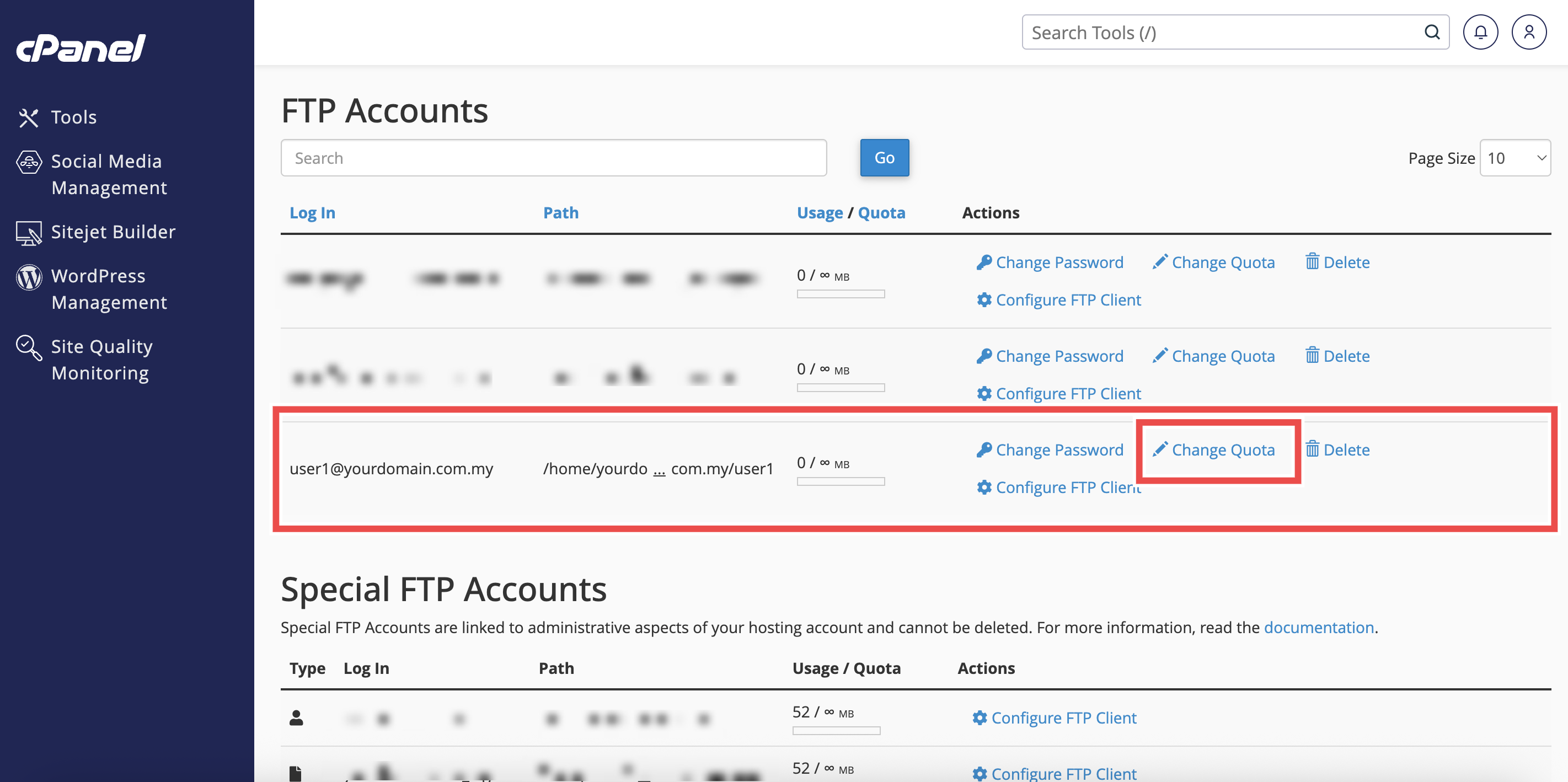
- Scroll down to the FTP Accounts list section.
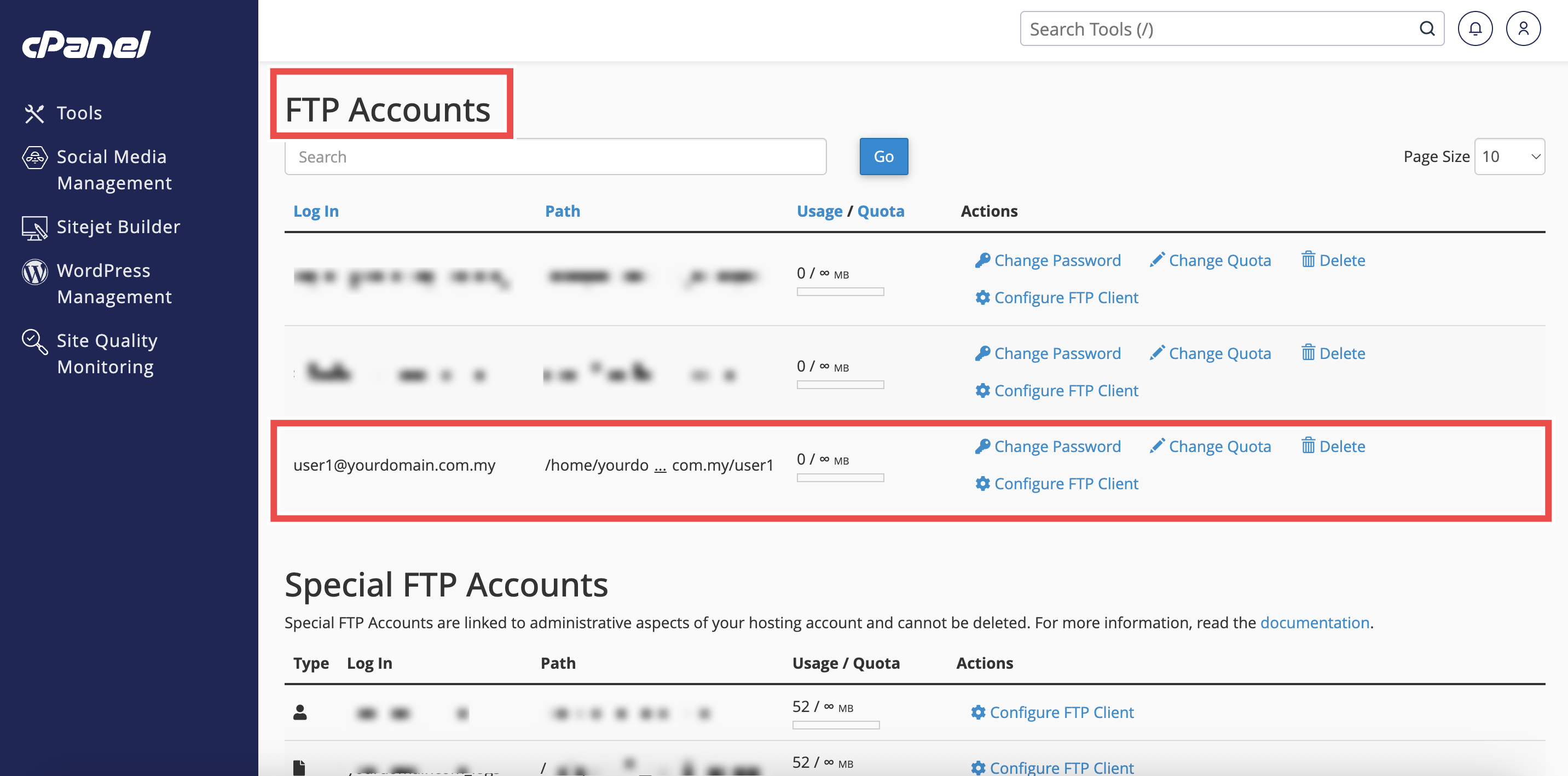
- Click Change Quota next to the target FTP user.
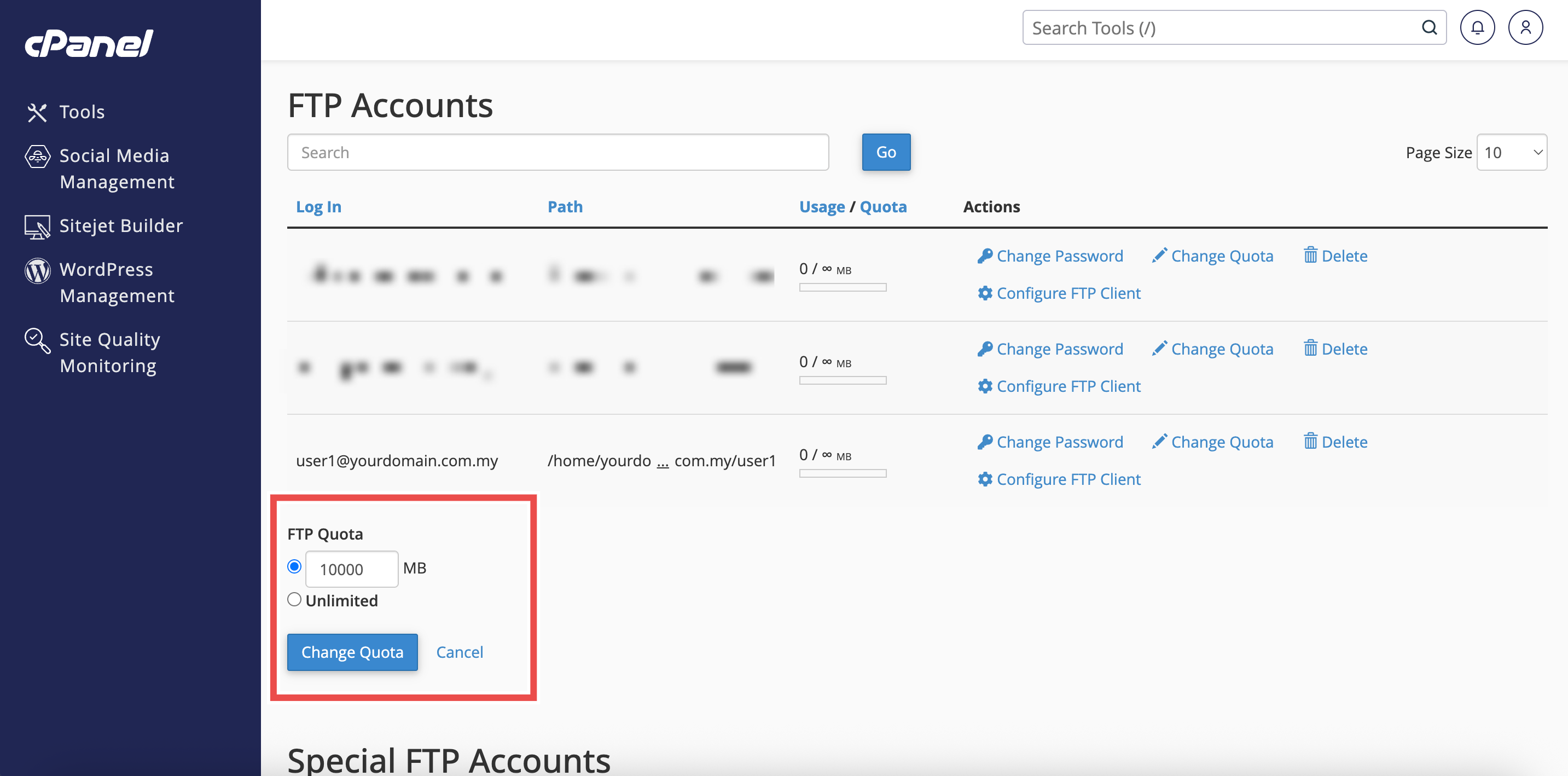
- Enter a new quota value in MB or select Unlimited, then click Change Quota.
Change Password for an FTP Account in cPanel
This method details how to update account credentials for existing FTP accounts.
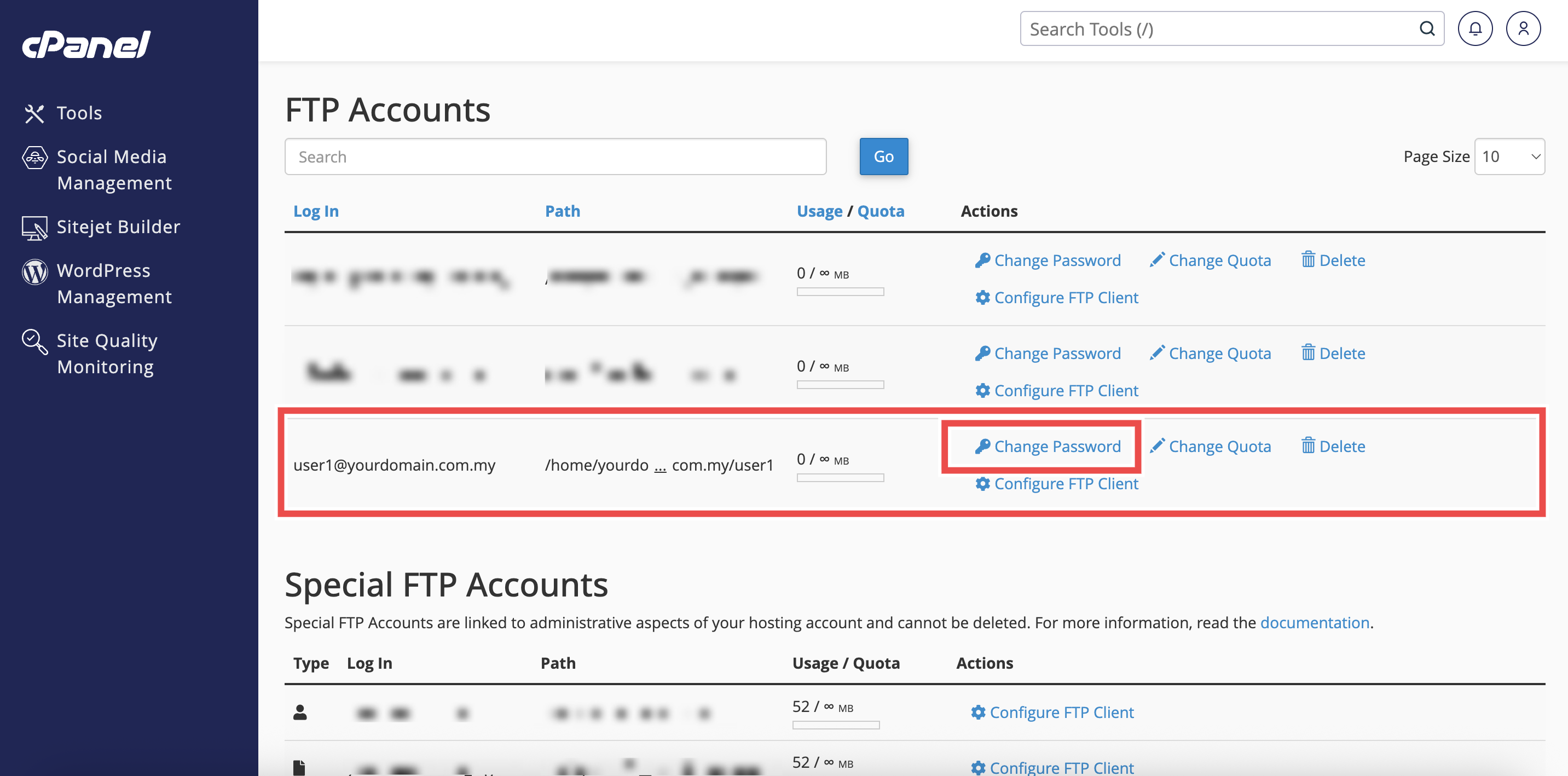
- Scroll down to the FTP Accounts list section.
- Click Change Password next to the target FTP user.
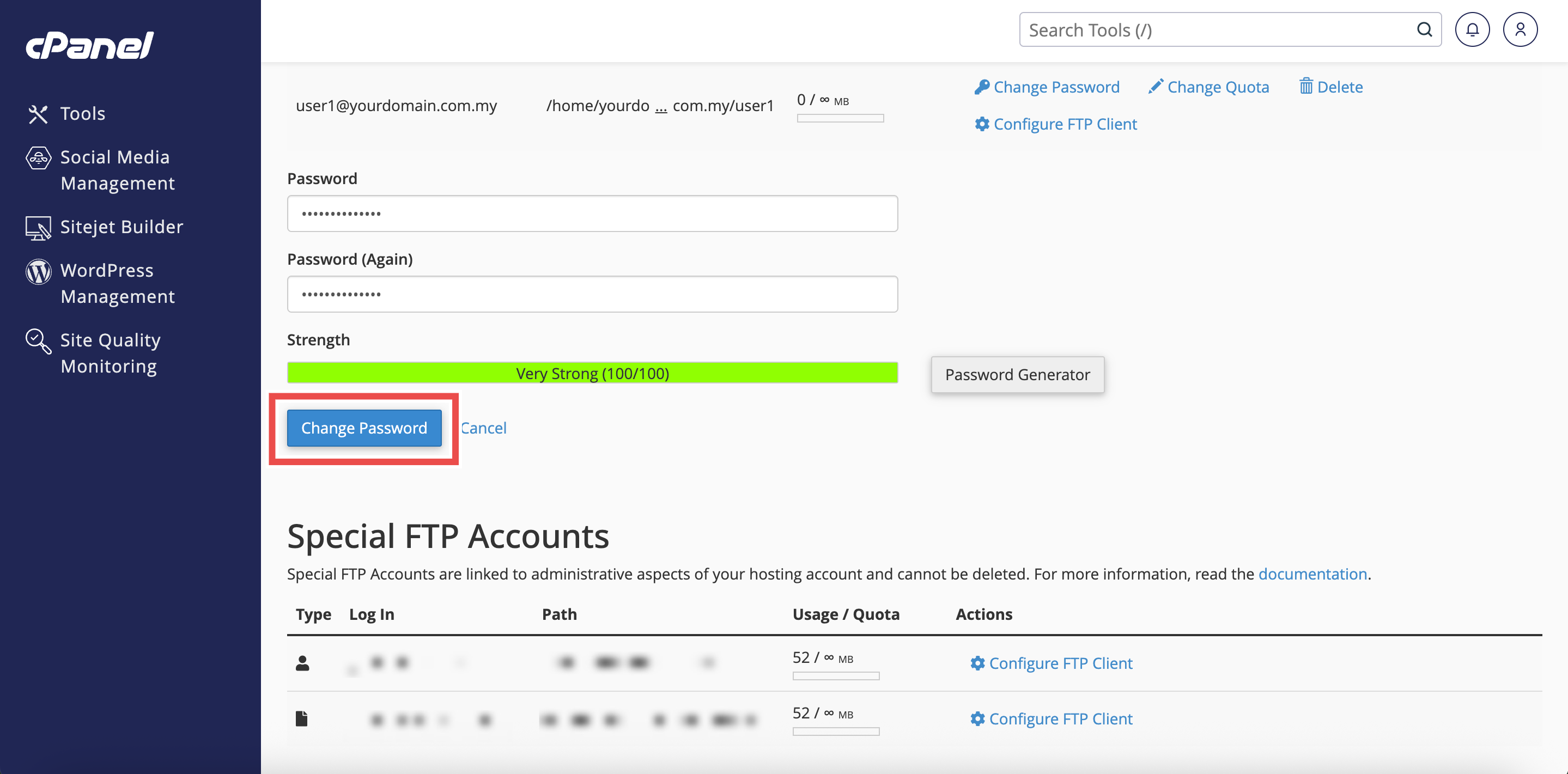
- Enter the new password (or generate one) and click Change Password.
Delete an FTP Account in cPanel
This method shows how to safely remove an FTP account when access is no longer required.
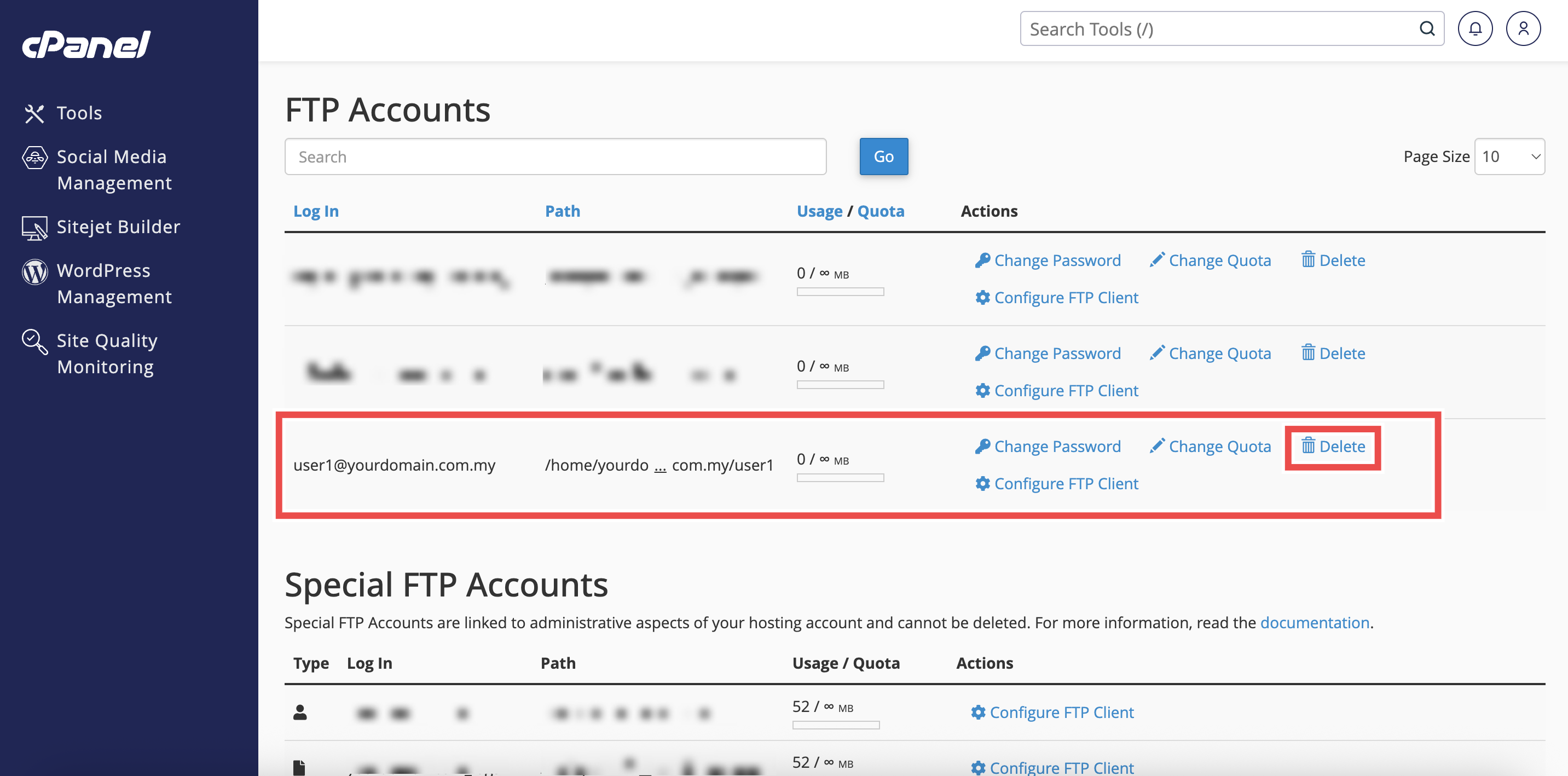
- Scroll down to the FTP Accounts list and locate the account you want to delete.
- Click Delete next to the account.
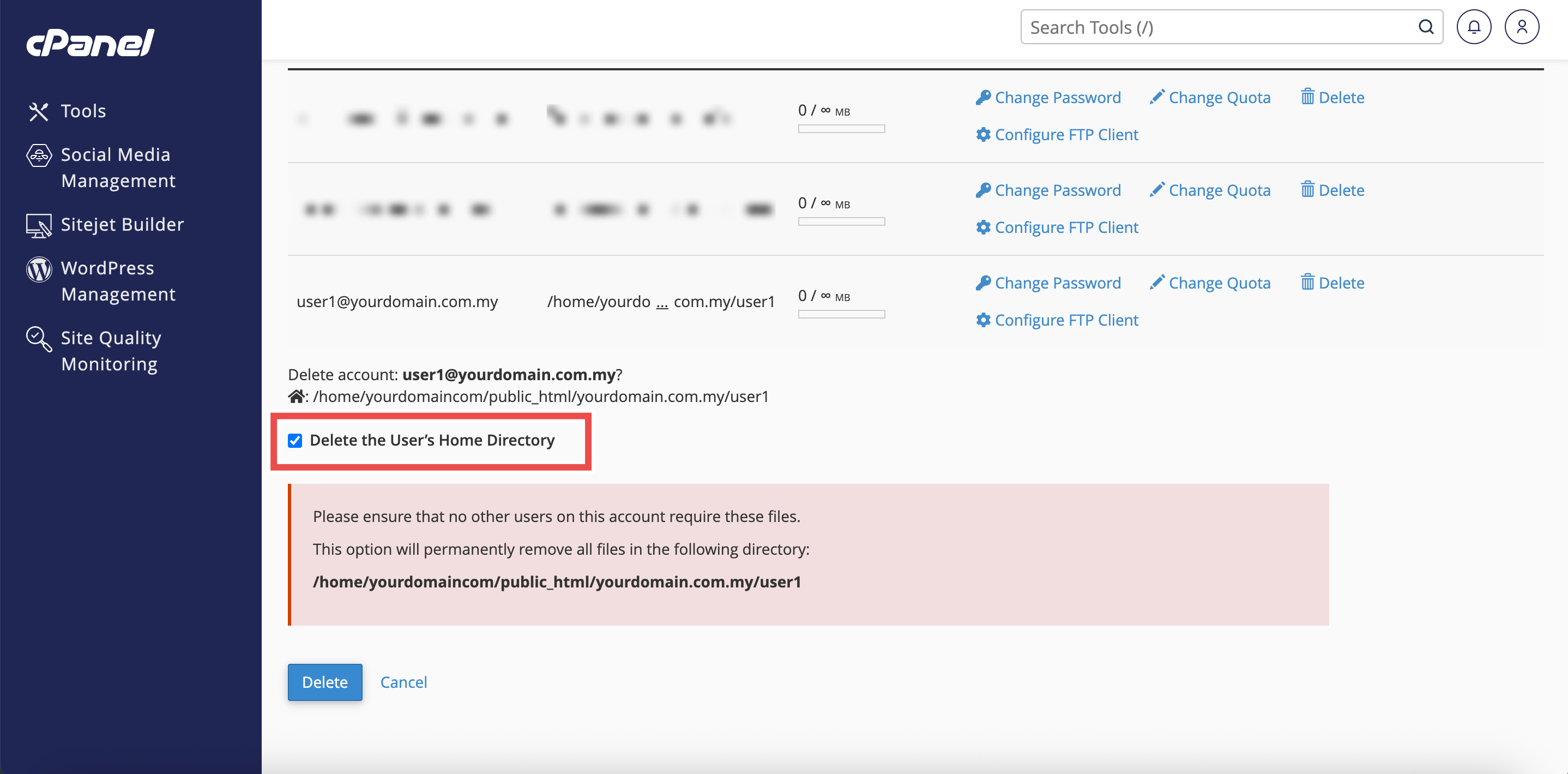
- Choose whether to delete only the account credentials or also delete the user’s home directory files.
Important Note ⚠️: If chose to delete the user’s home directory files, the files that has been deleted were not recoverable.
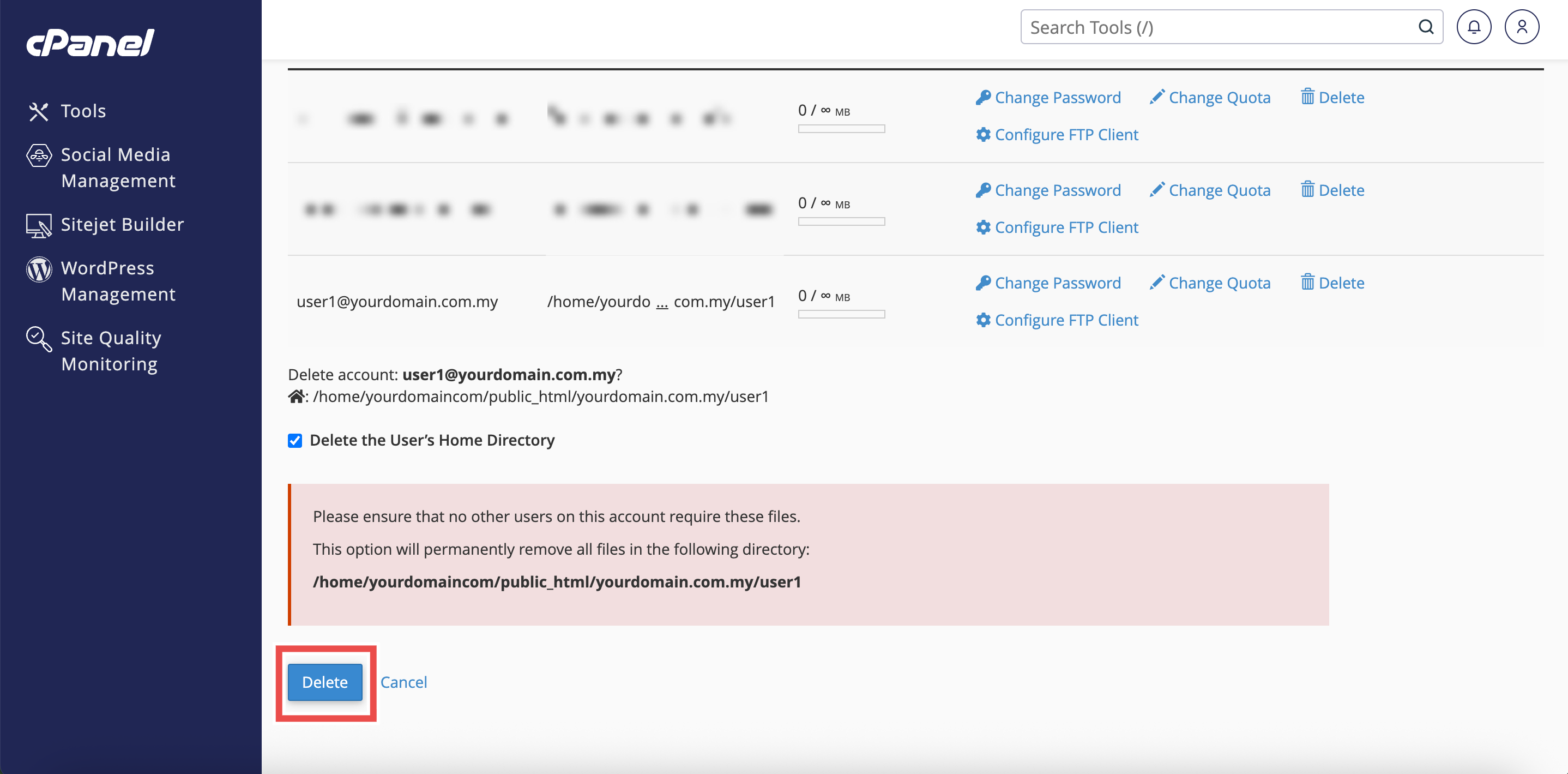
- Click Delete to confirm.
Step 3: Connect to FTP Using FileZilla (Optional)
- To setup FileZilla FTP client, you may refer to [How to setup FileZilla server on Windows].
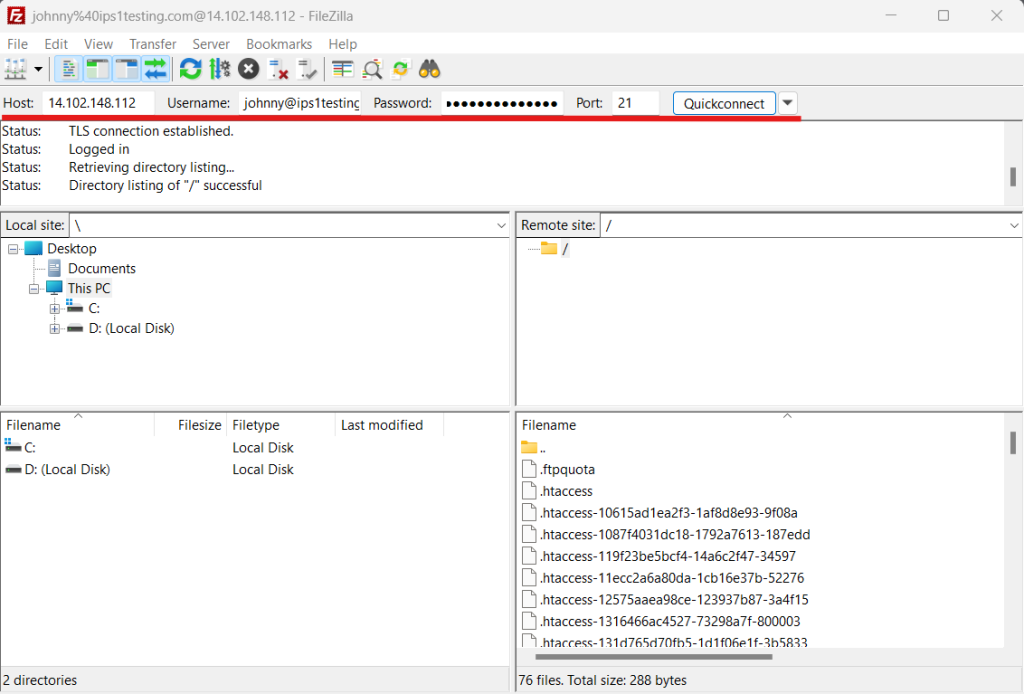
- Enter the login details of your FTP account, the Host will be your server IP, then click Quick Connect.
You should now be connected to your FTP client (FileZilla) and can now transfer files between your computer and server via FTP.
Conclusion
By following this guidance, you can successfully create, update, manage, and delete FTP accounts in cPanel to ensure secure and efficient file management for your domains.
For additional assistance or if you encounter any issues, please contact our support team at support@ipserverone.com.
Article updated on 18 August 2026 by Johnny