
Search Our Database
Unable to unshelve GPU instance due to unavailable GPU resources
When trying to unshelve your NovaGPU instance, you may receive an error message stating that GPU resources are unavailable.
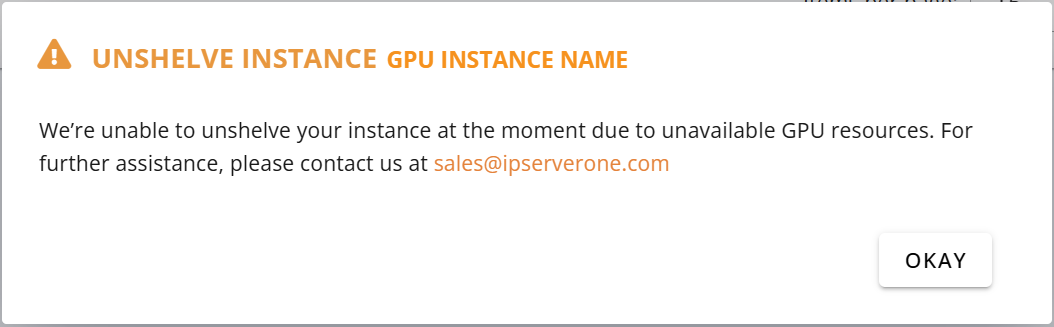
We are unable to allocate a GPU server for you at the moment due to unavailable GPU resources.
As a workaround, you may delete the shelved GPU instance without deleting the attached volume and recreate the instance using the existing volume. This will allow you to retain your data while provisioning a new GPU instance.
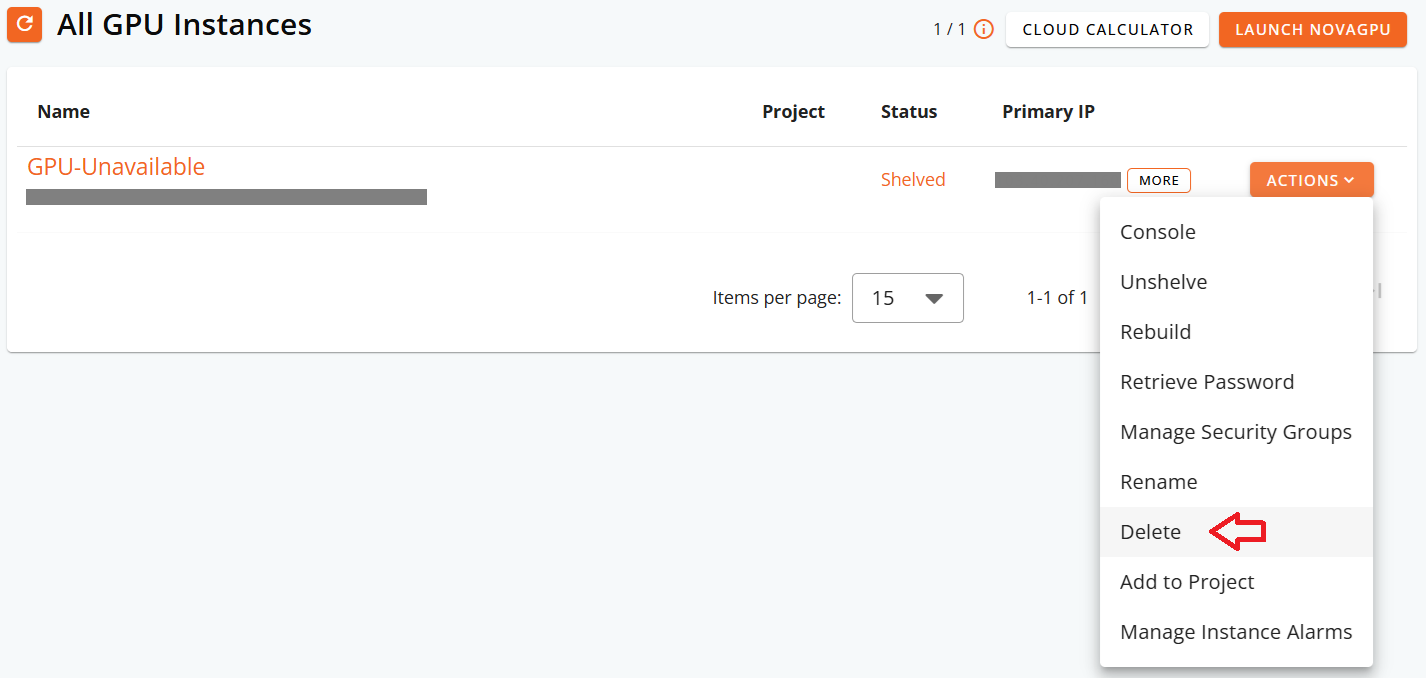
Steps
1.) On the All GPU Instances page, click Actions for the shelved GPU instance, then select Delete.
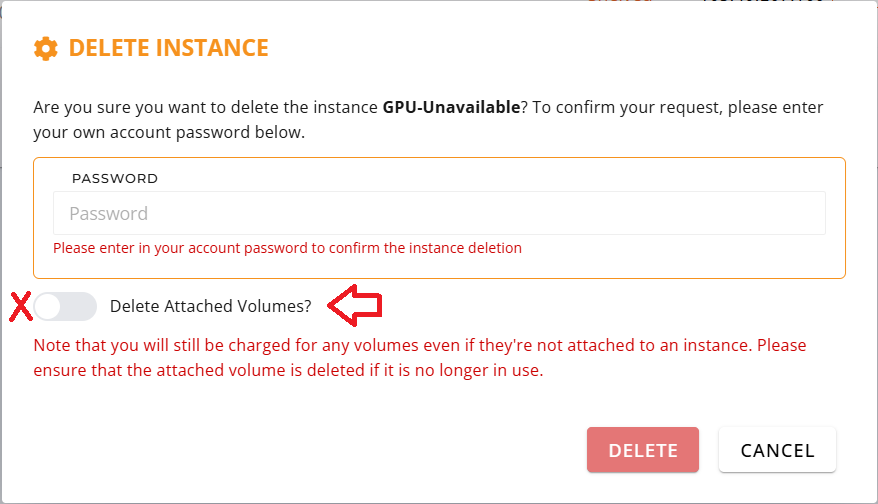
2.) In the Delete Instance window:
- Enter the account password.
- Do not enable Delete Attached Volumes.
- Click Delete.
Important: Make sure Delete Attached Volumes is not selected. If the volume is deleted, the data stored inside the volume will also be removed.
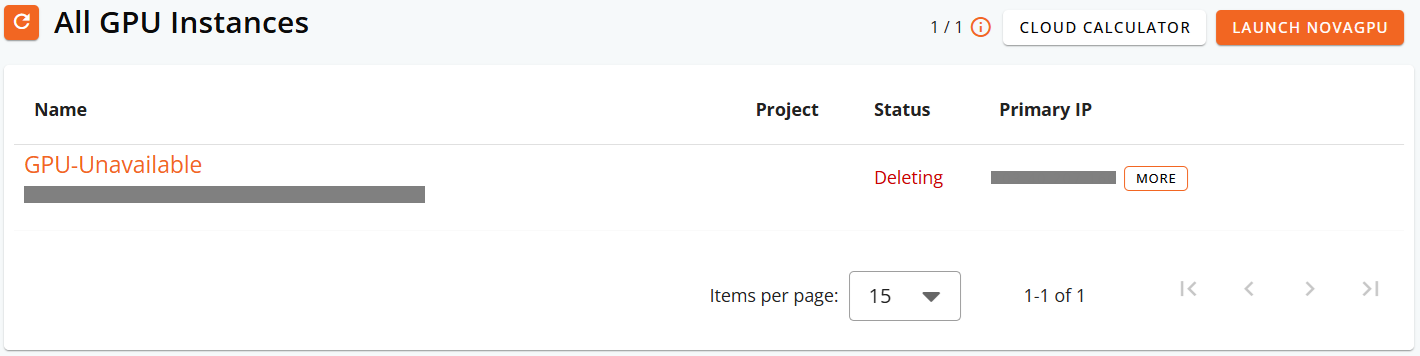
3.) Wait until the GPU instance deletion is completed.
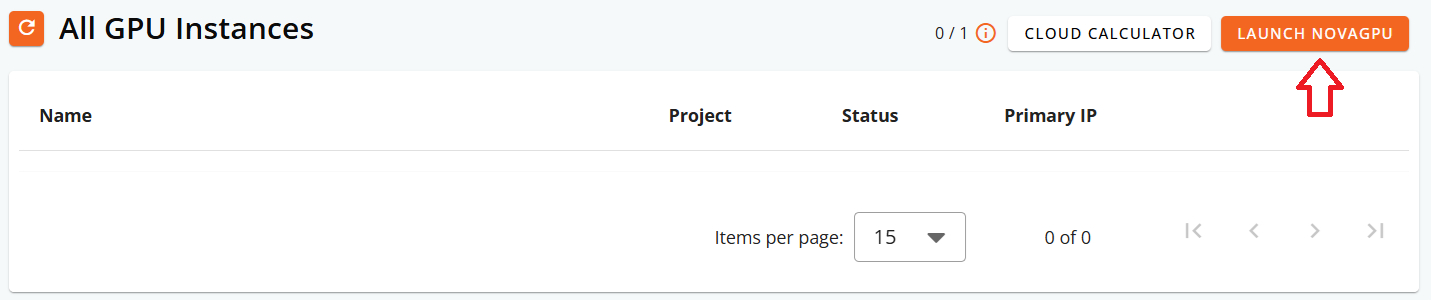
4.) Click Launch NovaGPU to recreate the instance.
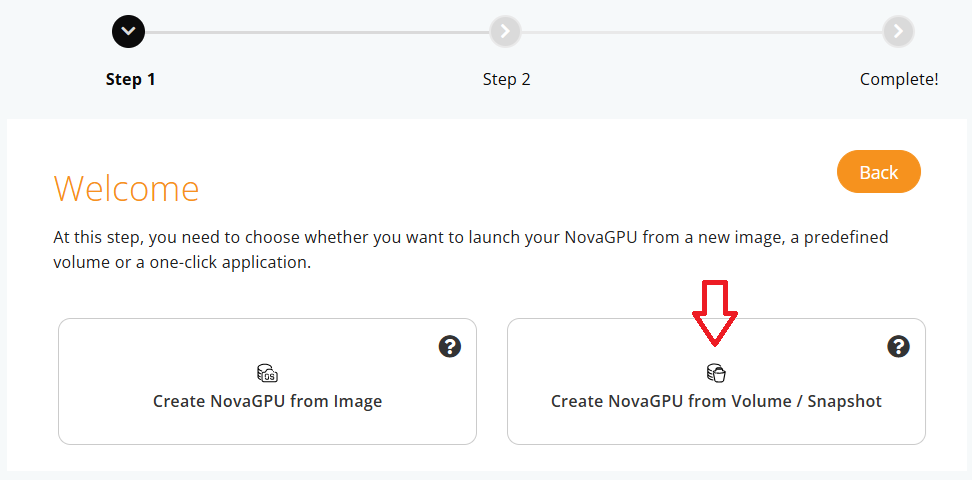
5.) On Step 1, select Create NovaGPU from Volume / Snapshot.
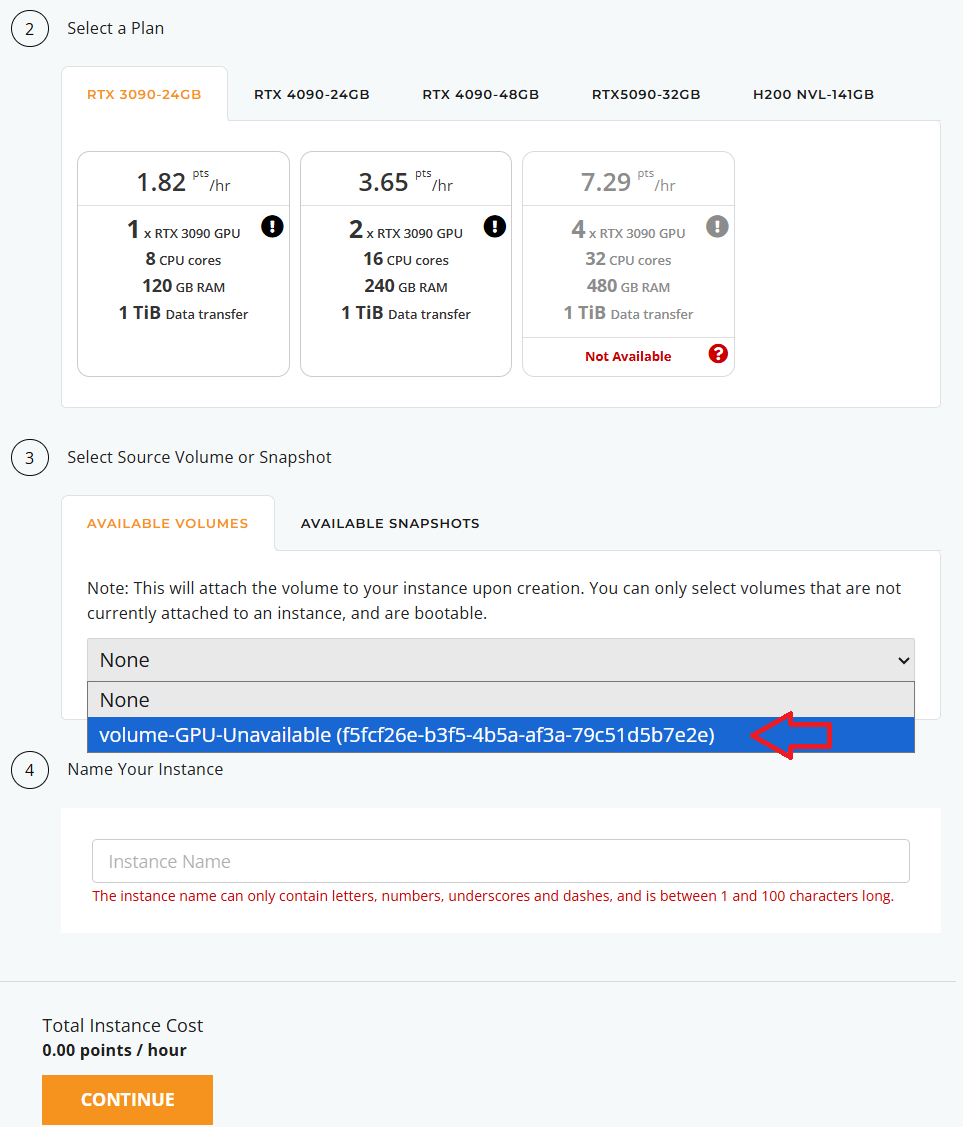
6.) Under Select Source Volume or Snapshot, choose the volume from the deleted GPU instance.
7.) Continue with the instance creation process.
The new NovaGPU instance will be created using the existing volume, so your data will remain available.