
Search Our Database
Setting up Two-Factor Authentication (2FA) on Customer Portal
Introduction
To enhance account security, IP ServerOne enforces all users to enable Two-Factor Authentication (2FA) for Customer Portal access starting 15 June 2026.
2FA adds an extra layer of protection by requiring a second verification method (email or authenticator app) in addition to your password. This helps prevent unauthorized access and keeps your account secure.
All users must set up 2FA to continue accessing the portal. If no method is configured, email verification will be enabled by default. Kindly refer to the following steps to change the authentication (2FA) method according to your preference.
1. Log in to the Customer Portal using your existing credentials.
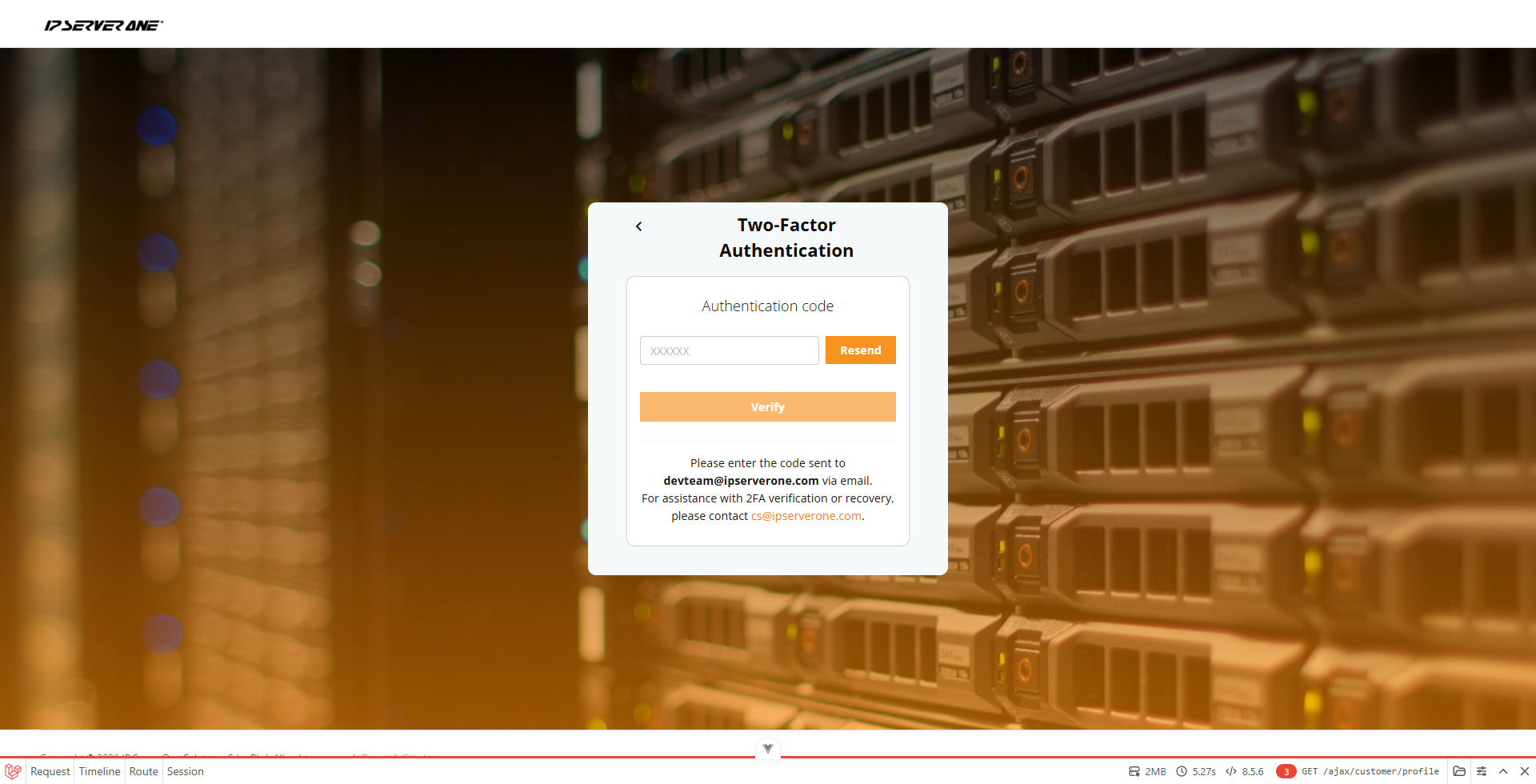
2. You will be prompted to enter the authentication code.If no authentication method has been set up, a verification code will be sent to your registered email address by default.
Retrieve the code from your email, enter it in the authentication field, and click Verify.
3. Once logged in, click on the profile icon in the top right corner and select My Account from the drop-down menu.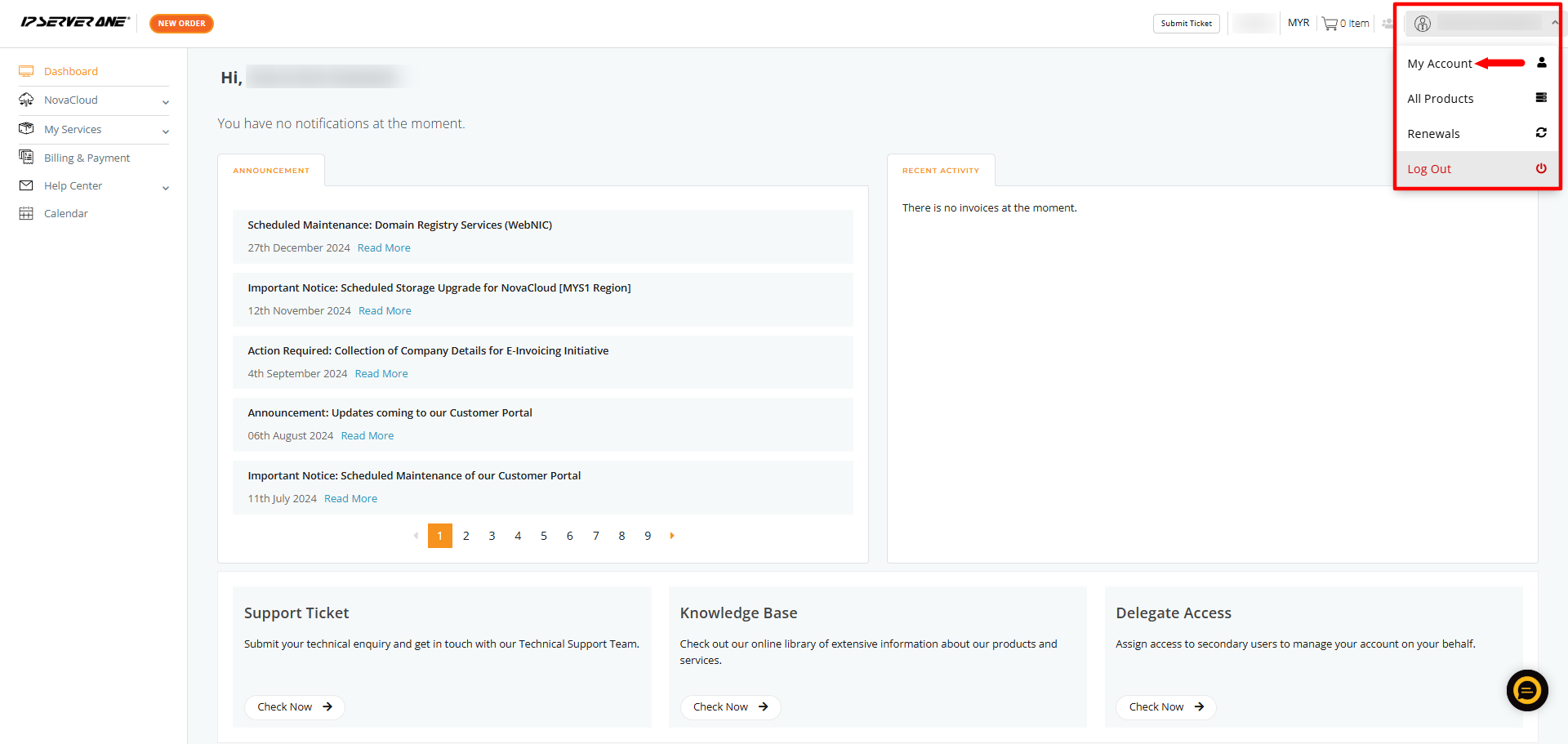
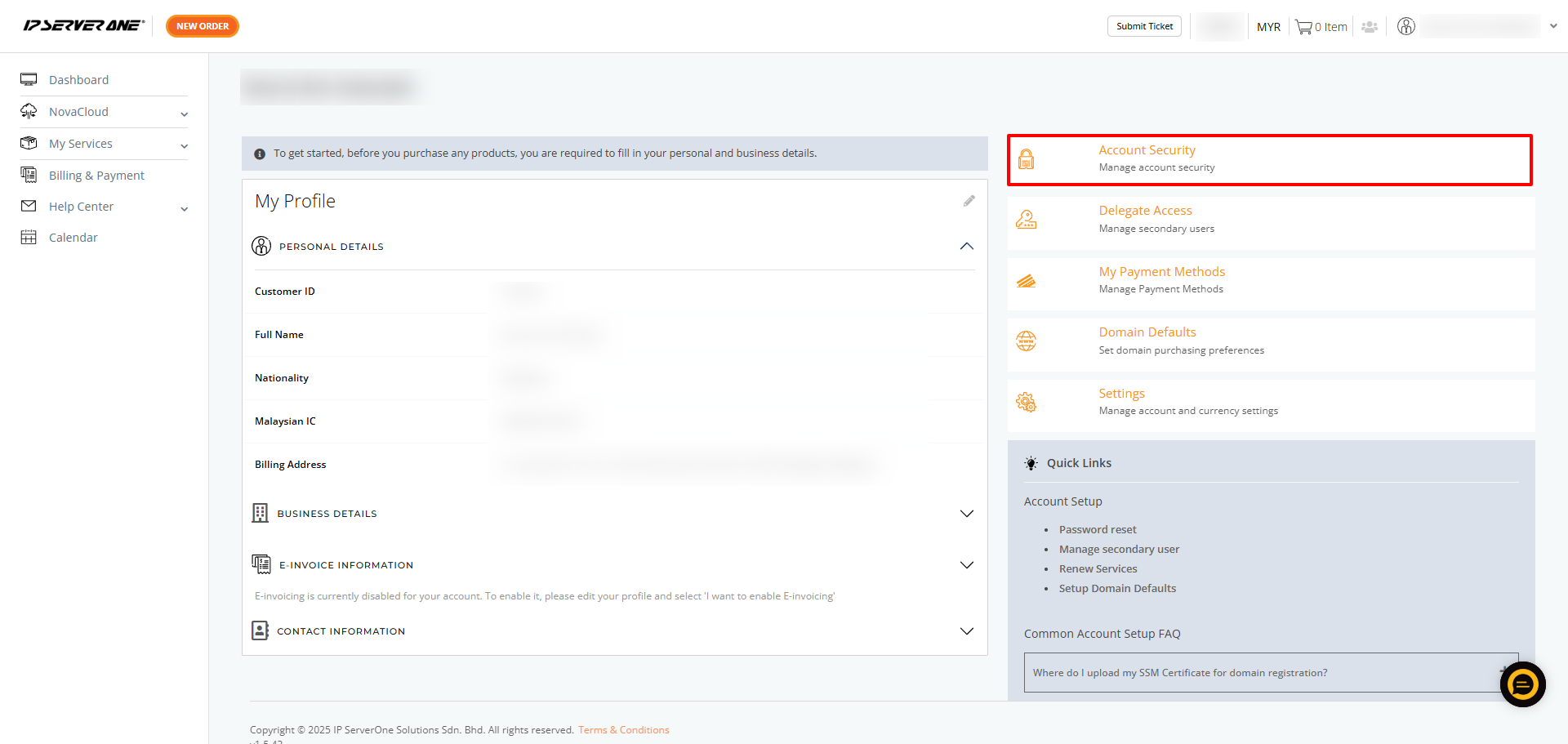
4. On the Account page, click Account Security.
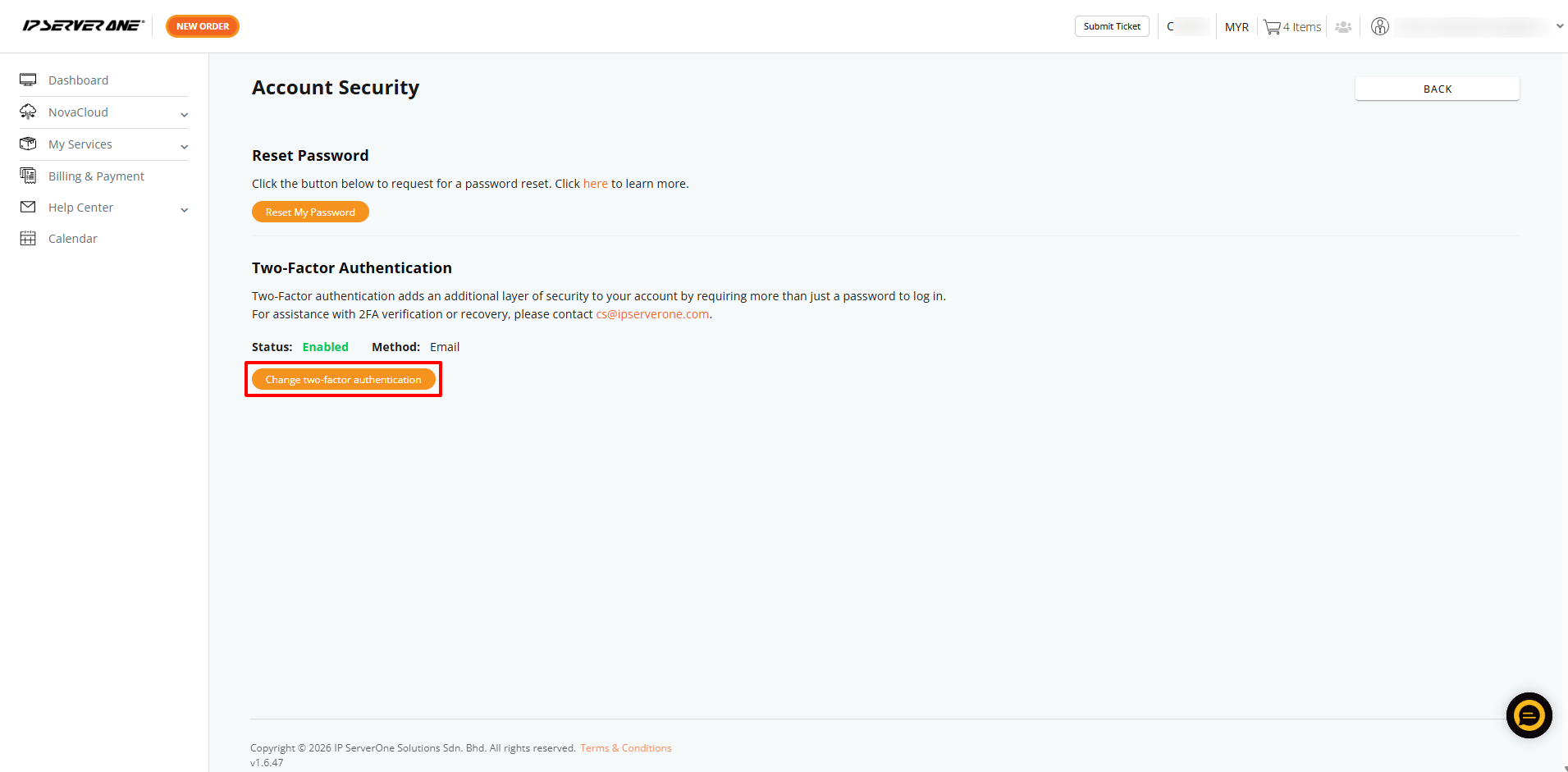
5. Click Change Two-Factor Authentication (2FA) to update your 2FA settings.
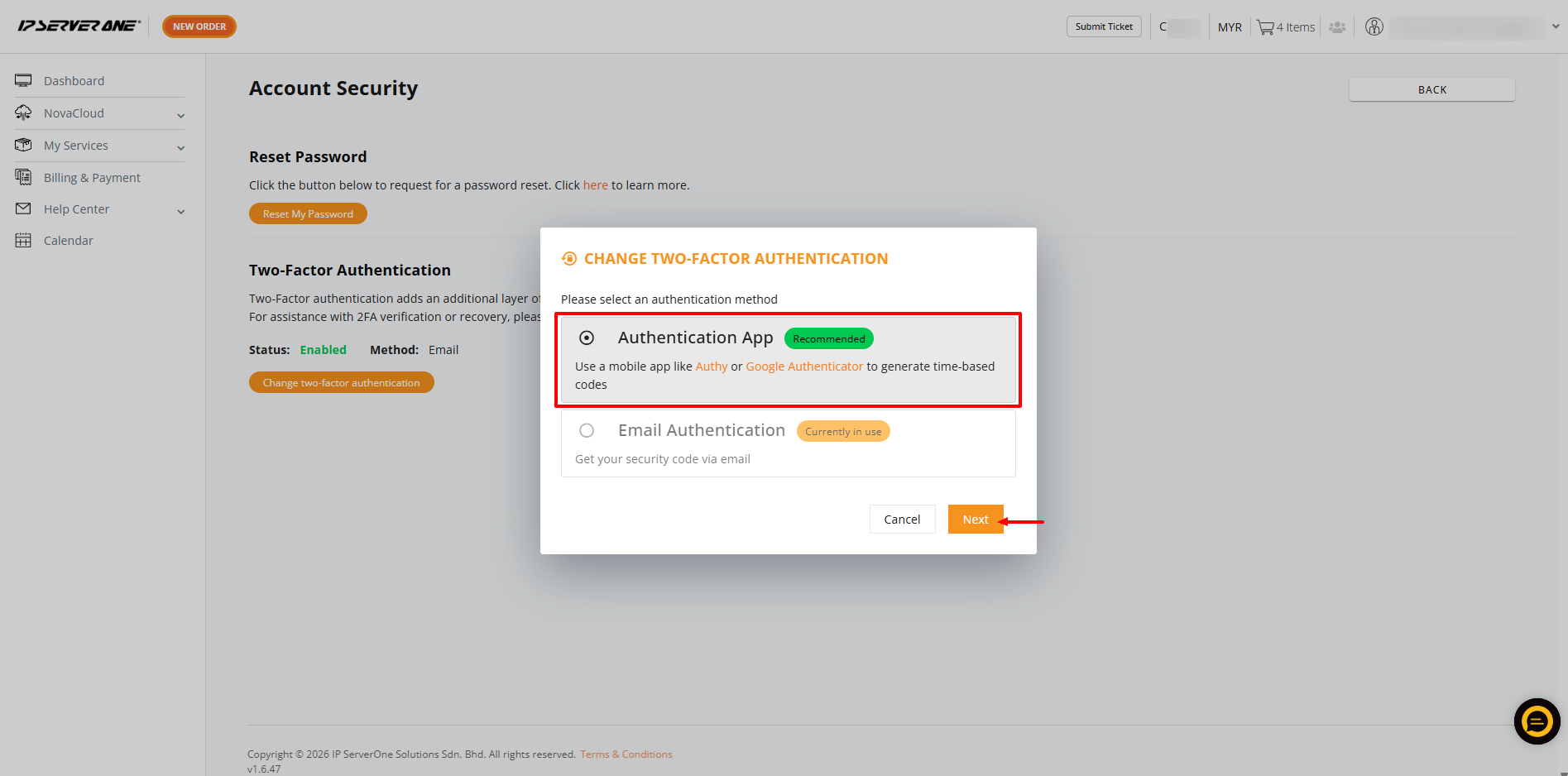
6. There are two 2FA options available. By default, email authentication is enabled. Select the Authentication App, then click Next to proceed.
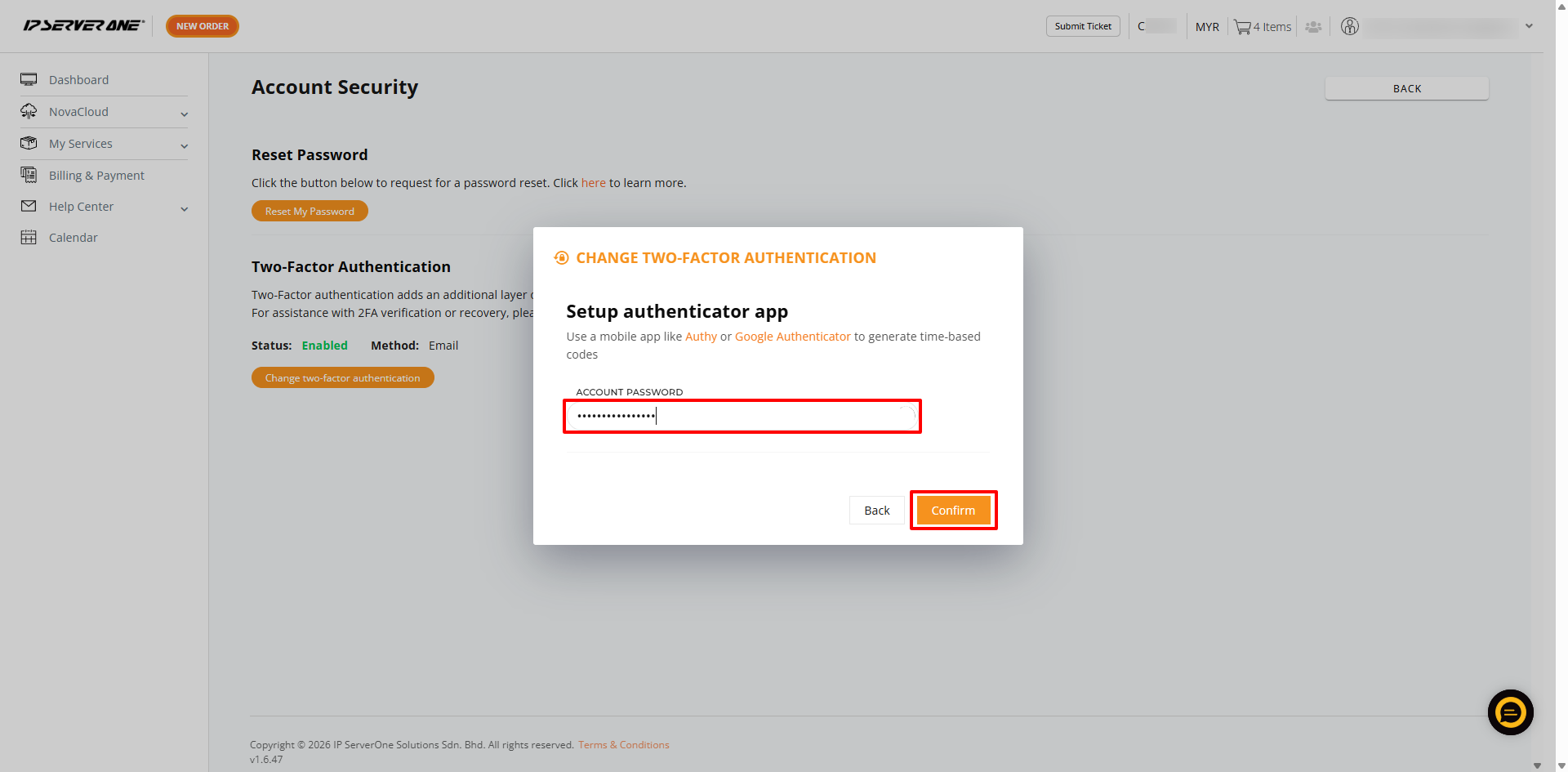
7. Enter your current Customer Portal account password and click Confirm.
8. Set up an authenticator app on your mobile device. You may use apps such as Authy or Google Authenticator to generate time-based codes.
9. Open your authenticator app, tap the “+” or Add button, and select Scan a QR code.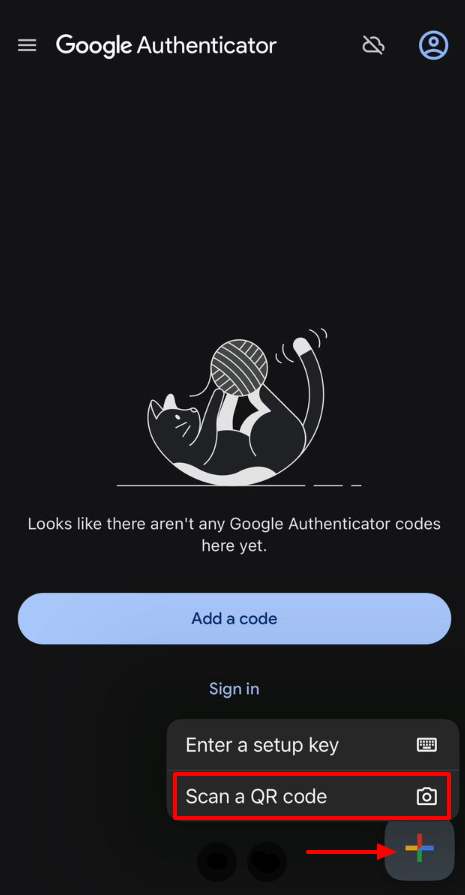
Scan the QR code displayed in your Customer Portal.
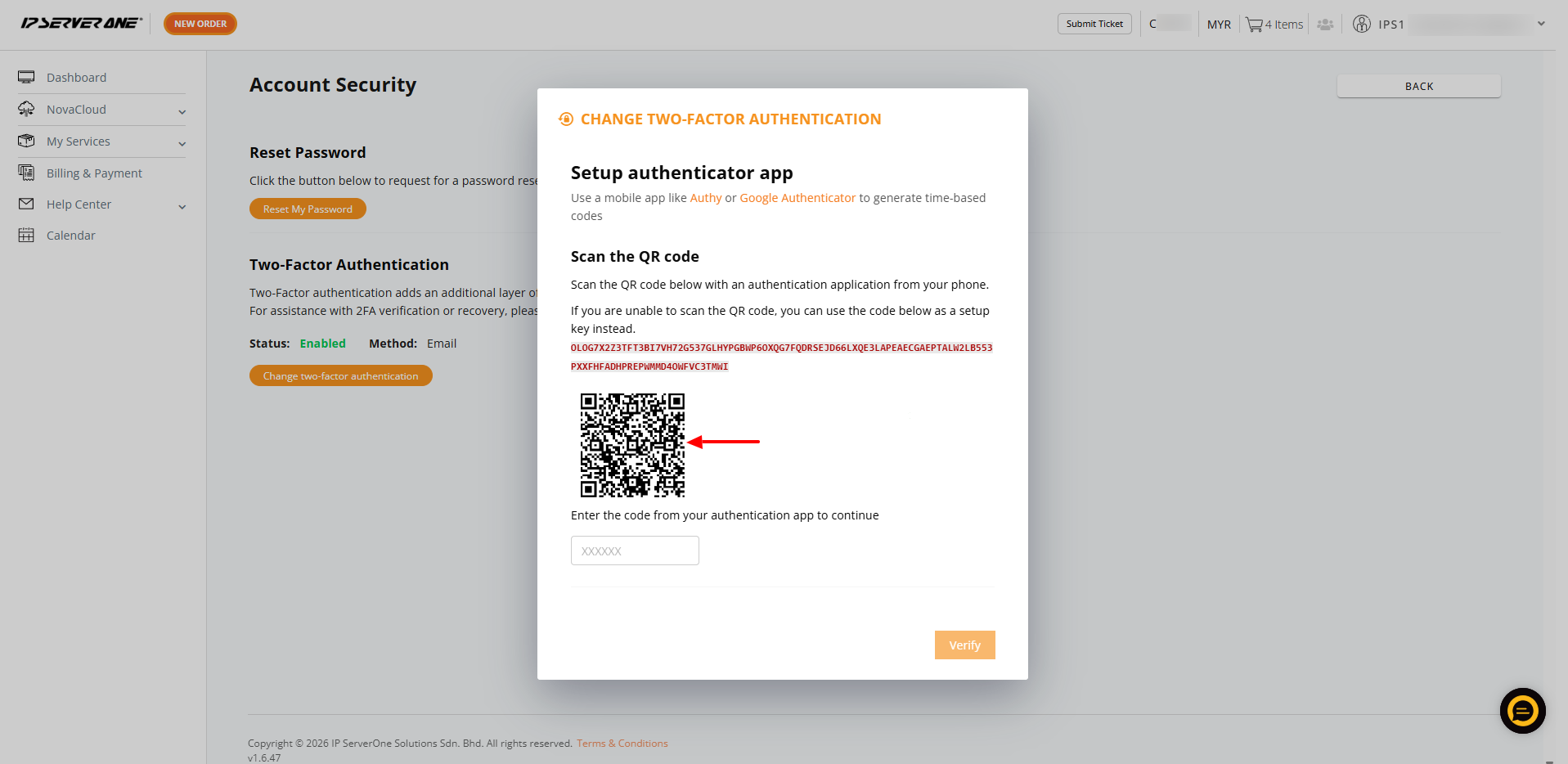
10. A time-based code will be generated in your authenticator app with a label similar to: IPS1-PORTAL-C0000 (Customer ID). Enter this code in the Customer Portal and click Verify.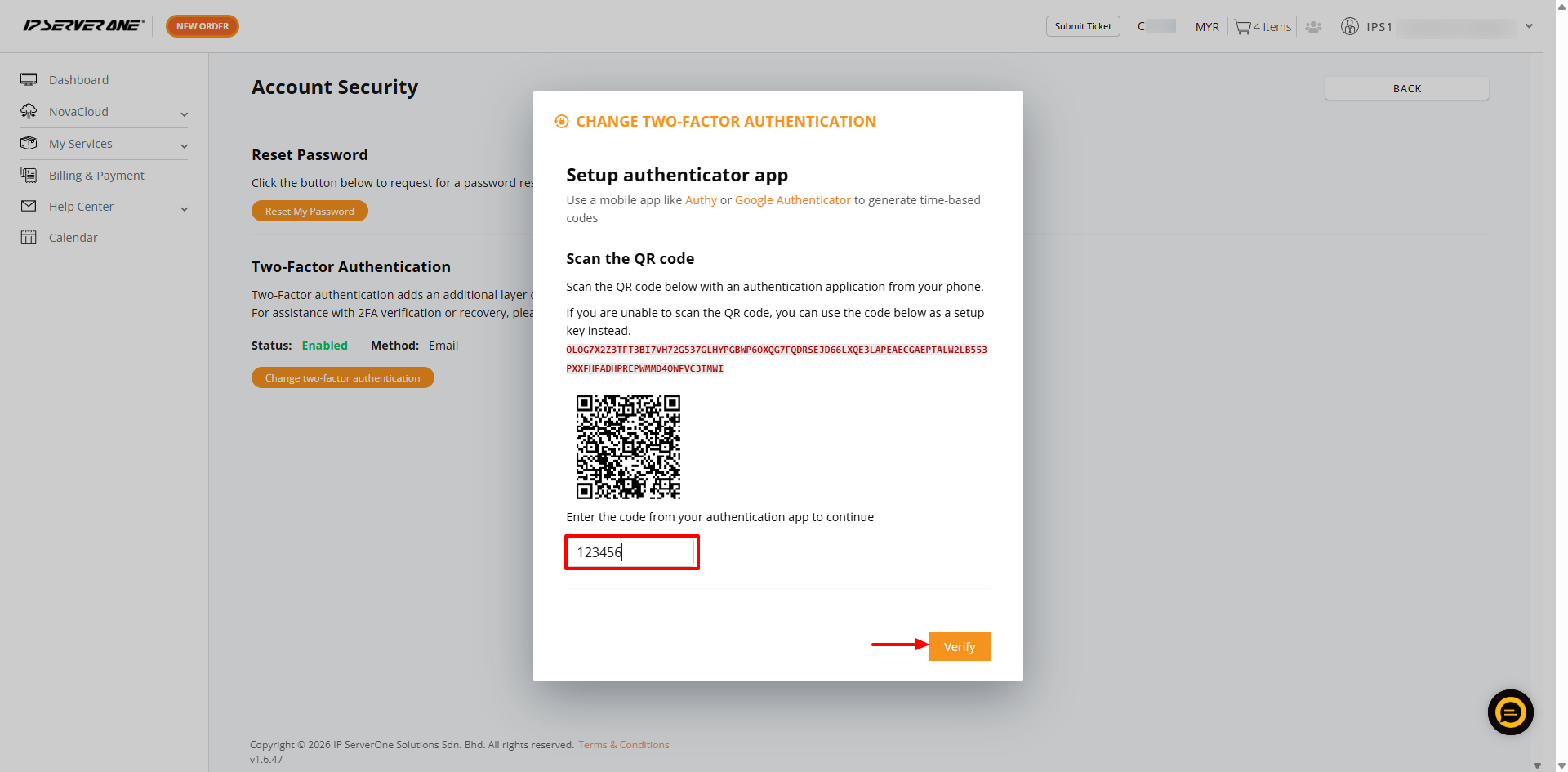
11. Once verified, your 2FA method will be successfully updated. You can now use the authenticator app for future logins to the Customer Portal.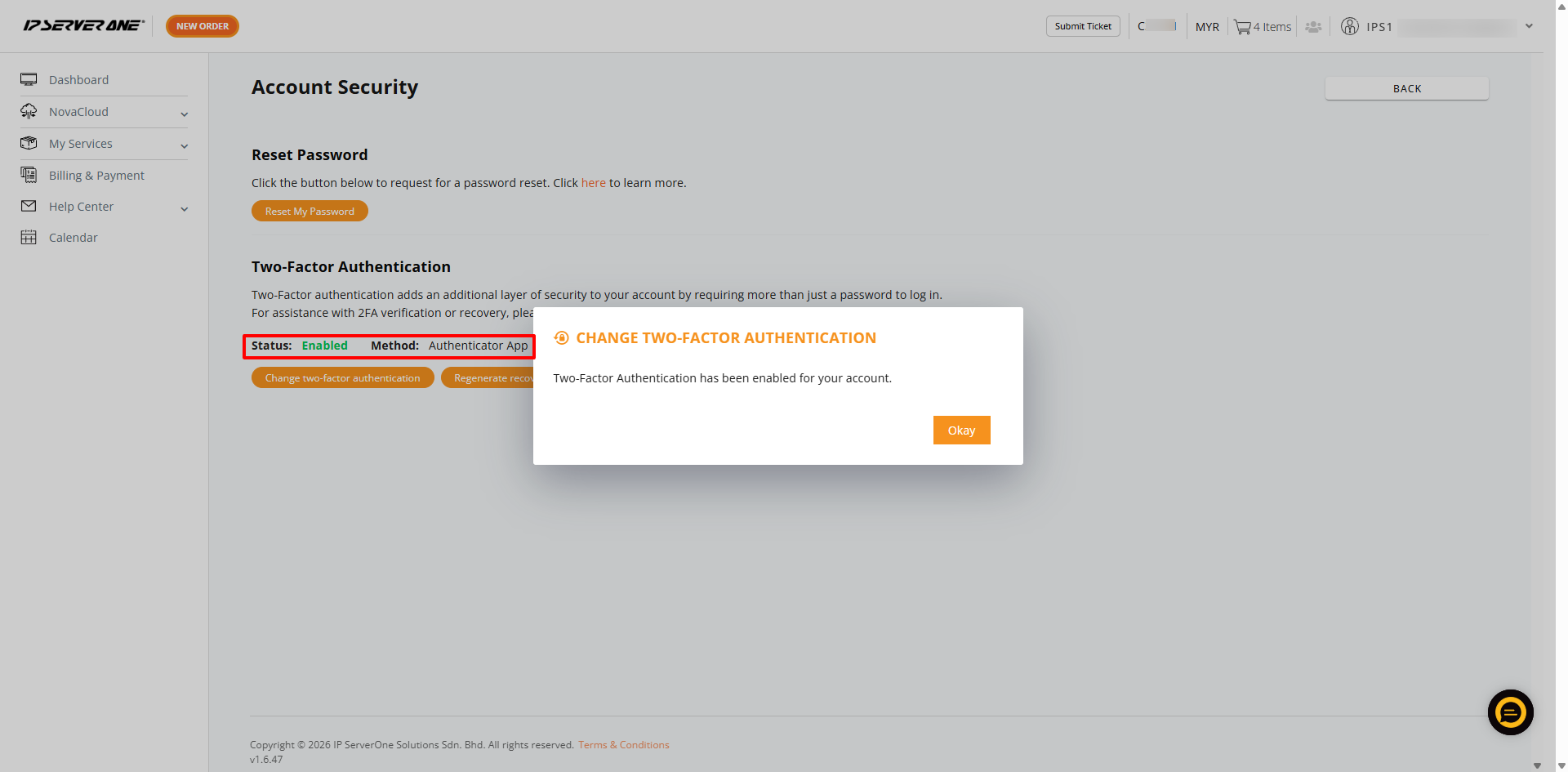
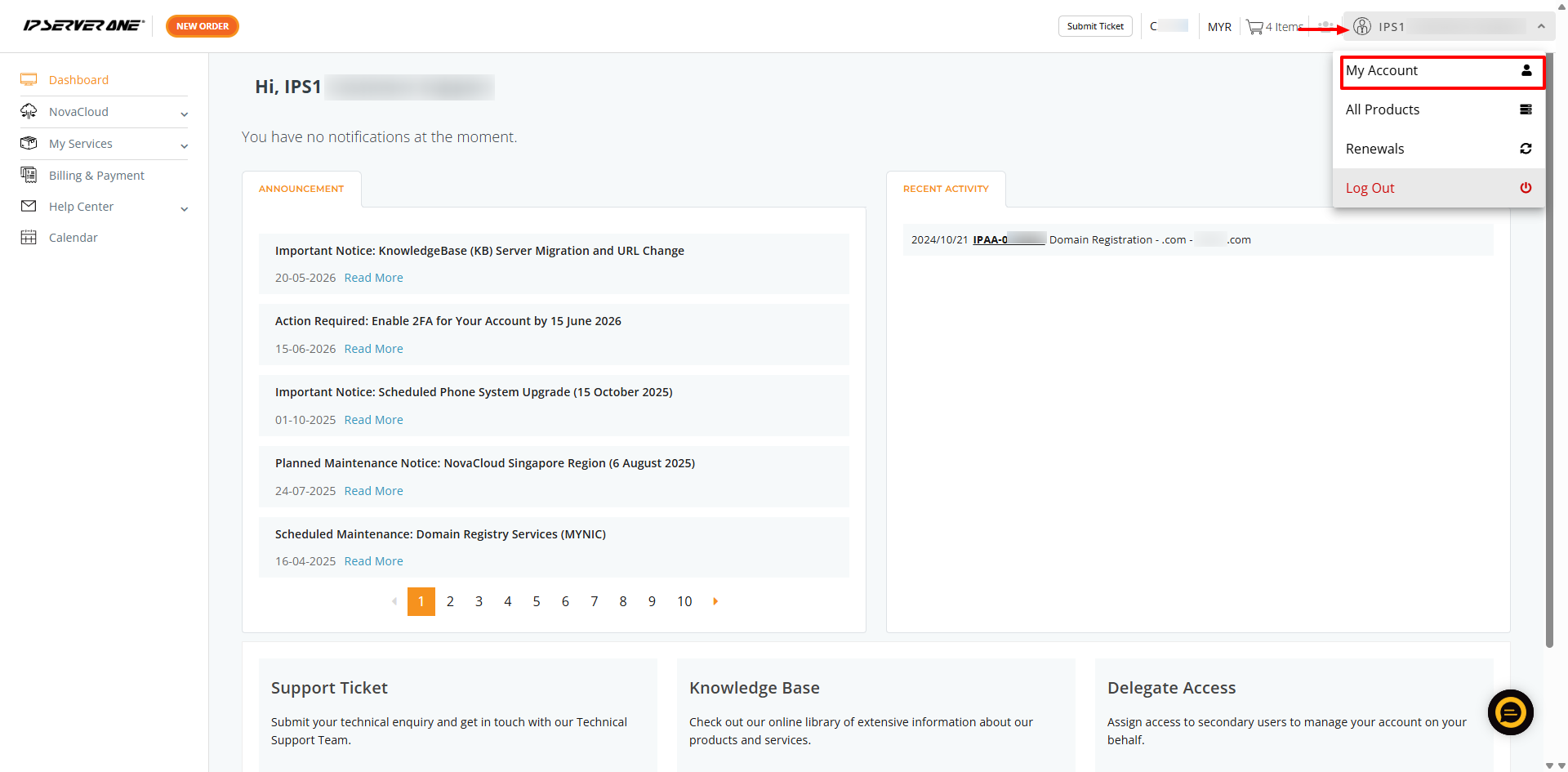
1. Once logged in, click on the profile icon in the top right corner and select My Account from the drop-down menu.
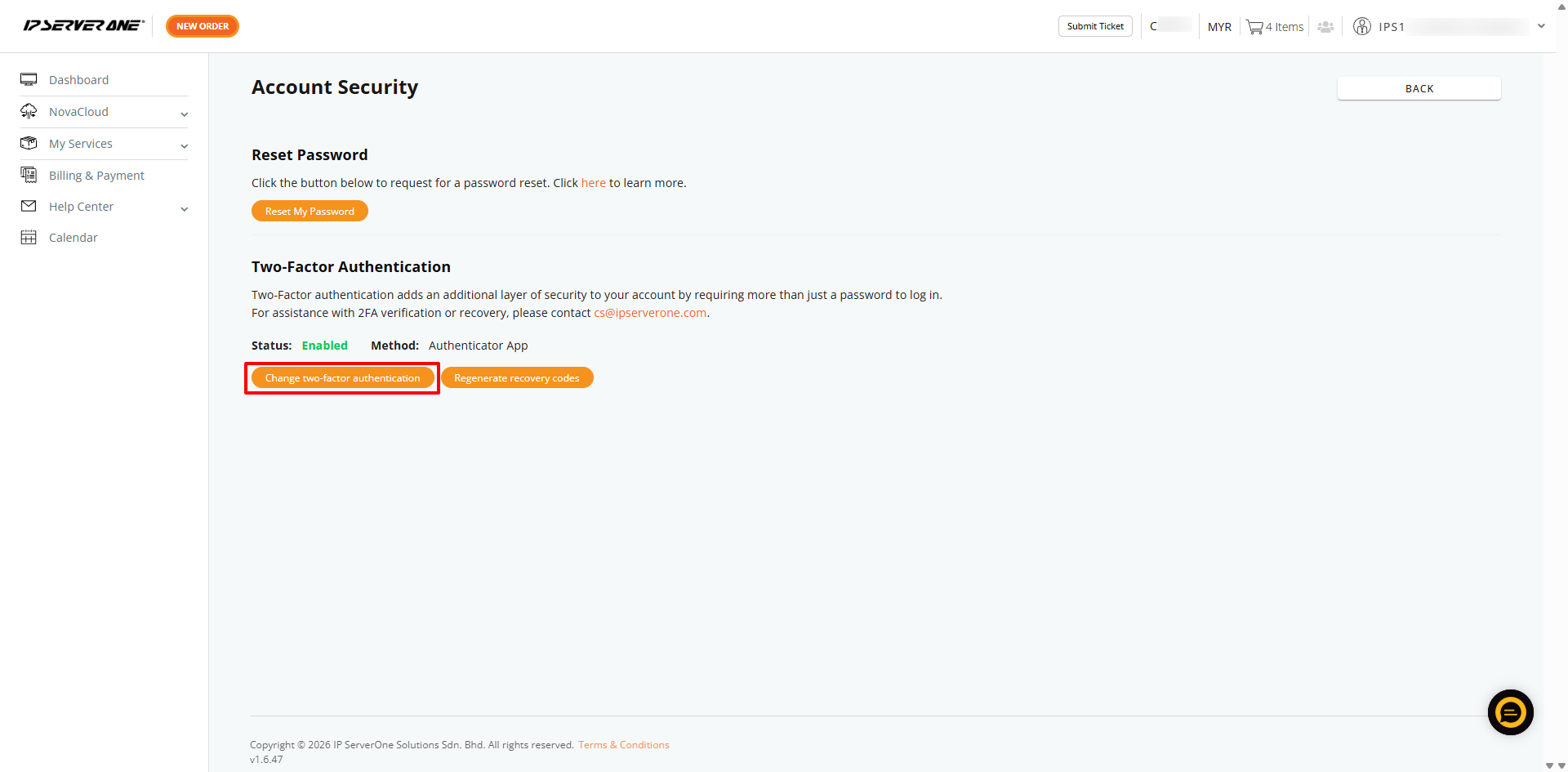
2. On the Account page, click Account Security.
3. Click Change Two-Factor Authentication (2FA) to update your 2FA settings.
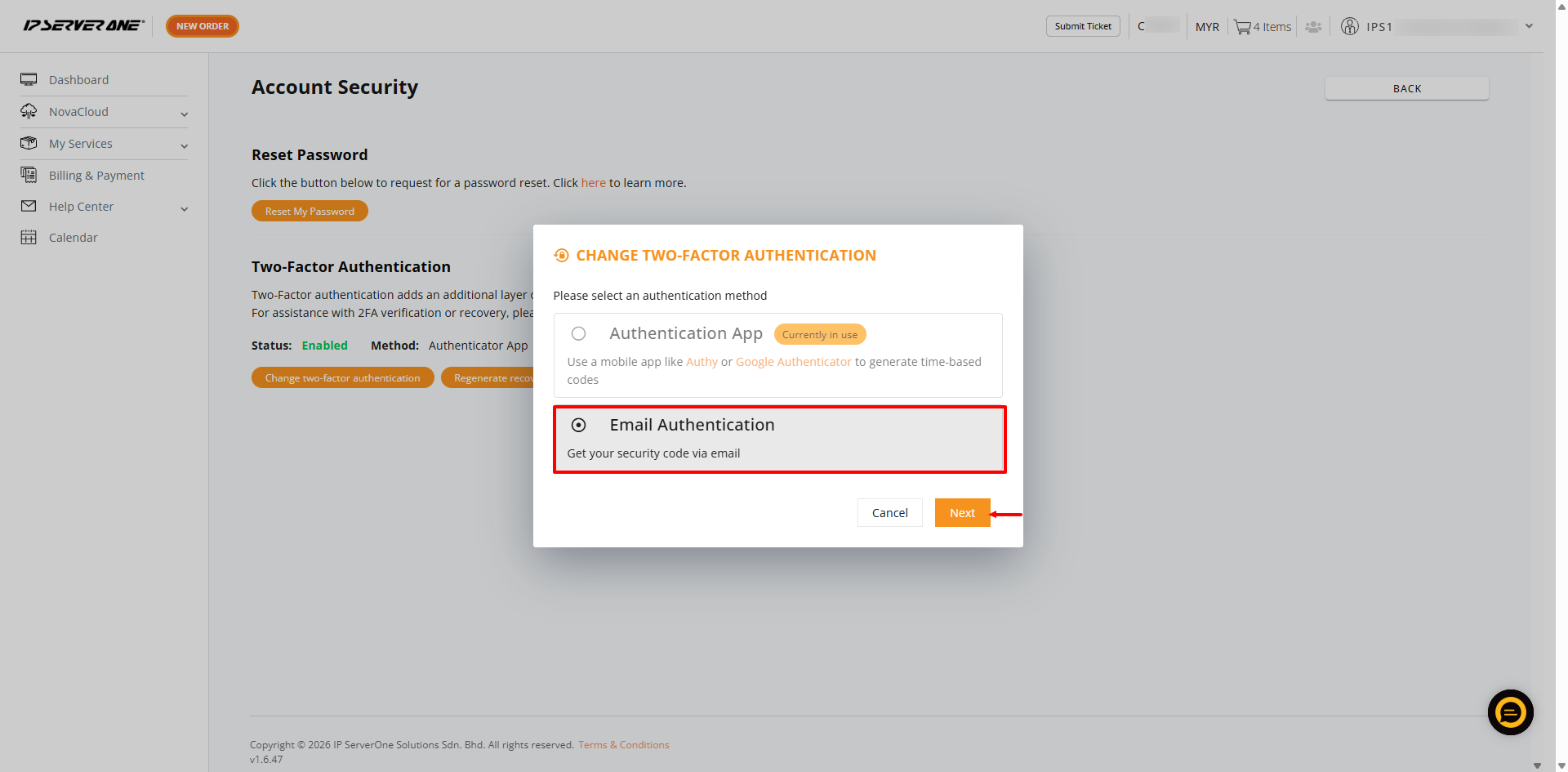
4. Select the Email Authentication, then click Next to proceed.
5. Enter your current Customer Portal account password and click Confirm.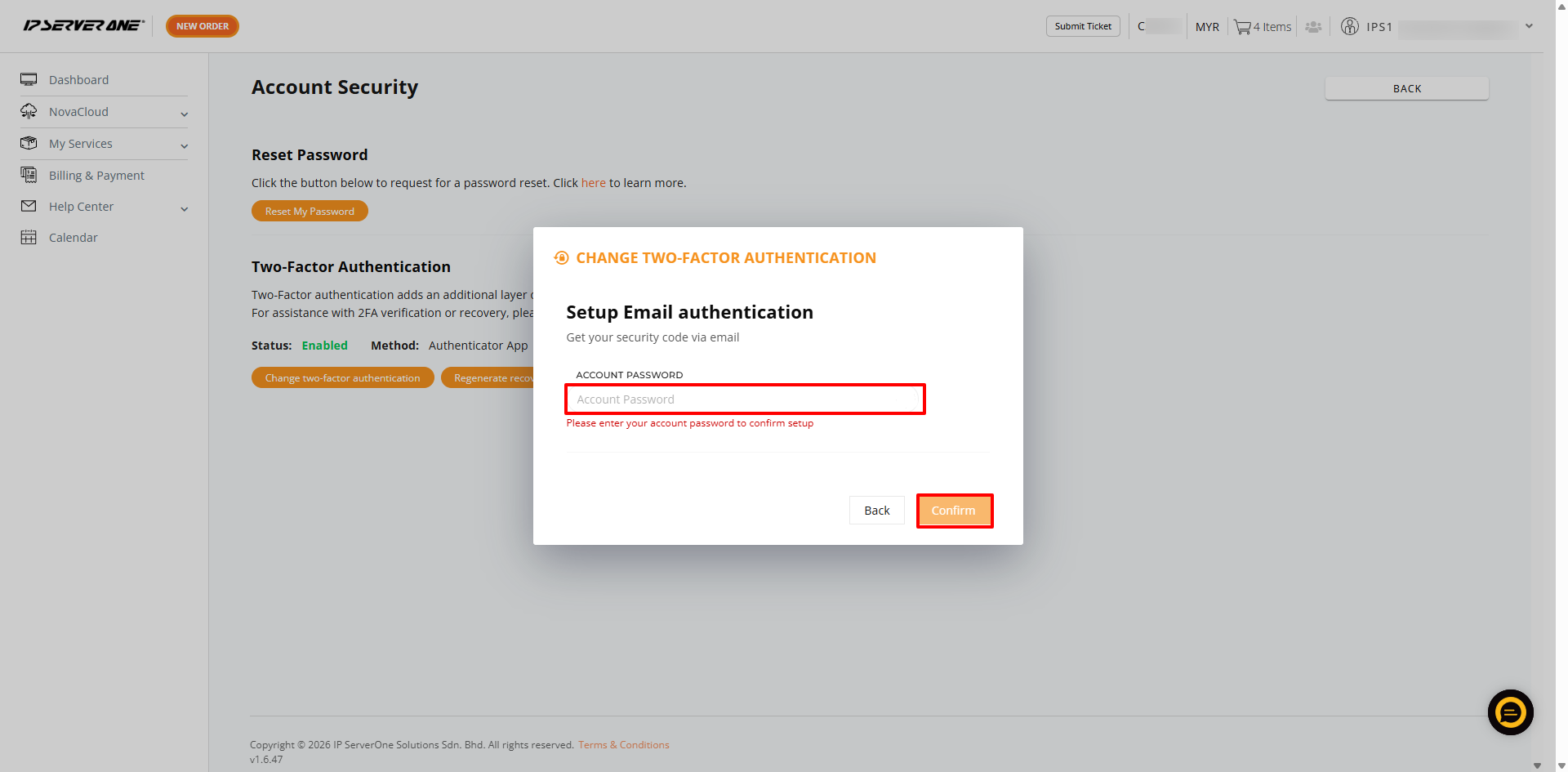 6. A two-factor verification code will be sent to your registered primary email address. Please check your registered email address.
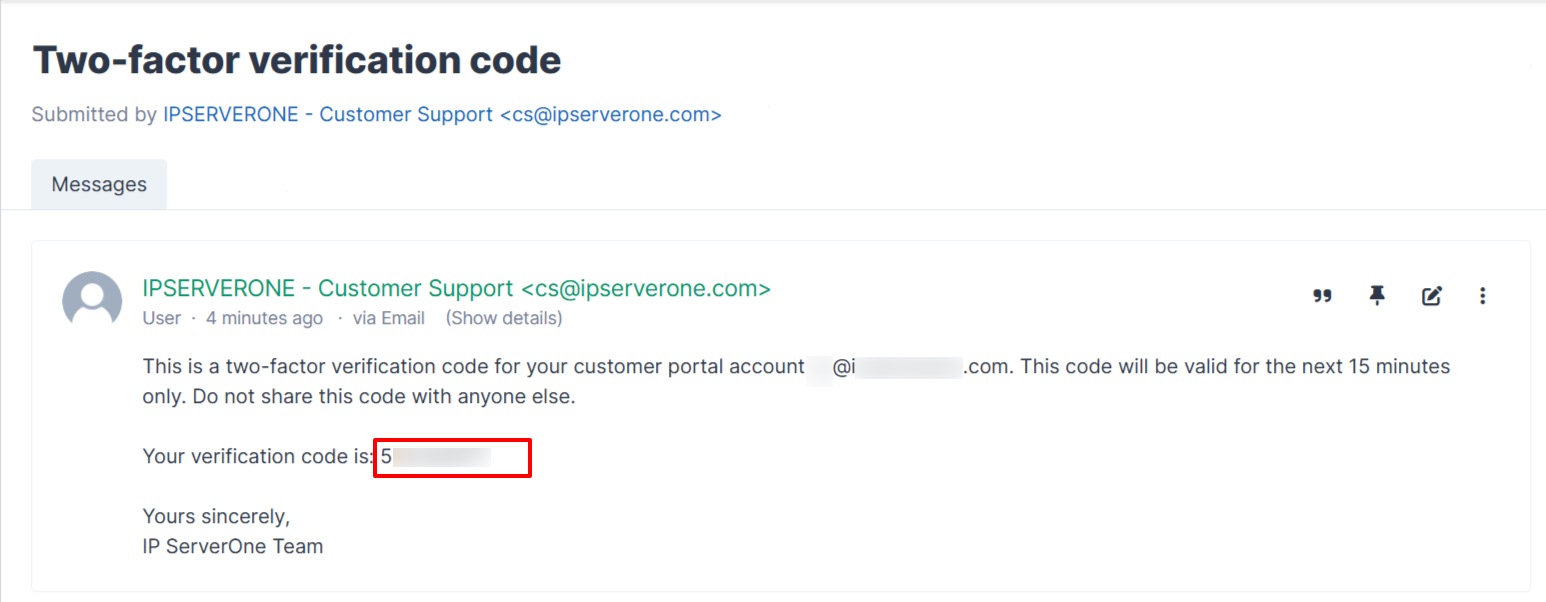
7. Copy the verification code and paste it into the required field in the Customer Portal. Then click Verify.
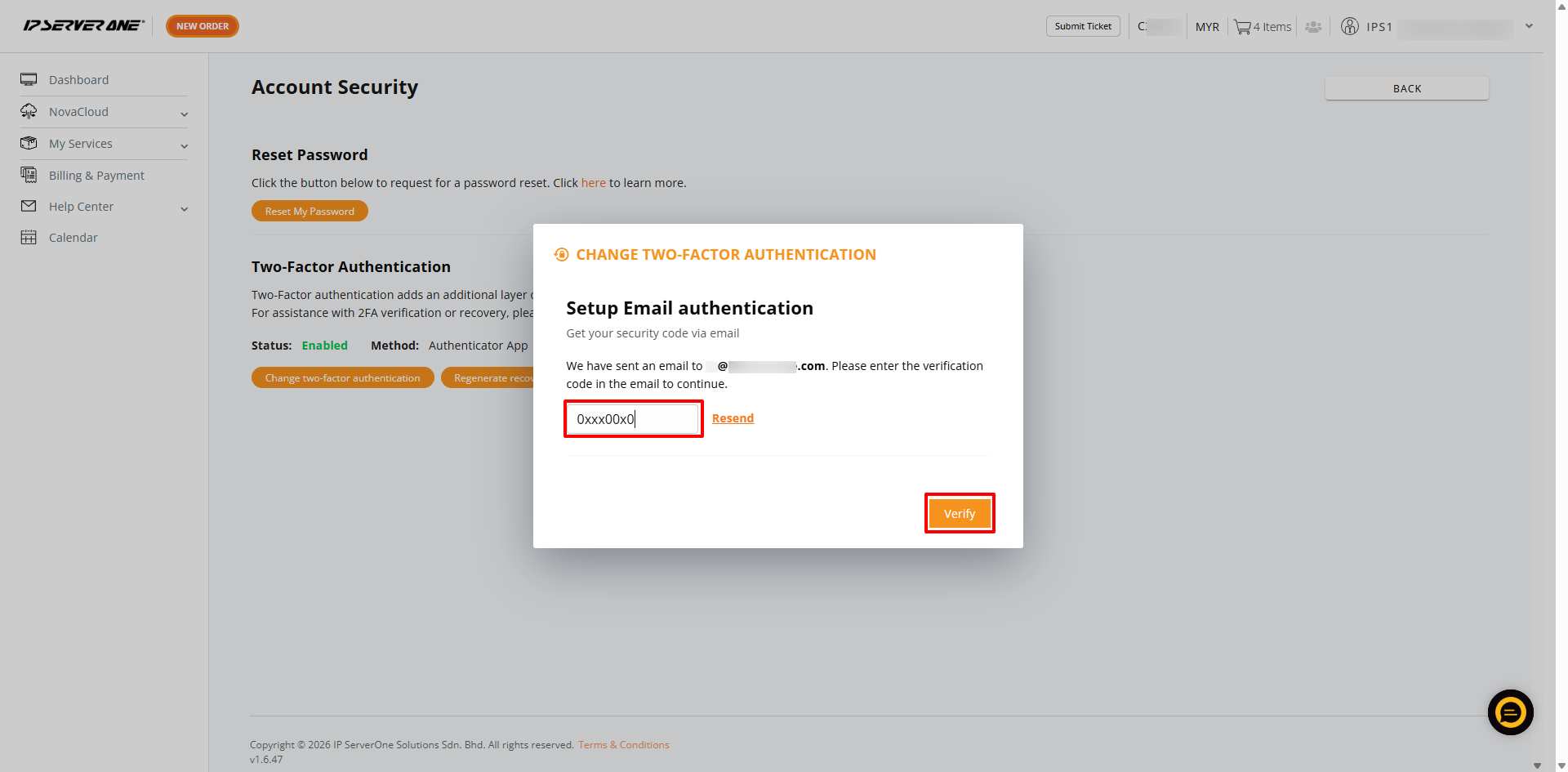
Two-factor authentication will be updated to Email, and you can use your registered email as 2FA verification.
If you have enabled Two-Factor Authentication (2FA) using an authenticator app on your mobile device and are unable to access the authentication code due to a lost or unavailable phone, you may regenerate the recovery code using another phone.
1. Log in to the Customer Portal.
2. Once logged in, click on the profile icon in the top right corner and select My Account from the drop-down menu.
3. On the Account page, click Account Security.
4. Click Regenerate recovery codes.
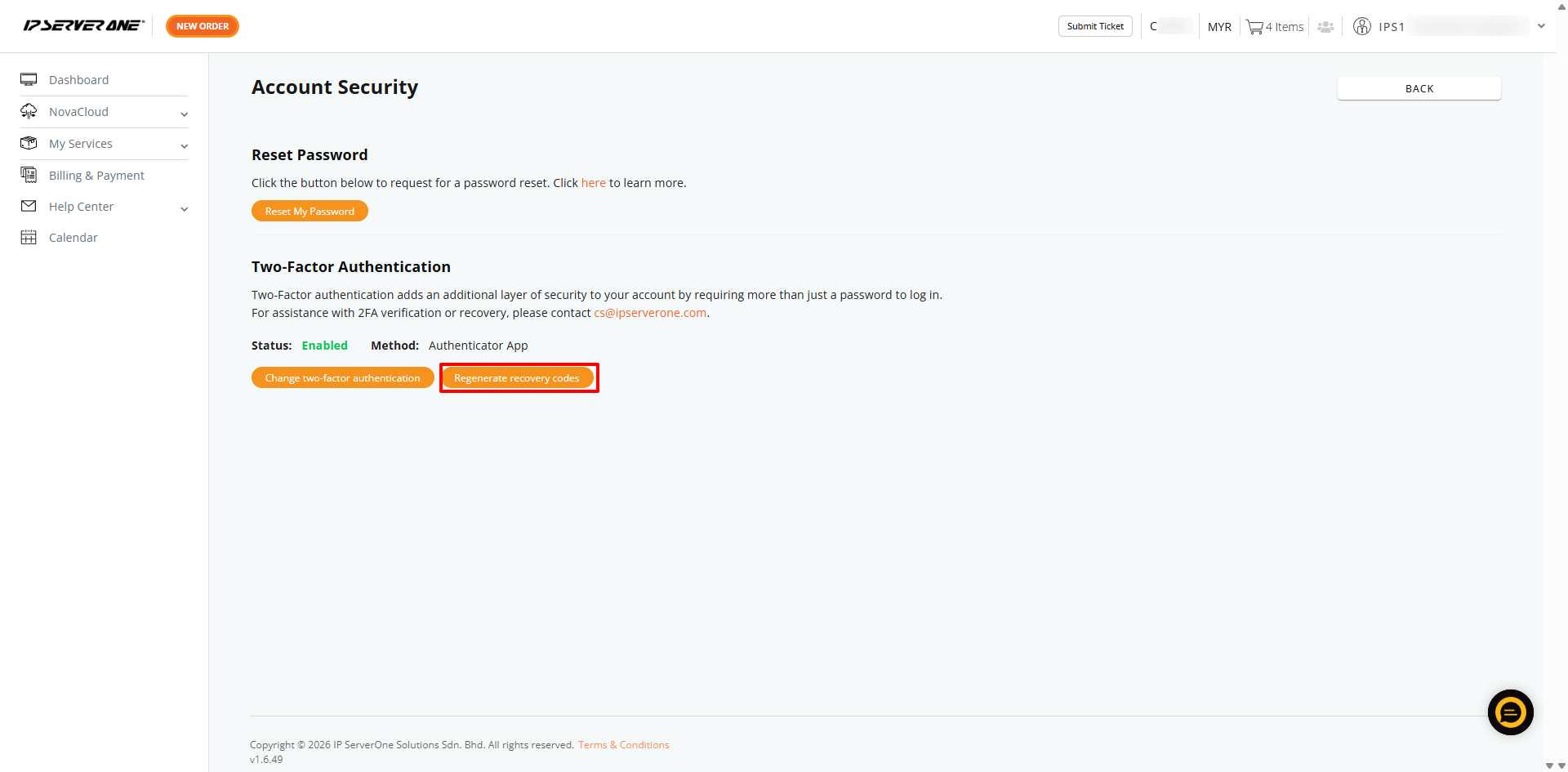
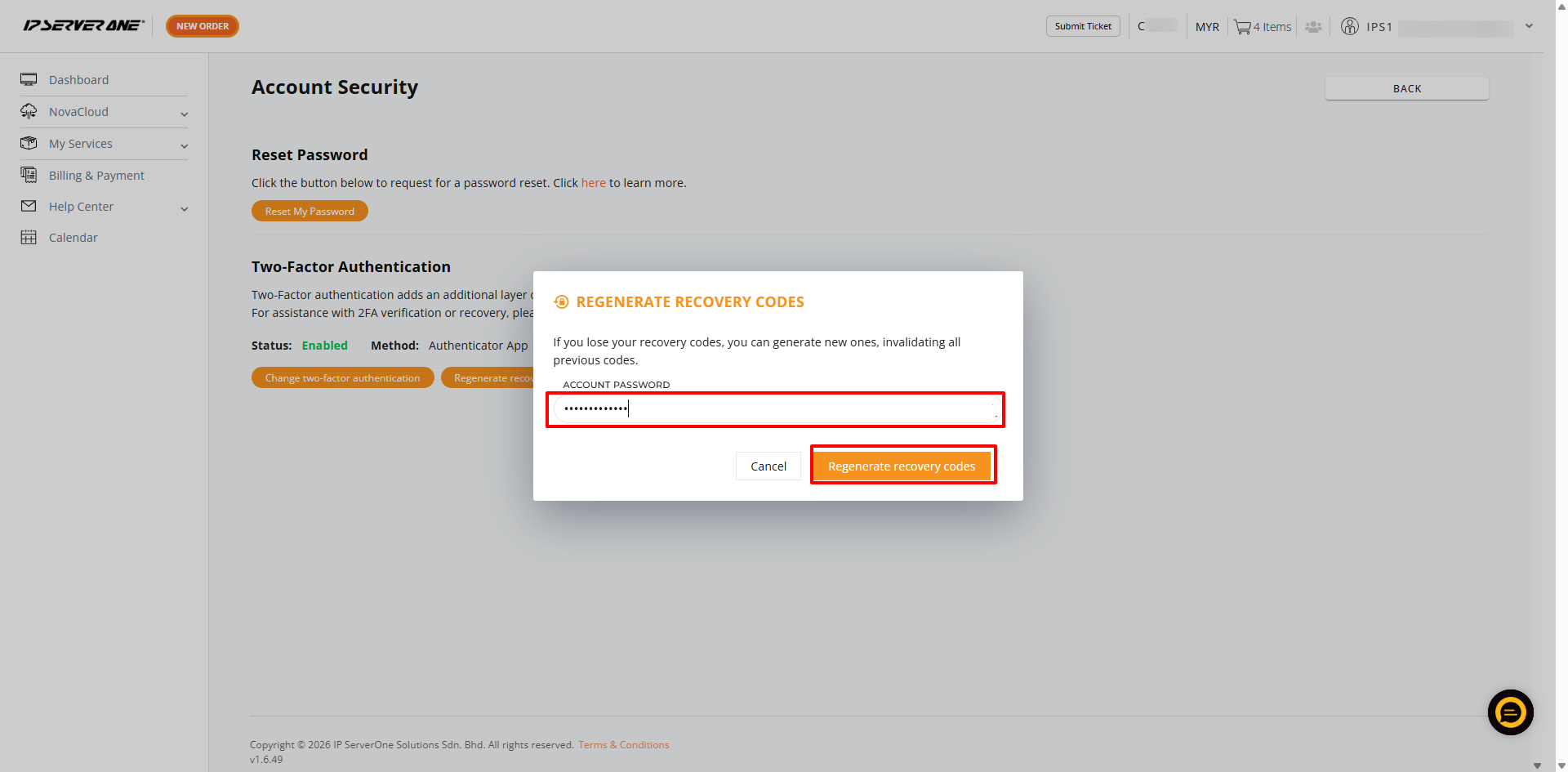
5. Enter your current Customer Portal account password and click Regenerate recovery codes.
6. You will be prompted with a new QR code. Open your authenticator app on your mobile device and scan the QR code. Then, enter the verification code generated by the app to proceed.
The two-factor authentication will be updated to the updated authentication code based on the authentication app that has been set up.
Alternatively, kindly send your request using your registered email address to cs@ipserverone.com. Our team will verify your request and disable 2FA on our end.
Once 2FA is disabled, the system will automatically revert the authentication method to email by default. You may then log in to the Customer Portal and complete the 2FA verification using your primary registered email address.
Conclusion
Enabling Two-Factor Authentication (2FA) in the Customer Portal adds an extra layer of security to your account by requiring a second verification step during login. By setting up 2FA using either email or an authenticator app, you help protect your account from unauthorized access. We highly recommend keeping your authentication method up to date and ensuring you have access to your registered email or mobile device at all times for a smooth and secure login experience.
Article posted by Suhana on Feb 20, 2023