
Search Our Database
How to Install Let’s Encrypt SSL Certificate in DirectAdmin (Evolution Skin)
Introduction
Installing an SSL certificate is crucial for securing your website, encrypting user data, and enabling HTTPS. It helps protect sensitive information, improves SEO rankings, and builds trust with visitors. DirectAdmin, a popular web hosting control panel, makes SSL installation simple, especially with its modern Evolution Skin.
This guide will walk you through the process of installing an SSL certificate in DirectAdmin, whether using Let’s Encrypt for a free option or a custom SSL certificate from a provider. By the end, your website will be secured with HTTPS, ensuring a safer experience for your users.
Prerequisites
- Access to Direct Admin with user-level permissions
- A domain name correctly pointed to your server IP
- DirectAdmin’s ACME Provider enabled (Let’s Encrypt should be available by default)
Steps to Install Let’s Encrypt SSL in DirectAdmin.
Step 1: Log in to DirectAdmin
- Open you browser and navigate to your DirectAdmin URL: https:your-server-ip:2222
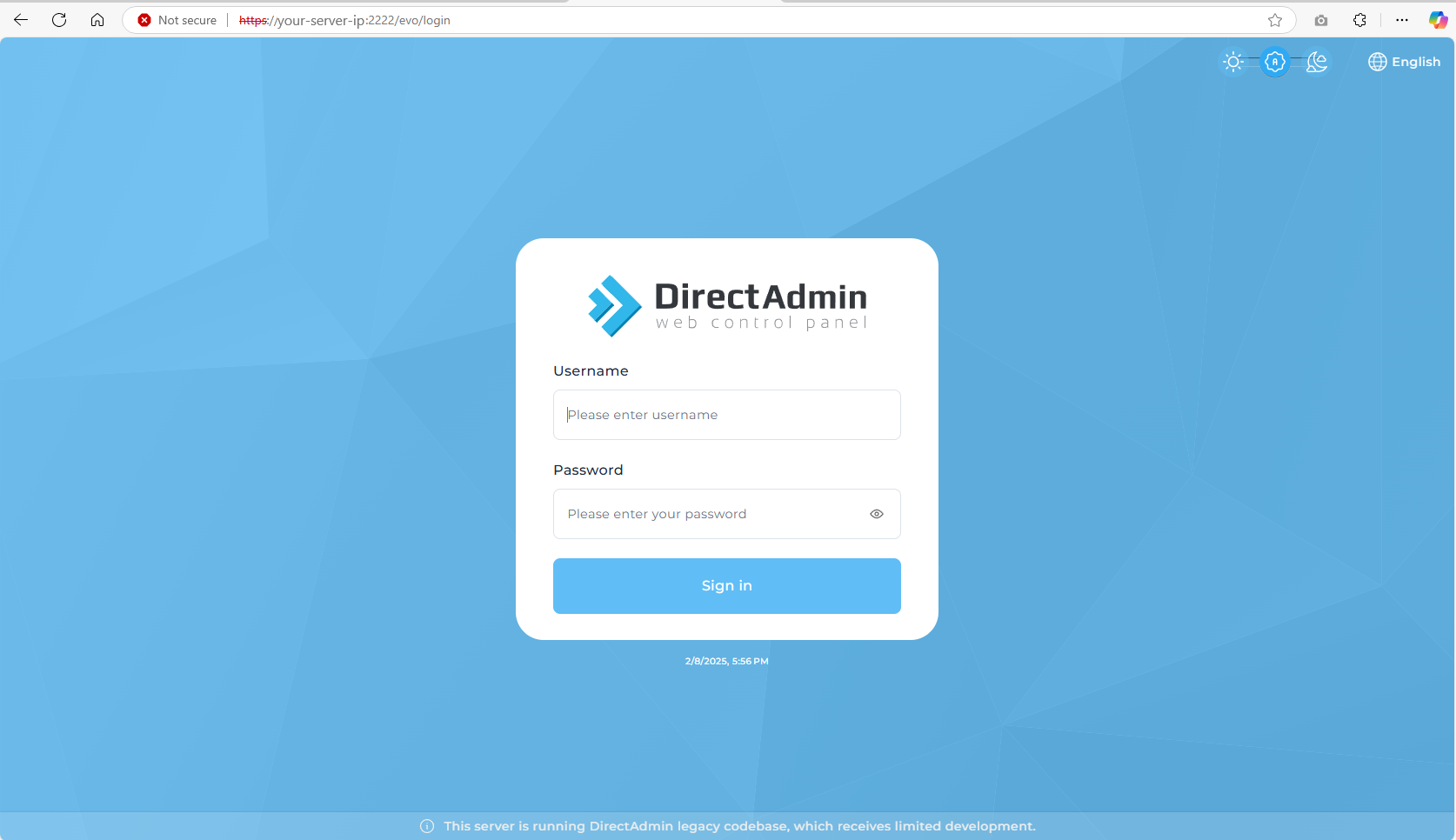
- Enter your login credentials and click Sign In
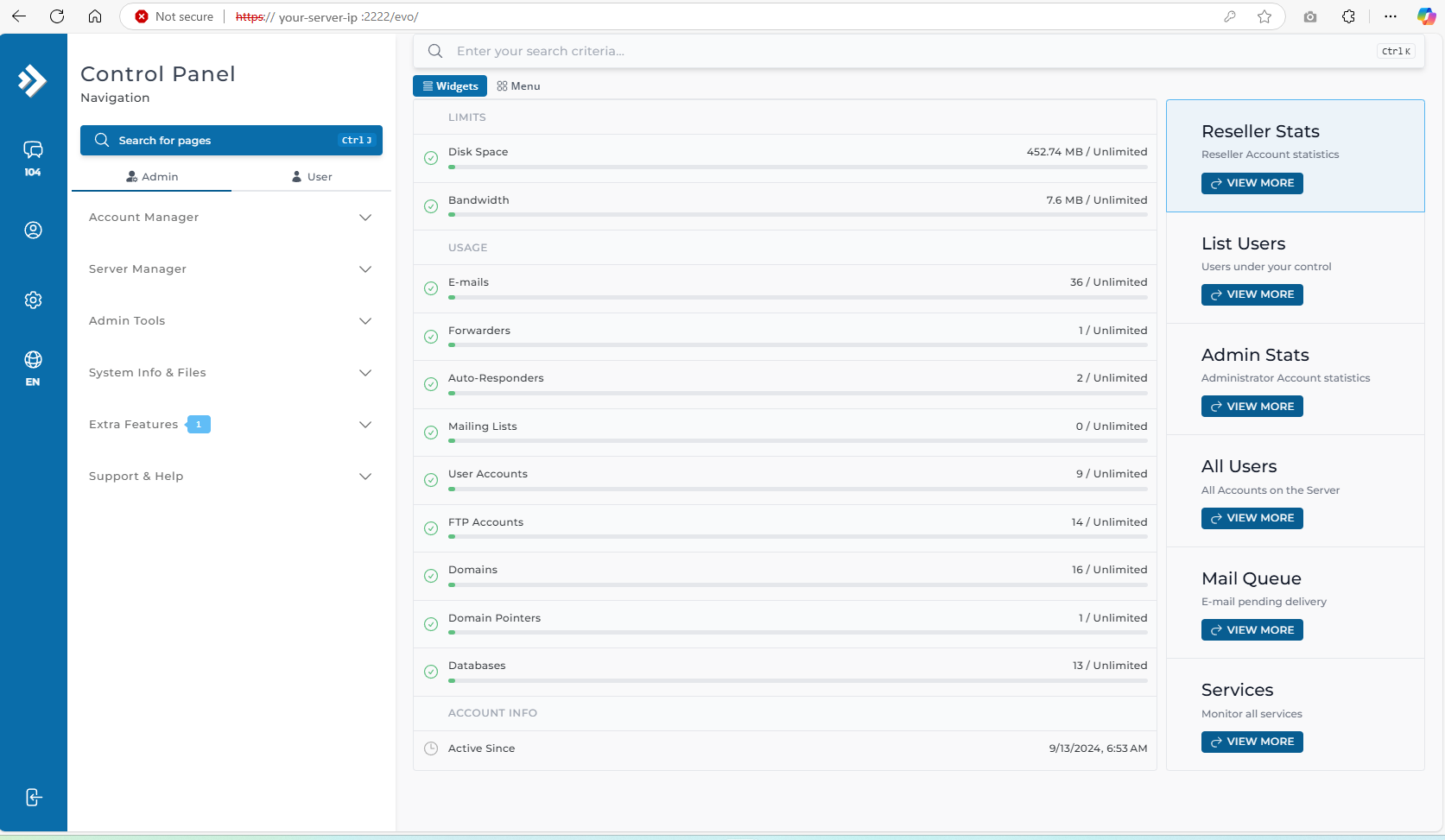
Step 2: Navigate to the SSL certificates Section
- In the Evolution Skin, go to the left-side menu.
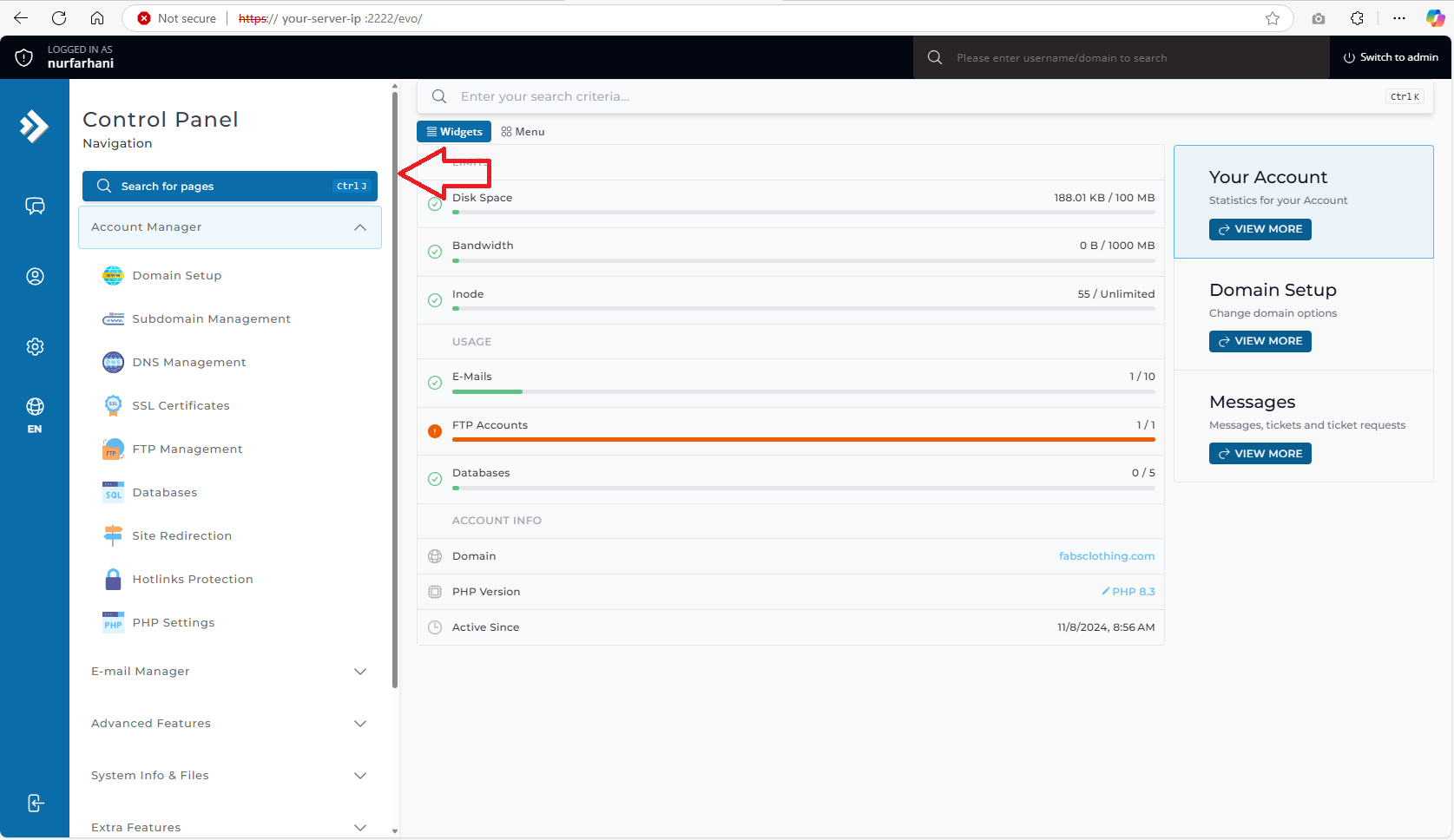
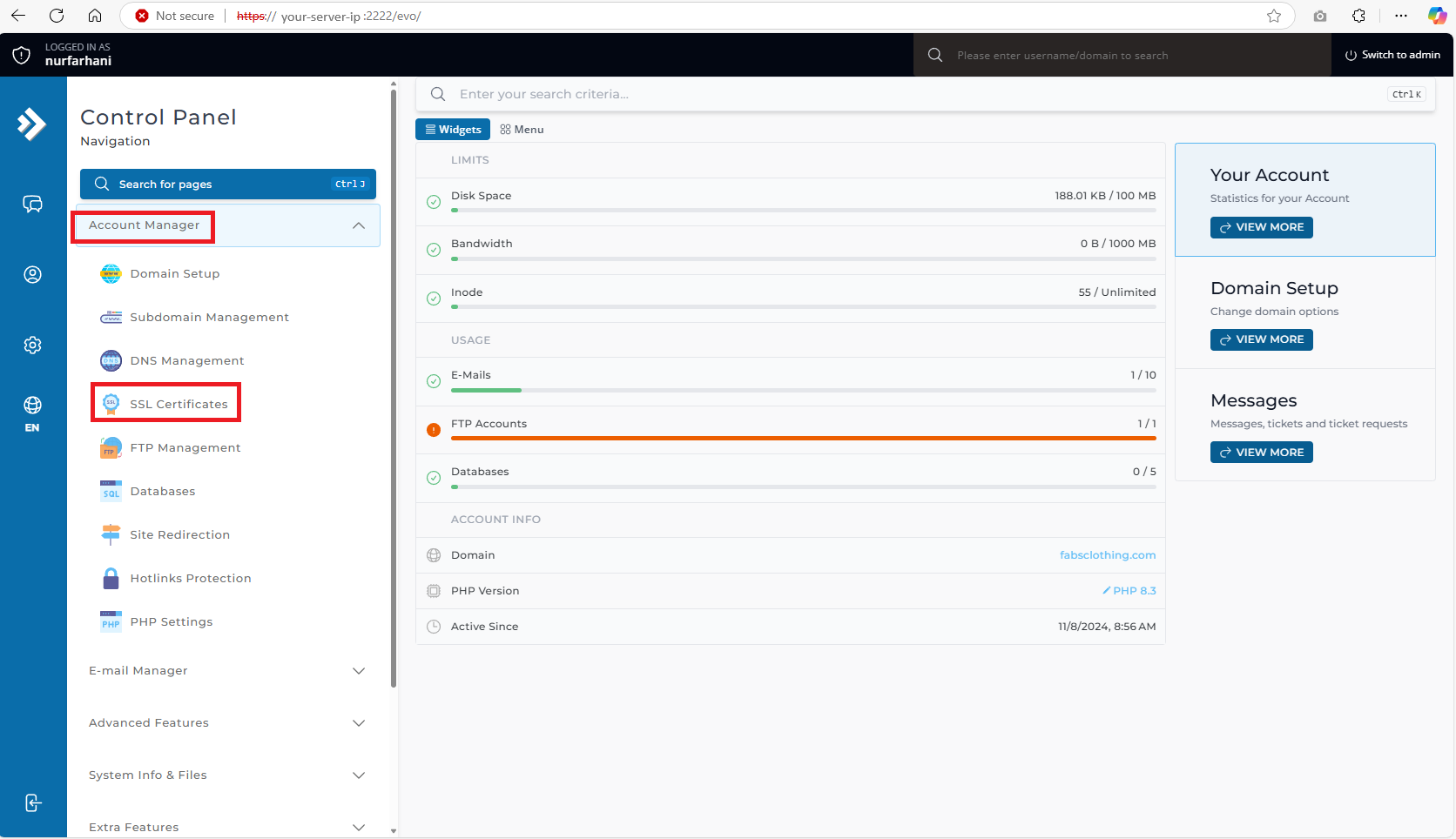
- Click on the Account Manager → SSL Certificates.
Step 3: Enable Free SSL with Let’s Encrypt
- Select “Get automatic certificate from ACME Provider”.
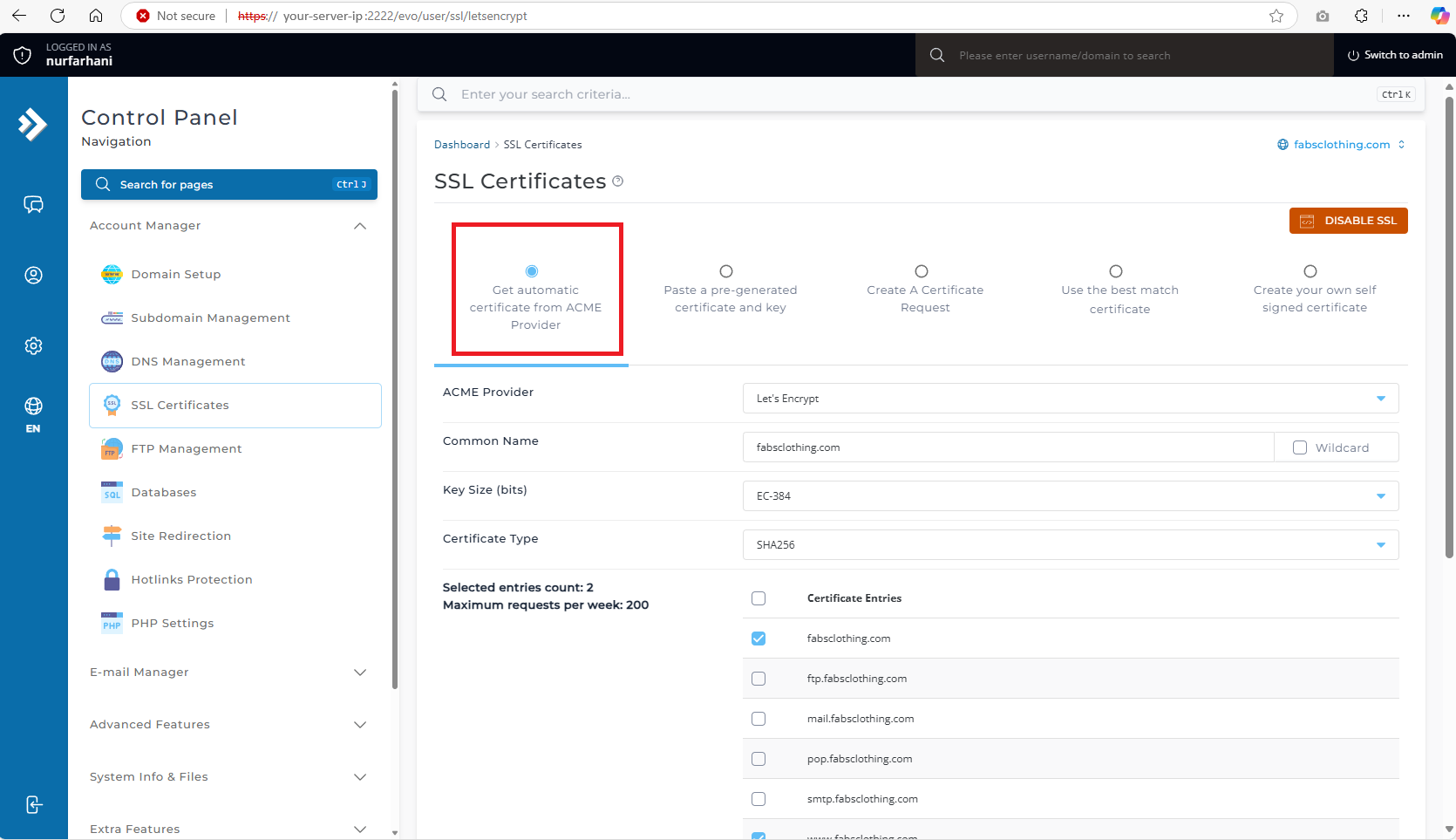
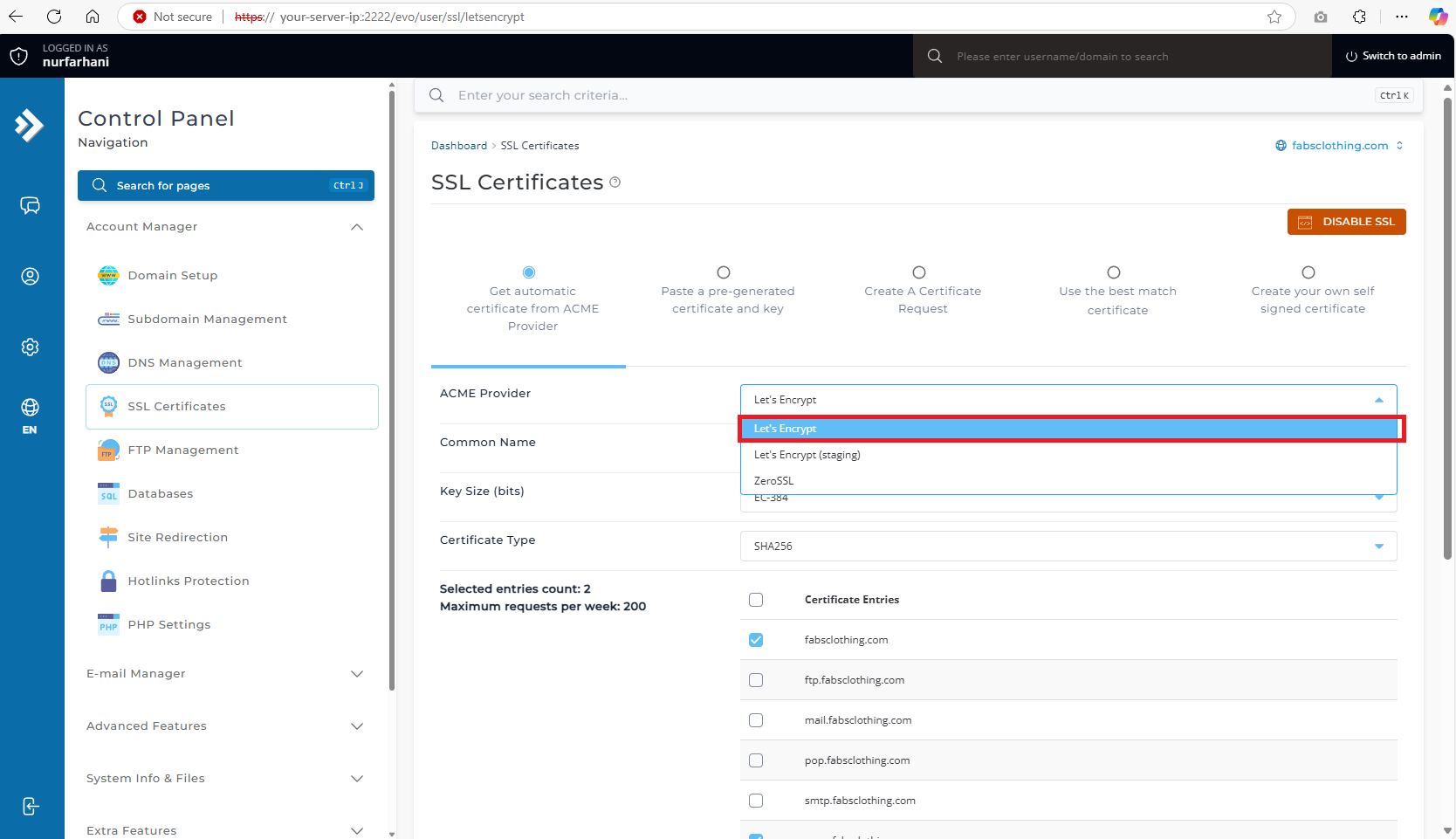
- In the ACME Provider dropdown, choose Let’s Encrypt.
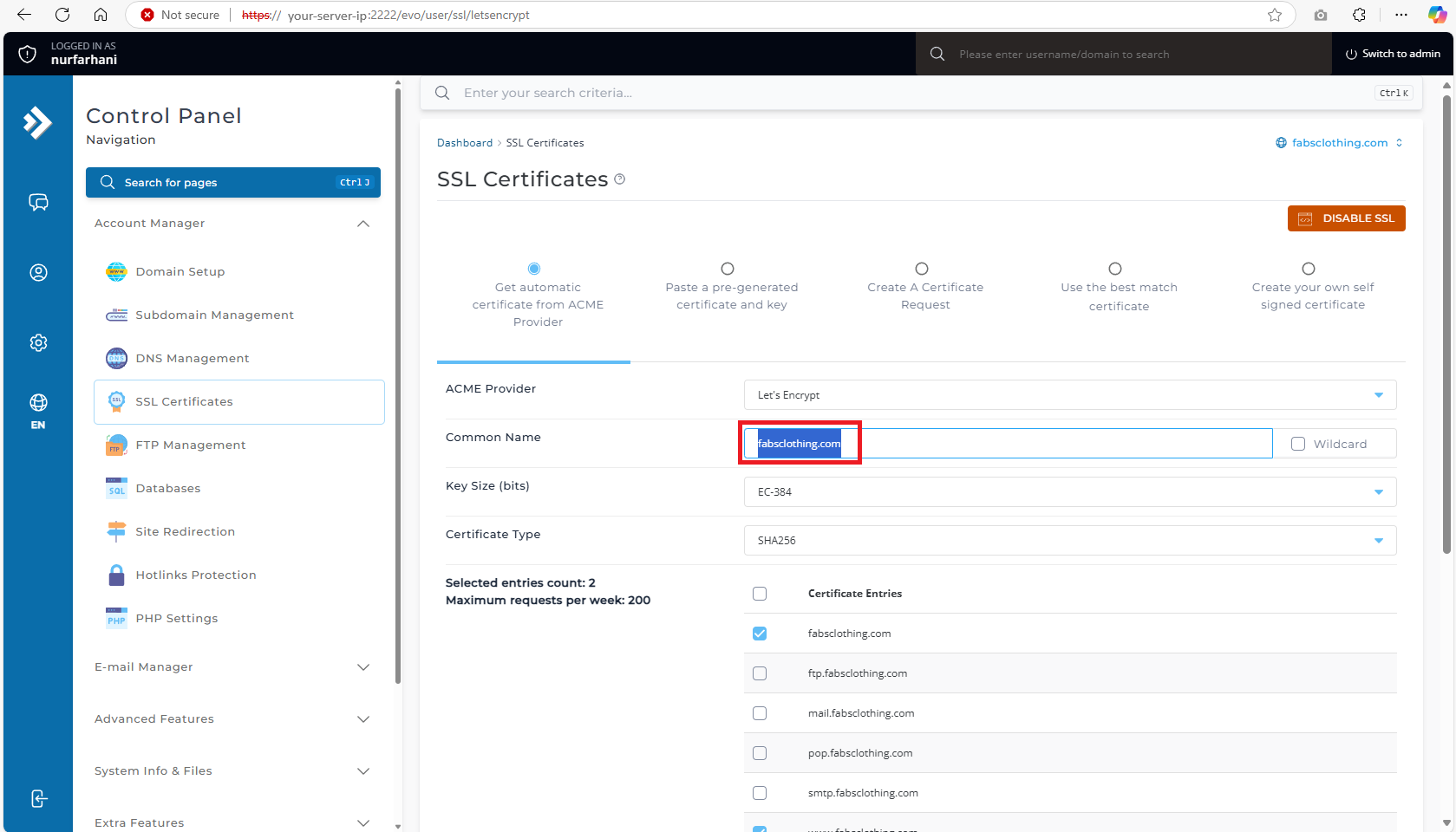
- Enter your Common Name (your domain).
- You may check the Wildcard box if you want SSL for the all subdomain.
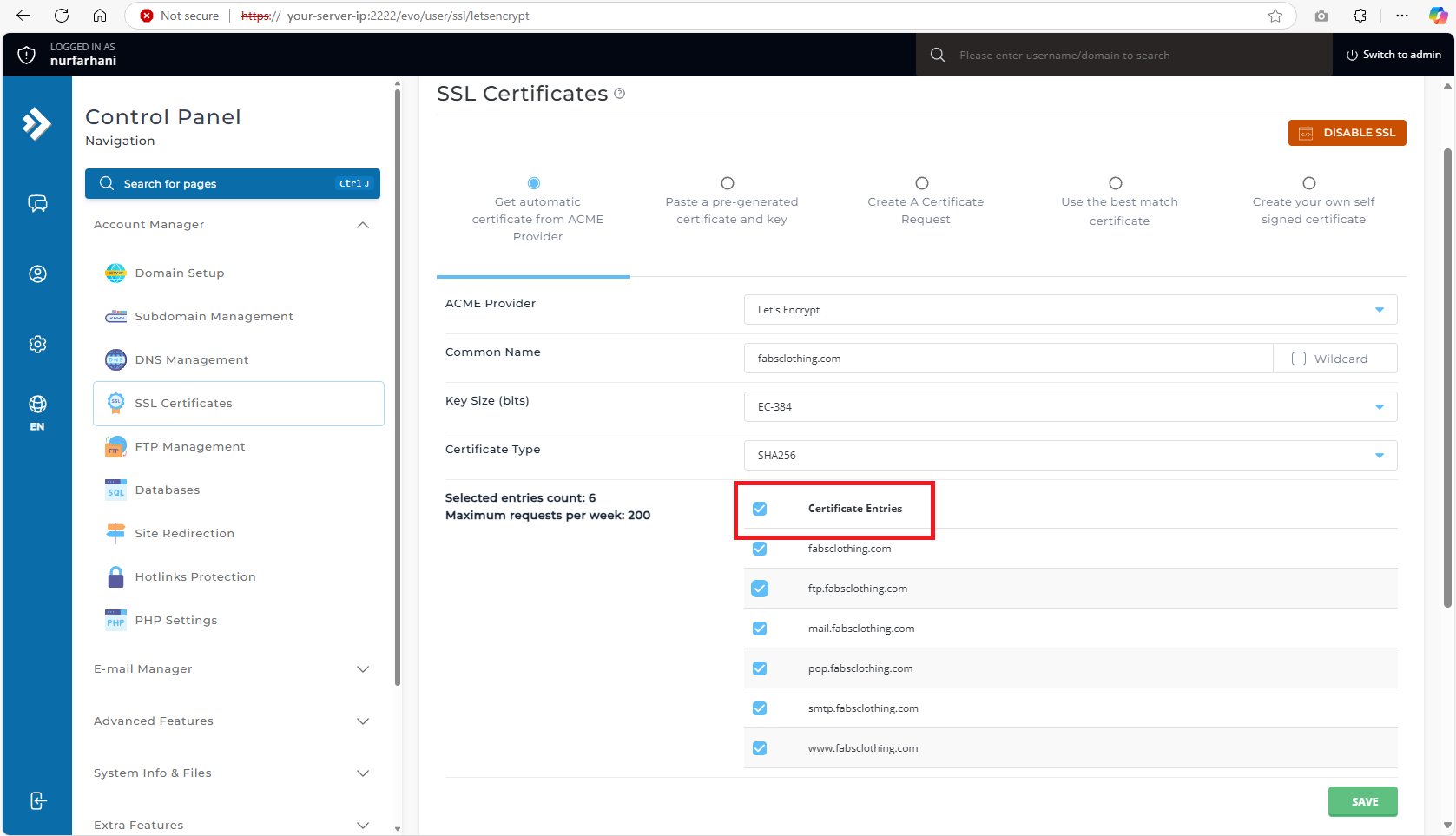
- Select the domain and subdomain you want to secure. For example,ftp.yourdomain.com,mail.yourdomain.com, and mail.yourdomain.com and then click Save.
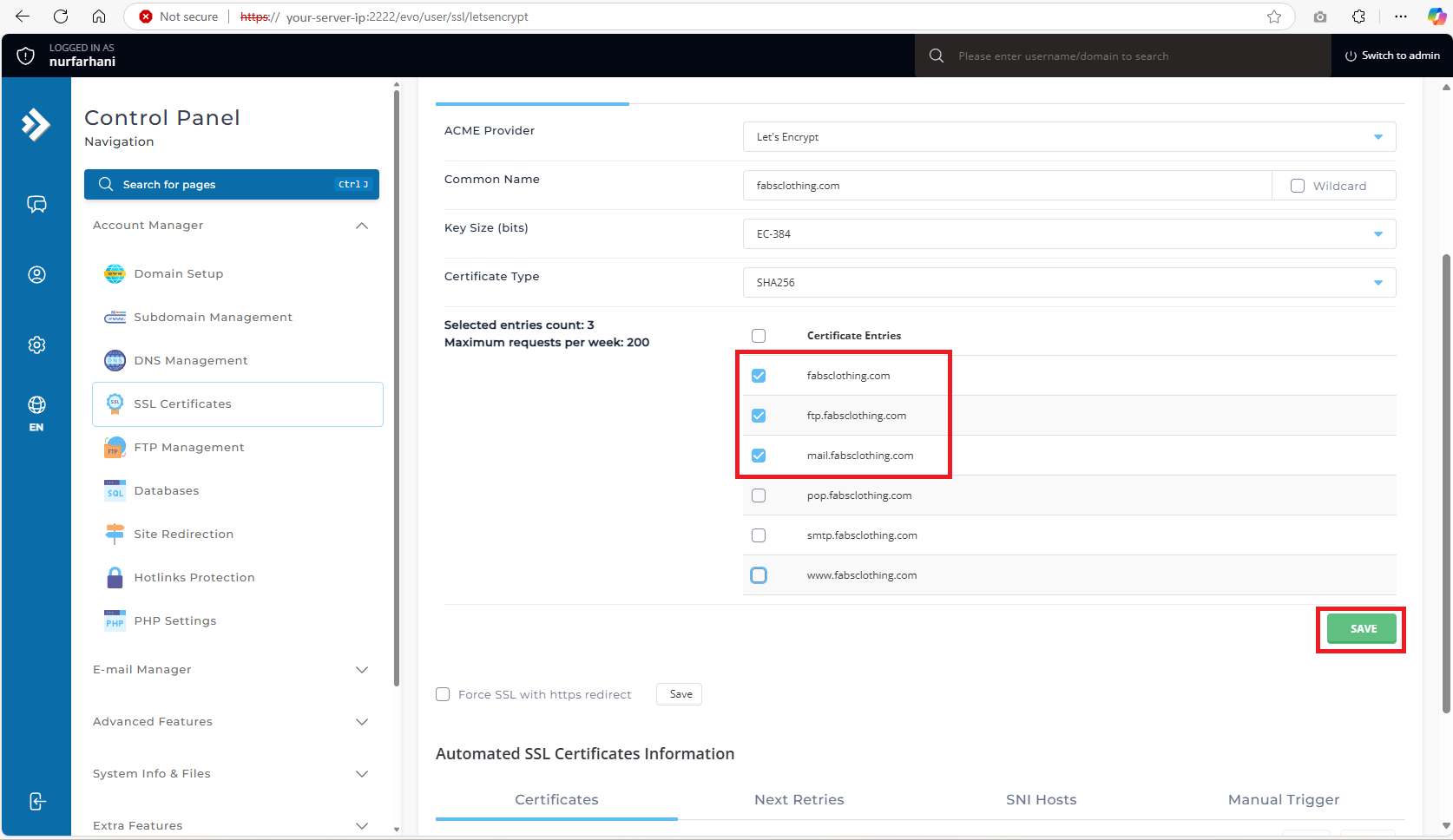
- Wait for a few moments for the SSL certificate to be issued.
- Once the SSL process is completed, it will prompt the success banner as the following images
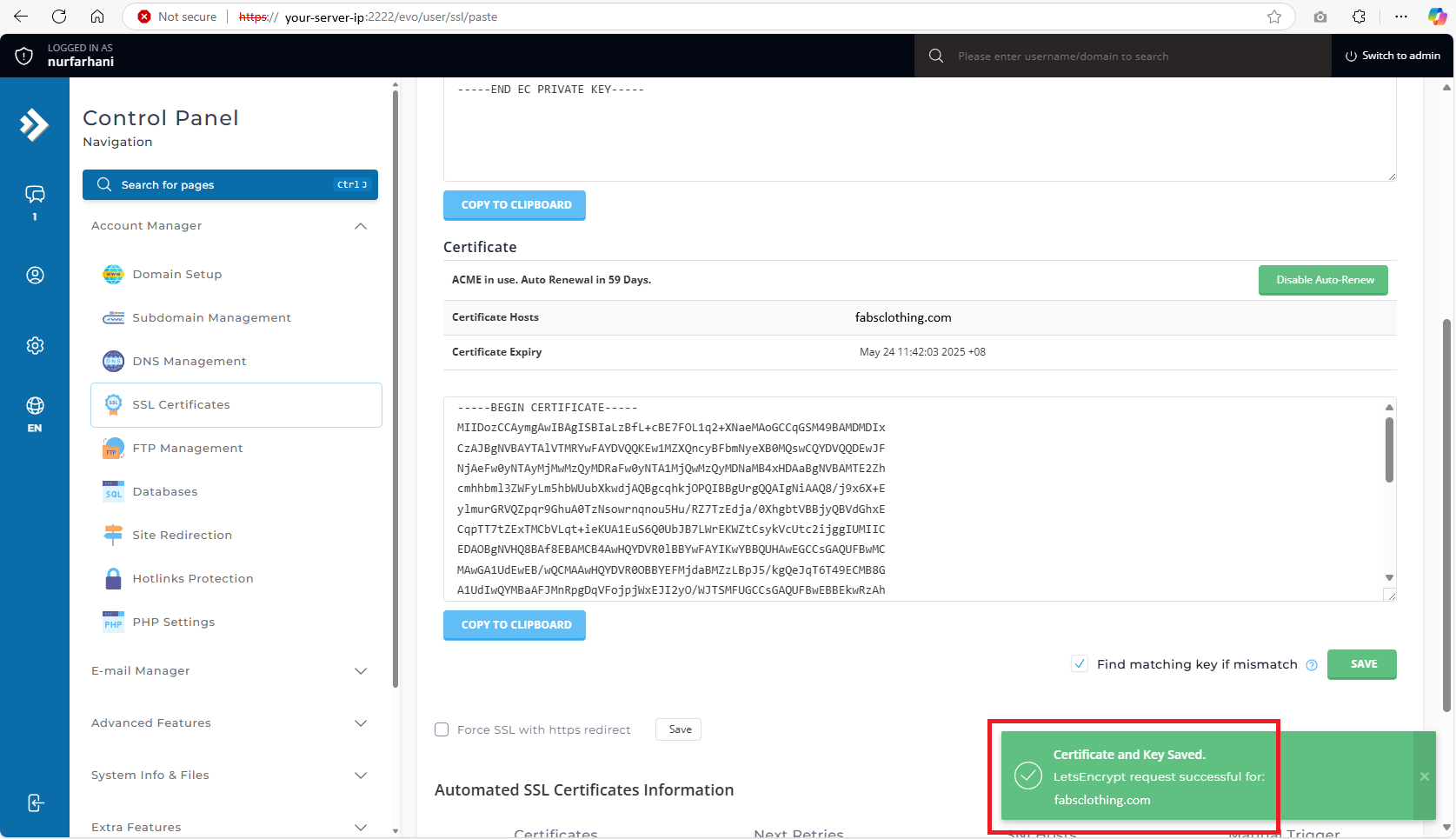
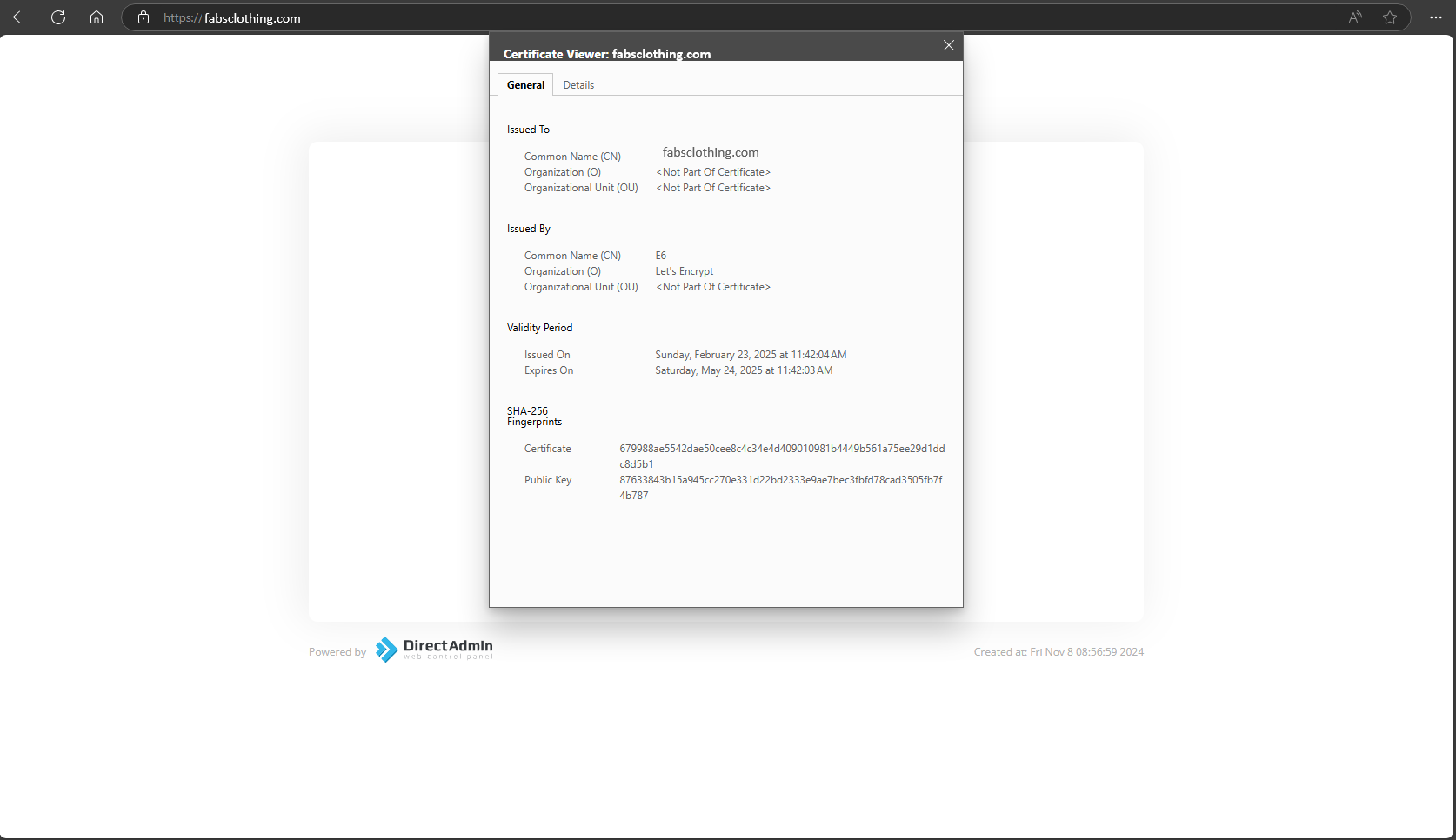
- Now, when you browse your website, the website shall be secured. You may check the SSL validity by clicking the “padlock” icon on the left side in the browser address to verify.
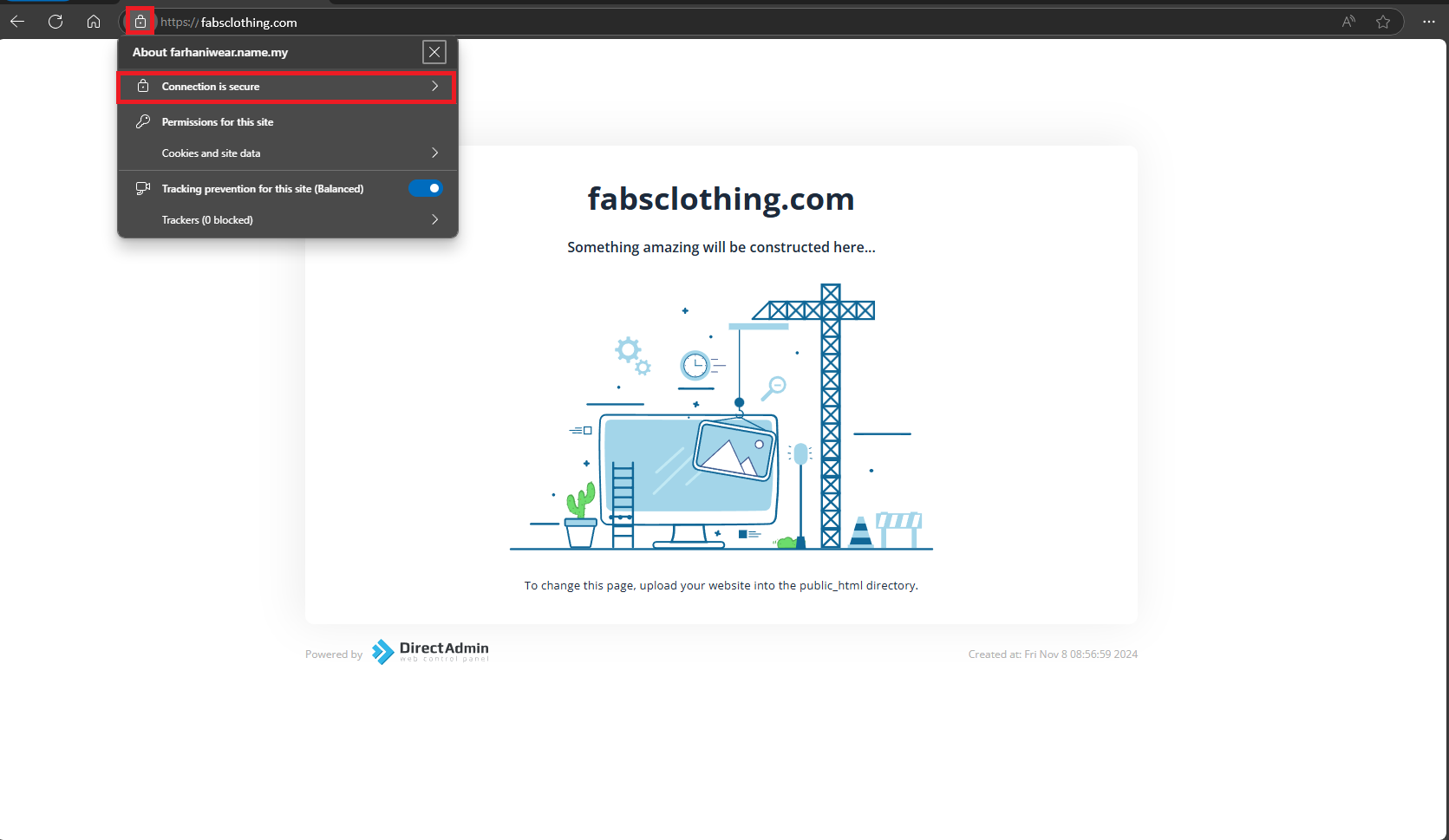
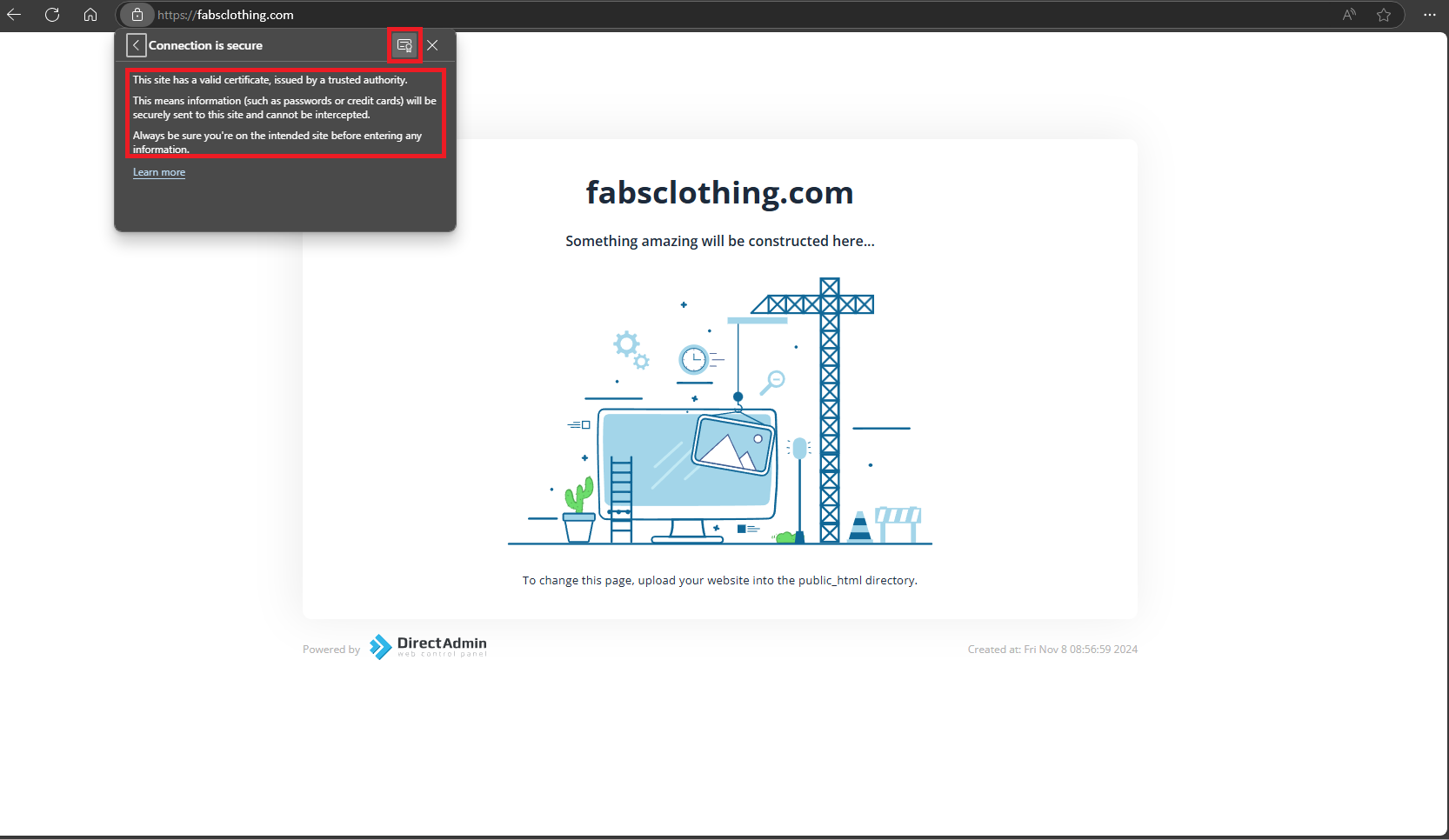
- After clicking “Connection is secure,” a pop-up will appear showing SSL certificate details and security information. Click on the Certificate symbol if you want to know more details for the SSL.
Conclusion
You have successfully deployed a Let’s Encrypt SSL certificate using DirectAdmin’s Evolution Skin interface. Your website is now secured with HTTPS, which enhances user trust, safeguards sensitive data, and contributes positively to SEO performance. Be sure to monitor certificate renewal to maintain continuous protection.
Should you have any inquiries about the guidelines, please feel free to open a ticket through your portal account or contact us at support@ipserverone.com. We’ll be happy to assist you further.
Article posted on 8 April 2024 by Chee Hong.