
Search Our Database
How to Create an Inbound Rule in Windows Defender Firewall on Windows Server
Introduction
Windows Defender Firewall helps protect your Windows Server by controlling incoming and outgoing network traffic. An inbound rule allows or blocks incoming connections to your server based on specific ports, programs, or network settings. This guide will show you how to create an inbound rule in Windows Defender Firewall to allow incoming traffic through a specific port.
Applicable Operating Systems:
- Windows Server 2025
- Windows Server 2022
- Windows Server 2019
Prerequisite
-
Access to Windows Server with administrator privileges
-
Basic knowledge of Windows Server management
Step-by-step guide
Step 1: Log In to Your Windows Server
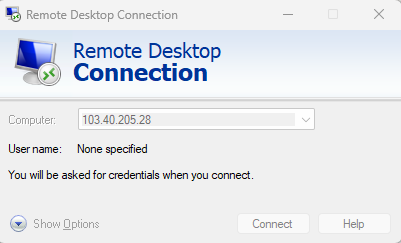
- Open Remote Desktop Connection on your local Windows computer.
- Enter your server’s Public IPv4 Address (In this example, 103.40.205.28 is used) and click Connect.
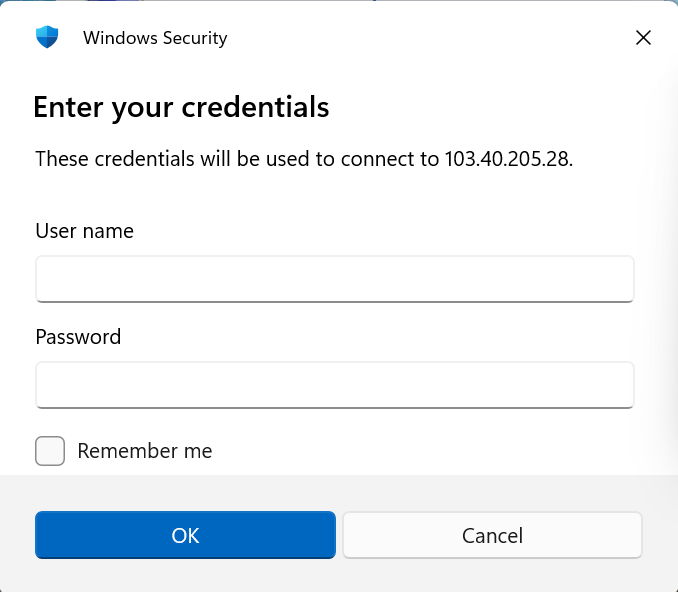
- Enter your Windows Server administrator credentials to log in.
Step 2: Open Windows Defender Firewall
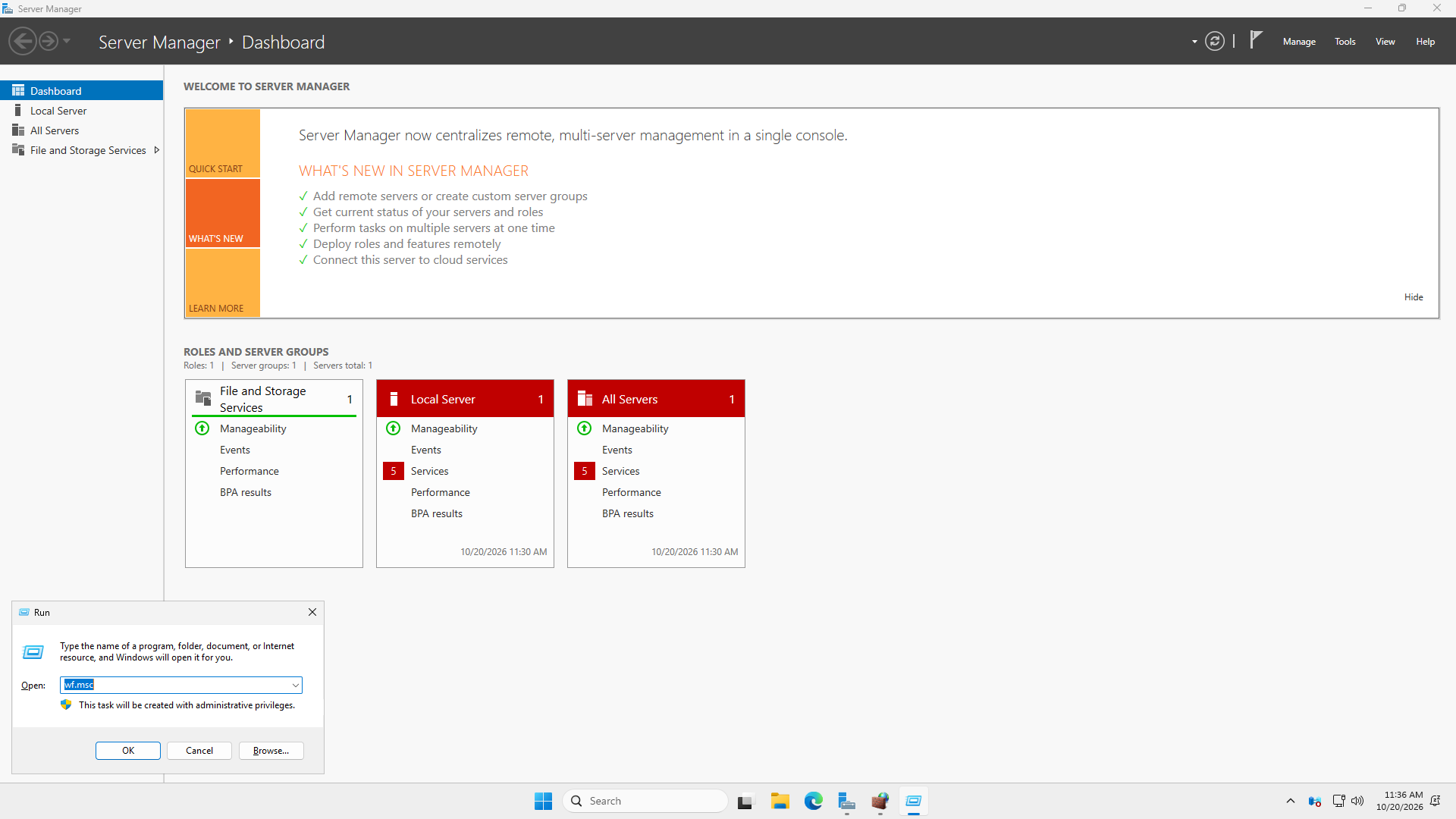
- Once logged in to your Windows Server, press Windows + R on your keyboard. Type wf.msc in the text field.
- Click OK or press Enter.
Step 3: Verify the port is listening
Before configuring the inbound rules, make sure the RDP port 8080 (The port used to demonstrate in this guide is port 8080. You may used any port that is suitable) is listening on the Windows Server by running the following command line:
Get-NetTCPConnection -LocalPort 8080 -State Listen
Expected output:

Step 4: Navigate to Inbound Rules
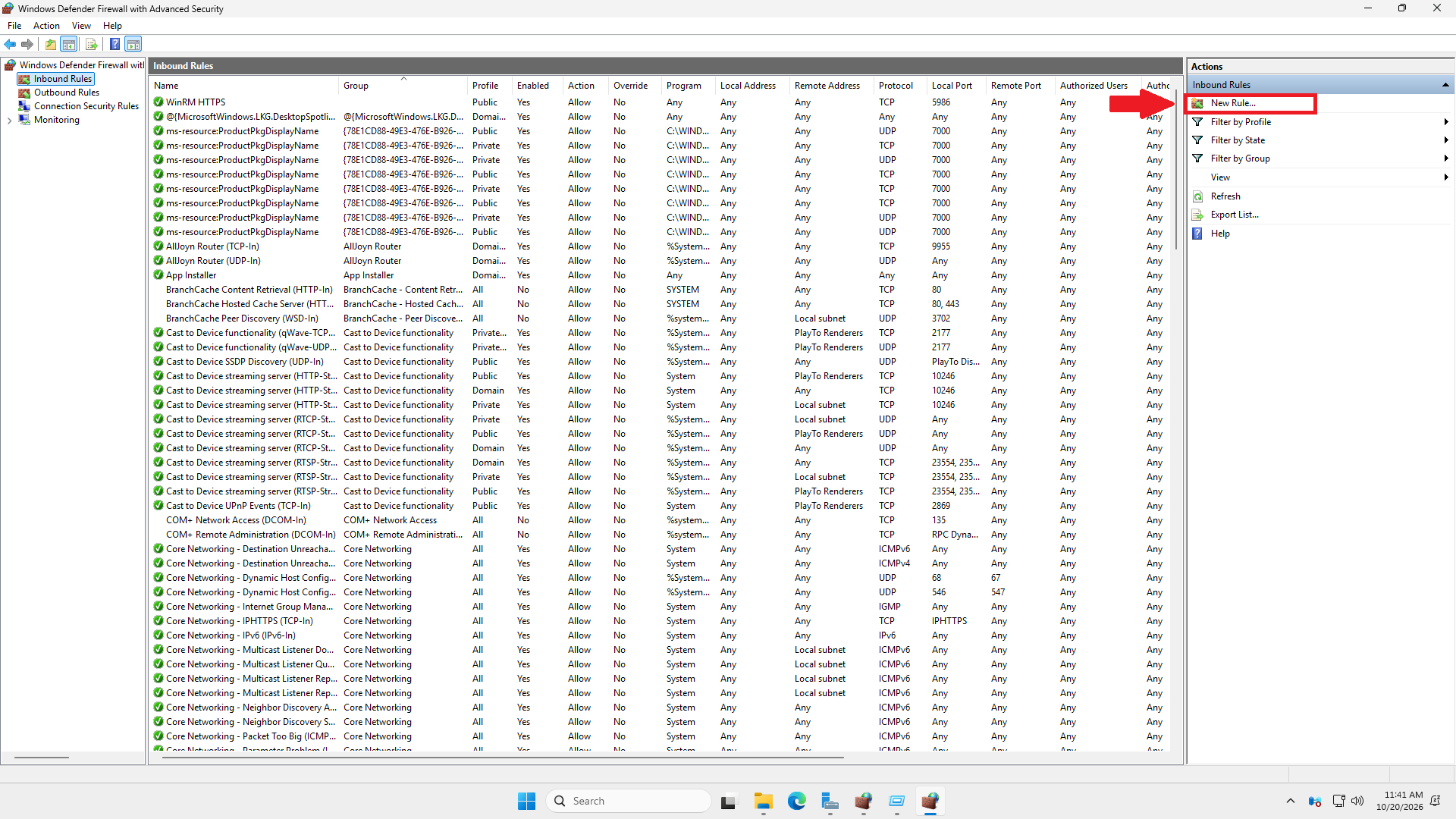
- In the Windows Defender Firewall with Advanced Security window, locate Inbound Rules in the left navigation panel.
- Click Inbound Rules.
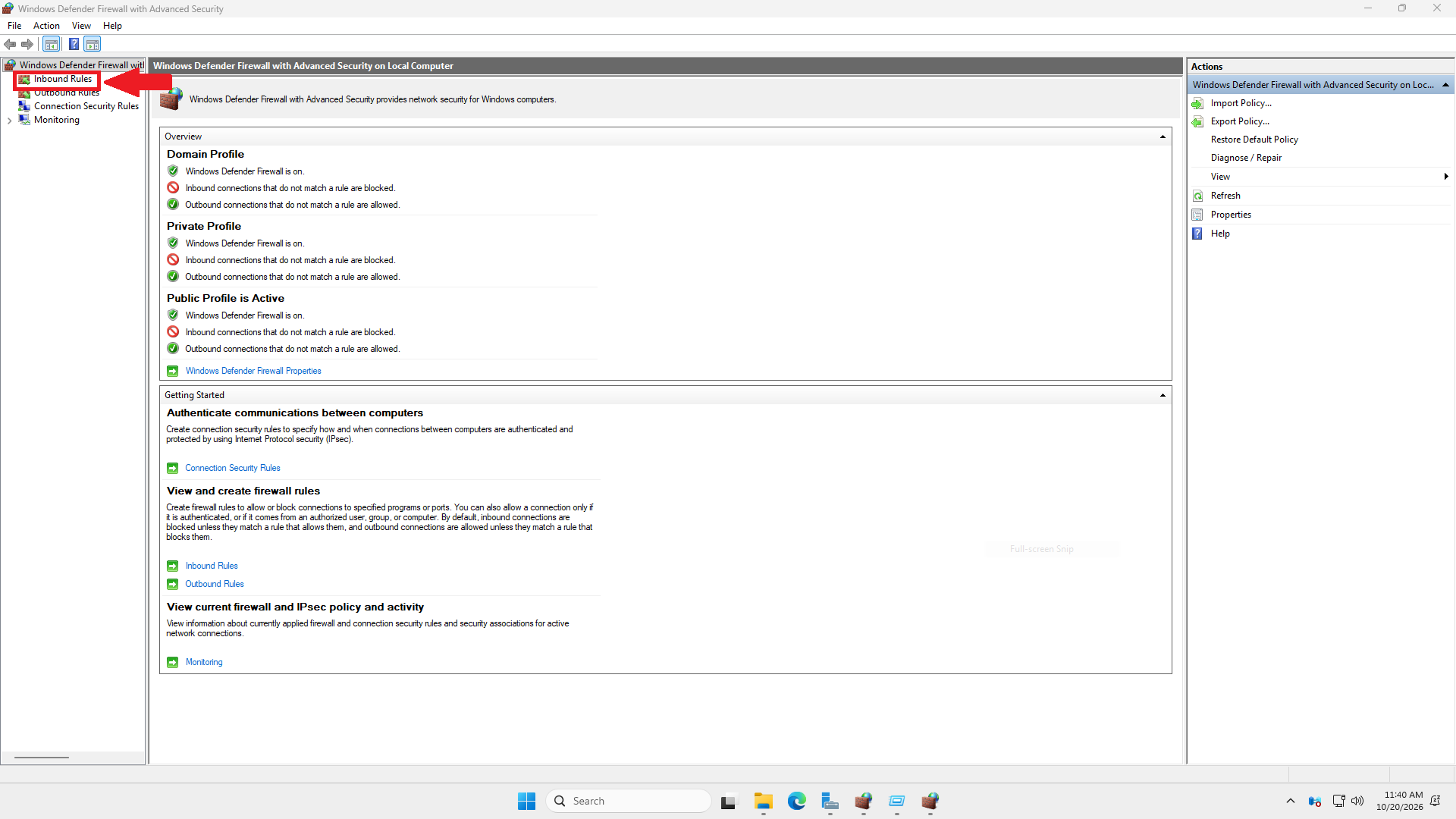
- In the right-side Actions panel, click New Rule.
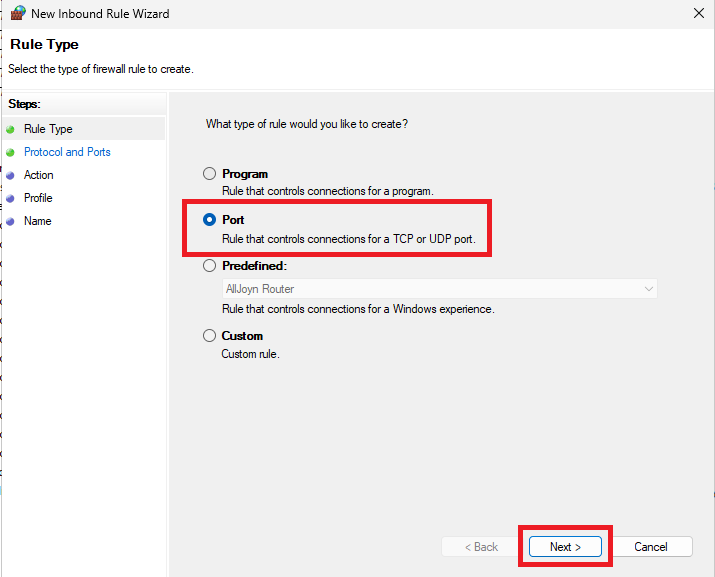
Step 5: Select the Rule Type
- Under What type of rule would you like to create?, select Port. Then, click Next to continue.
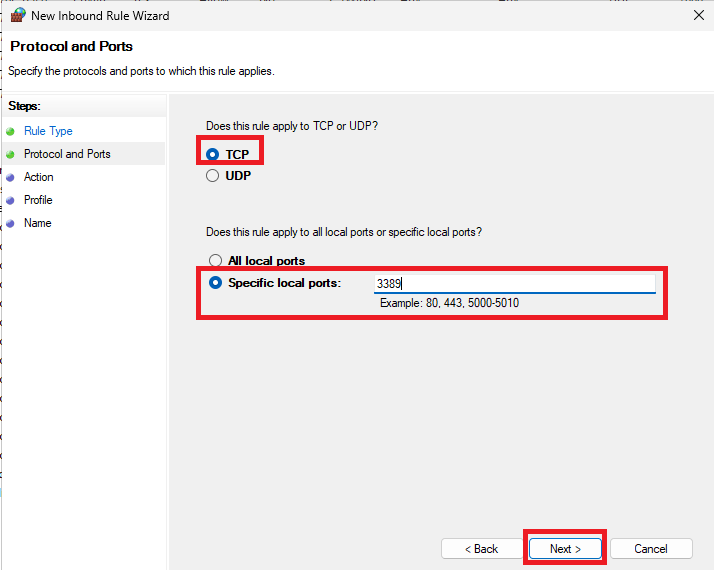
Step 6: Configure the Protocol and Port
- Under Does this rule apply to TCP or UDP?, select the protocol you wish to use:
- TCP: Commonly used for HTTP, HTTPS, and Remote Desktop connections.
- UDP: Commonly used for DNS queries and certain other network services.
- Under Does this rule apply to all local ports or specific local ports?, select Specific local ports. Then, enter the port number you want to allow. For example, enter 8080 to allow incoming TCP traffic on port 8080. Lastly, click Next to continue.
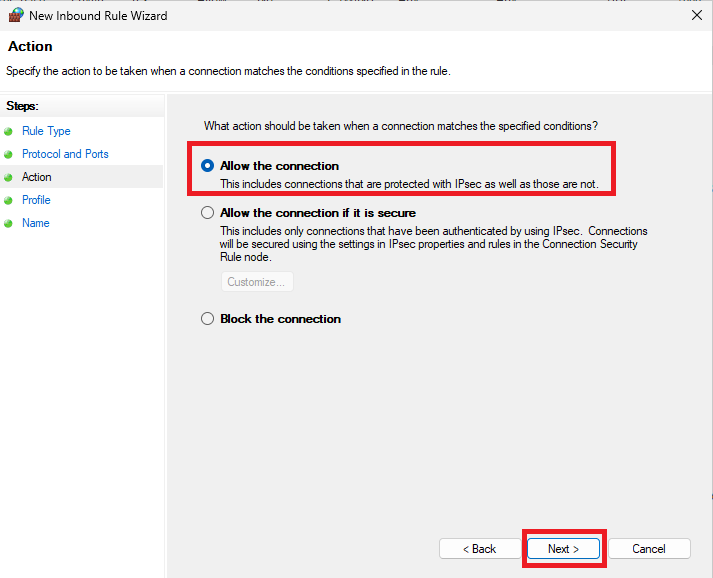
Step 7: Select the Firewall Action
- Under What action should be taken when a connection matches the specified conditions?, select Allow the connection. Then, click Next to continue.
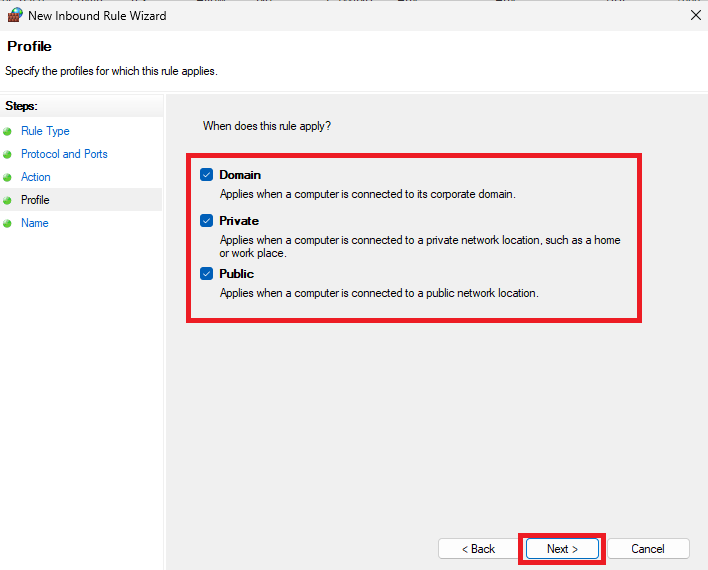
Step 8: Select the Network Profile
- Under When does this rule apply?, you will see three network profiles:
- Domain: Applies when the server is connected to a domain network.
- Private: Applies when the server is connected to a private network.
- Public: Applies when the server is connected to a public network.
- Select the network profile that applies to your server.
- Click Next to continue.
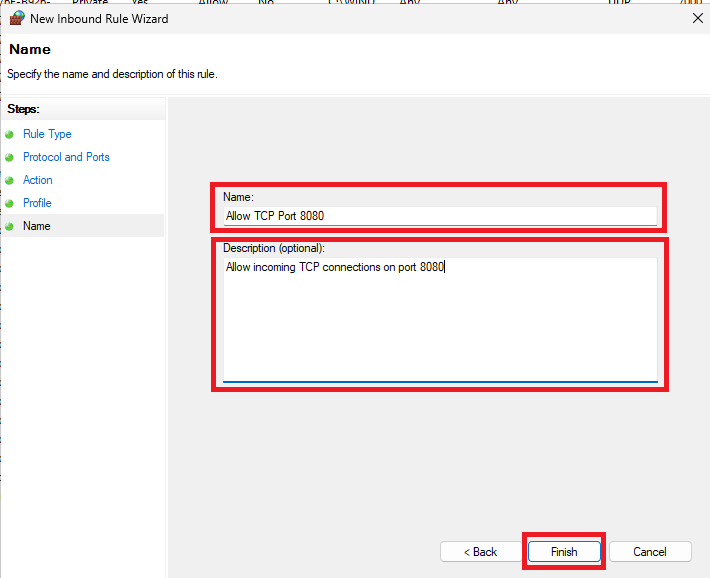
Step 9: Name the Inbound Rule
- Under Name, enter a name to identify your new firewall rule. For example: Allow TCP Port 8080
- Under Description (optional), enter a short description. For example: Allow incoming TCP connections on port 8080.
- Click Finish to save the rule.
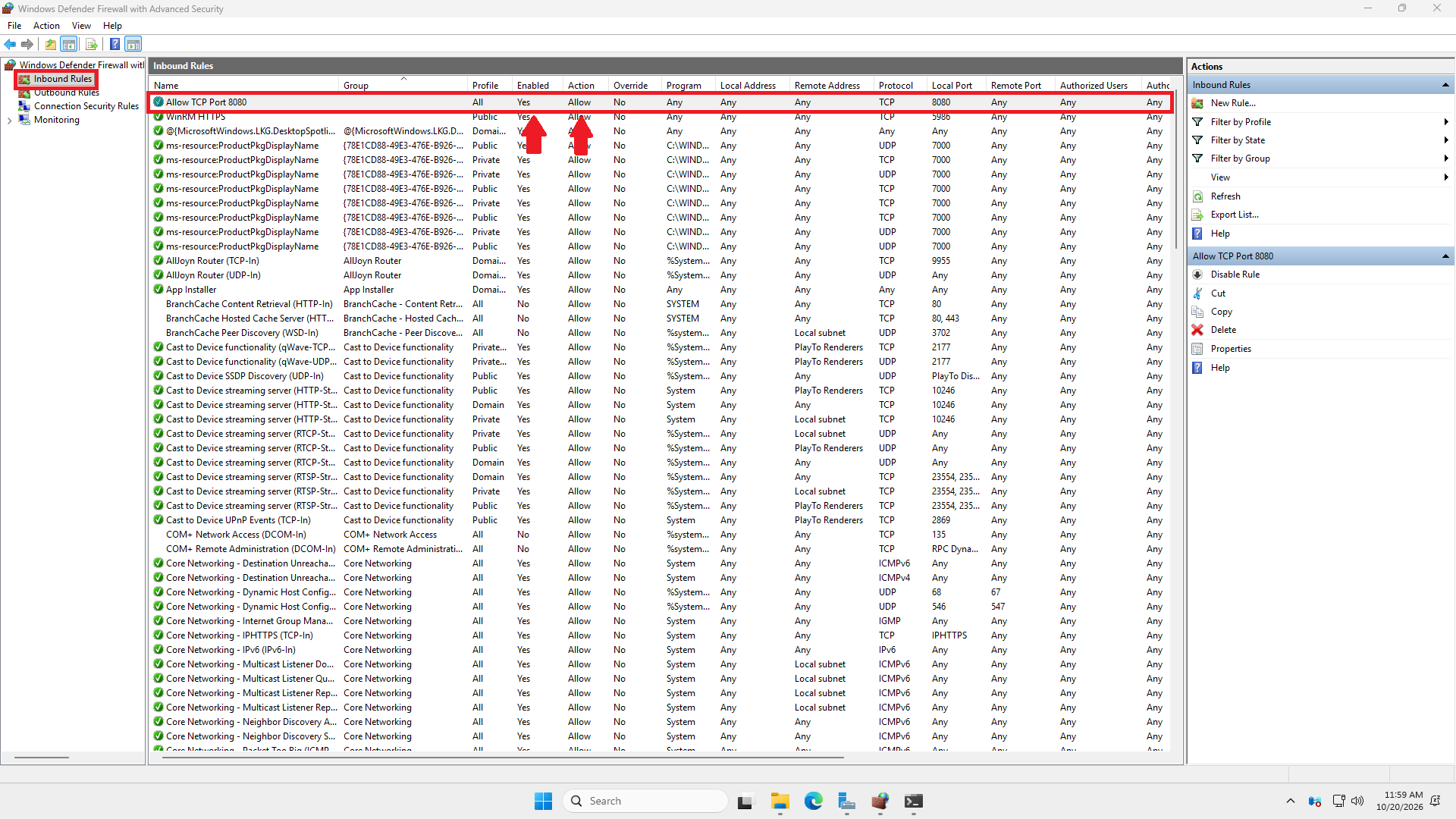
Step 10: Verify the Inbound Rule
- Return to the Windows Defender Firewall with Advanced Security window.
- Click Inbound Rules in the left navigation panel.
- Locate the new rule you created.
- Check that the rule is Enabled and its Action is set to Allow.
Step 11: Configure IP Address Restrictions Using Scope
- Locate the inbound rule you created, such as Allow TCP Port 8080.
- Right-click the rule and select Properties.
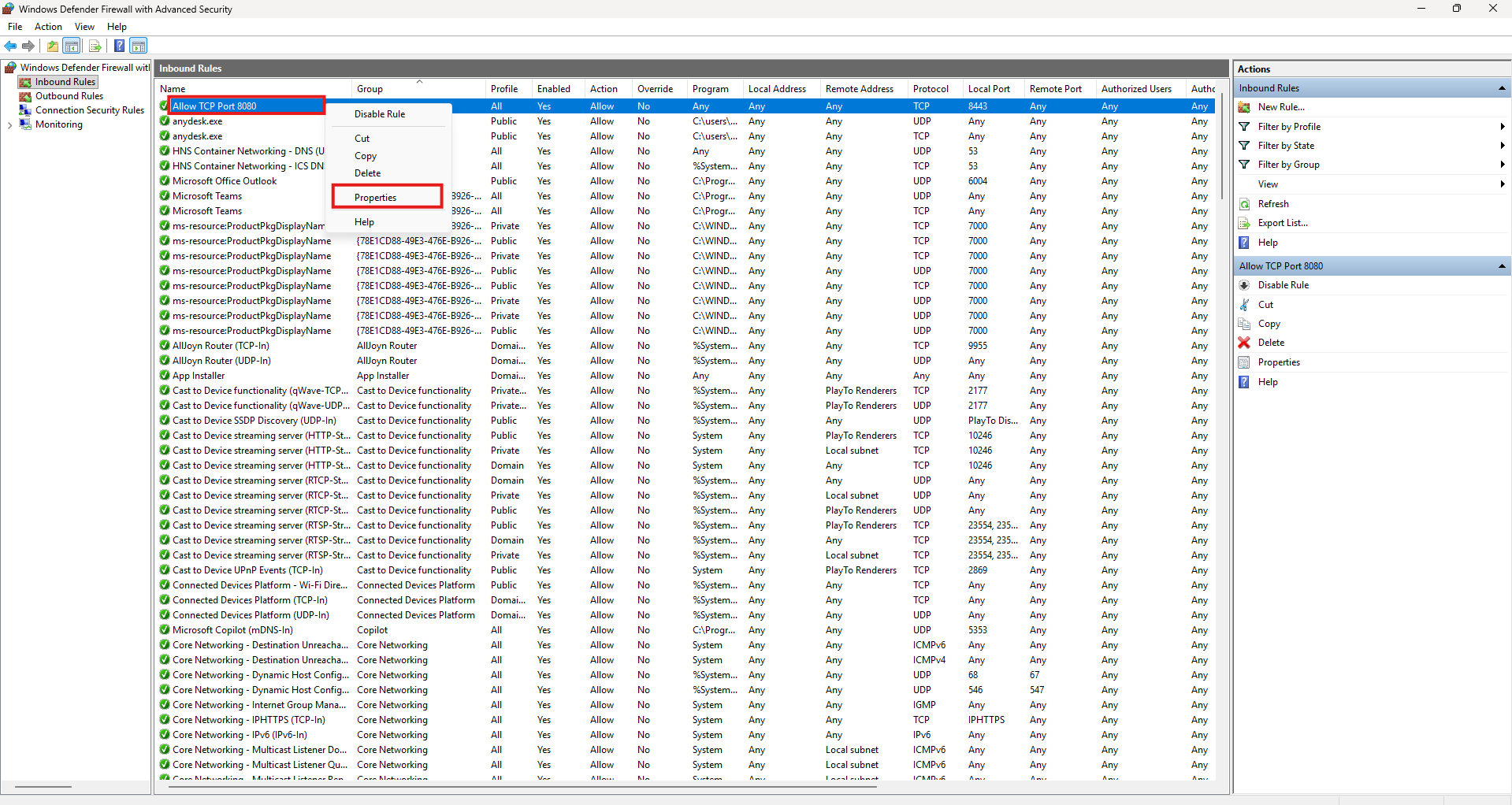
- Navigate to the Scope tab.
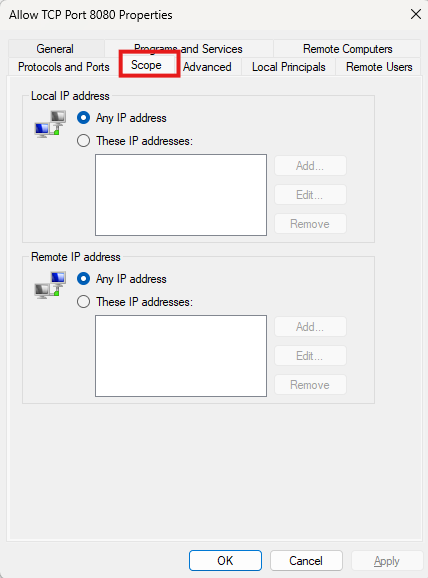
- Under the Scope tab, you will see two main sections:
- Local IP Address
- This setting determines which IP addresses on your Windows Server the firewall rule applies to.
- Any IP address: The rule applies to all local IP addresses on the server.
- These IP addresses: The rule applies only to the selected local IP addresses.
- For example, if your server has multiple IP addresses, you can configure the rule to apply only to a particular IP address.
- Remote IP Address
- This setting determines which source IP addresses are allowed to connect to your server through the inbound rule.
- Any IP address: Allows connections from any source IP address that matches the rule.
- These IP addresses: Restricts the rule to specified IP addresses or IP ranges.
- For example, if you only want a specific office IP address to access TCP port 8080, you can configure the remote IP address restriction accordingly.
- Local IP Address
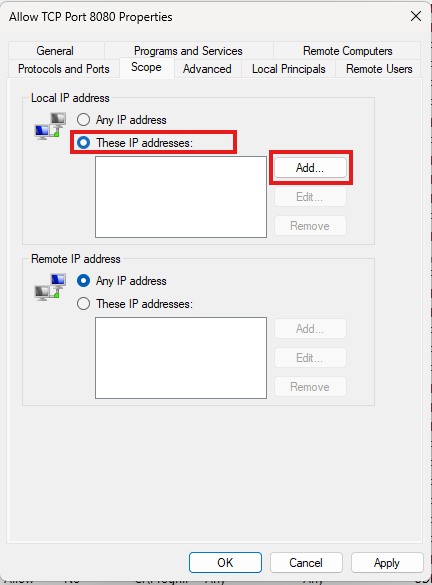
- To configure specific IP address for Local IP address or Remote IP address, select These IP Addresses. Then, click Add.
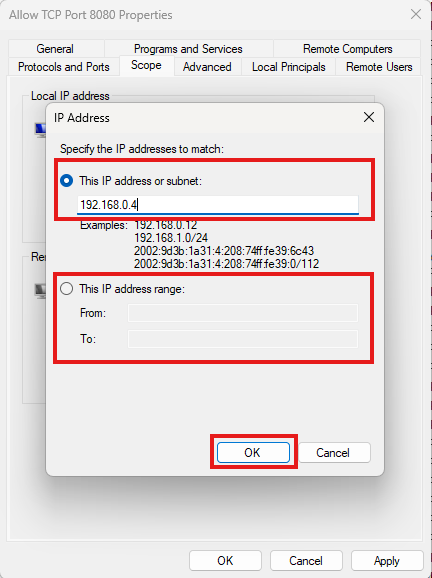
- Enter the IP address or subnet by selecting This IP address or subnet, or enter the IP address range by selecting This IP address range. Then, click OK.
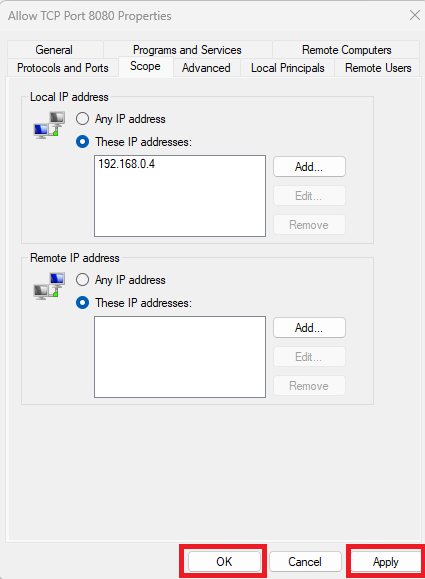
- Click OK or Apply to apply the rule.
Step 12: Test the Connection
- After creating the inbound rule, you may test whether the port is accessible from another computer.
- Open Windows PowerShell on another Windows computer.
- Enter the following command:
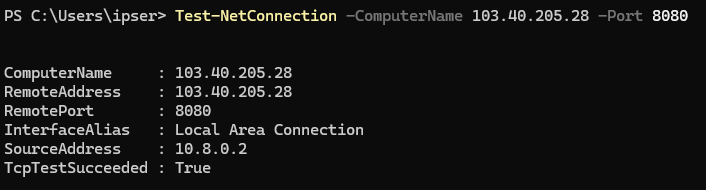
Test-NetConnection -ComputerName <Server-IP> -Port 8080
- Press Enter to run the command. If the result shows TcpTestSucceeded : True, the TCP connection to the specified port was successful.
Expected result:
Conclusion
By following this guidance, you can successfully create and configure an inbound firewall rule on your Windows Server to manage network traffic securely.
For additional assistance or if you encounter any issues, please contact our support team at support@ipserverone.com.