
Search Our Database
How to Test and Monitor Traffic Logs and System Events in FortiGate
Introduction
Verifying network connectivity between a firewall and a target destination is essential for diagnosing blocked communications, routing issues, or security policy drops. In FortiGate environments, network administrators can monitor system events and active traffic logs to validate whether packets successfully traverse firewall interfaces. This process involves accessing the FortiGate management console, generating test traffic, and inspecting corresponding log entries to ensure proper routing and policy enforcement.
Prerequisite
- Access to FortiGate Web GUI with administrator privileges
- Basic knowledge of firewall policies and log monitoring
- A configured target destination IP address or domain name
Step-by-step guide
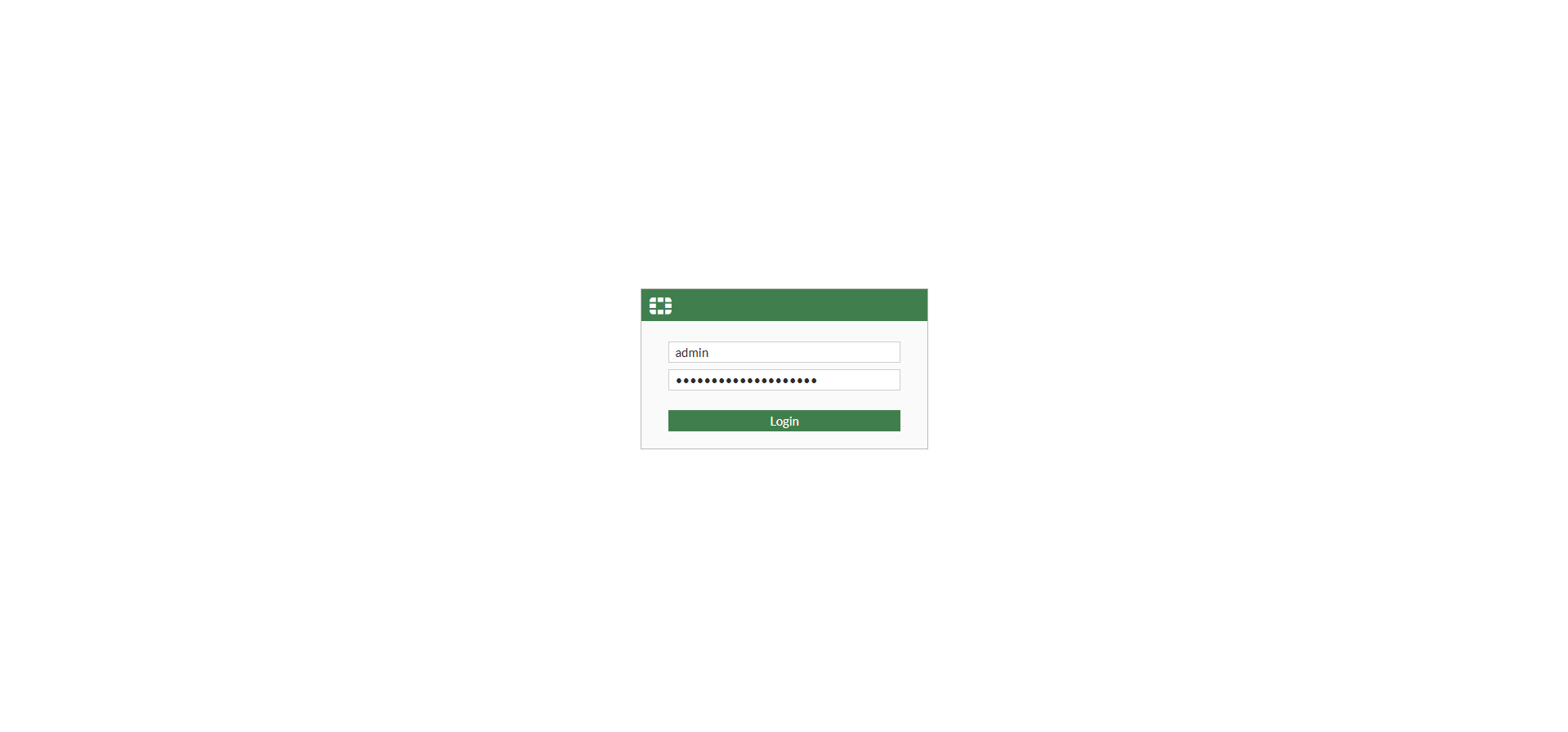
Log in to FortiGate GUI
- Open a web browser and enter your FortiGate IP address.
- Enter your admin credentials and click Login.
How to View System Events Logs
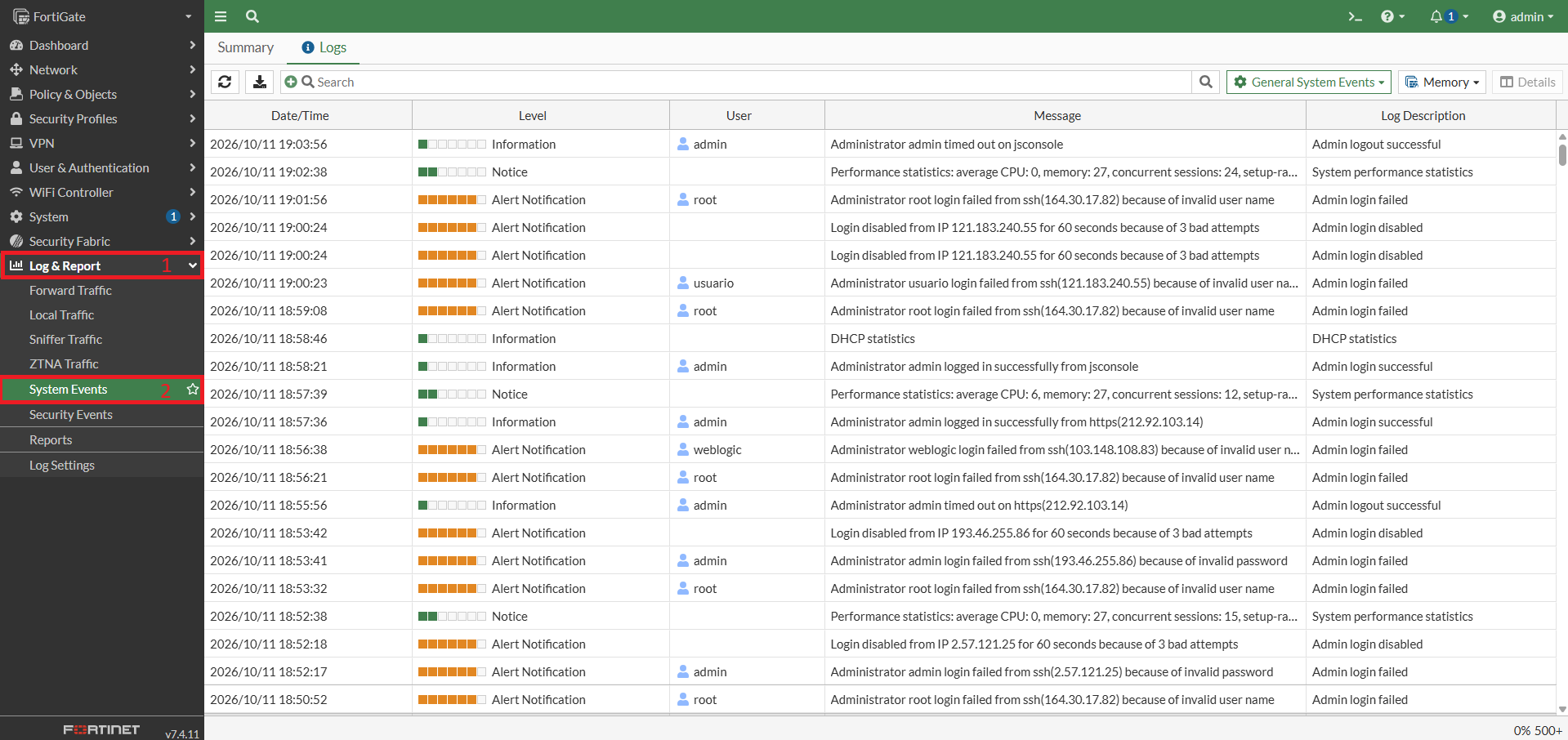
The guide below demonstrates how to view and check the System Events logs.
- Log in to your FortiGate Web GUI.
- On the left-hand navigation menu, expand Log & Report.
- Click on System Events to monitor system-level status.
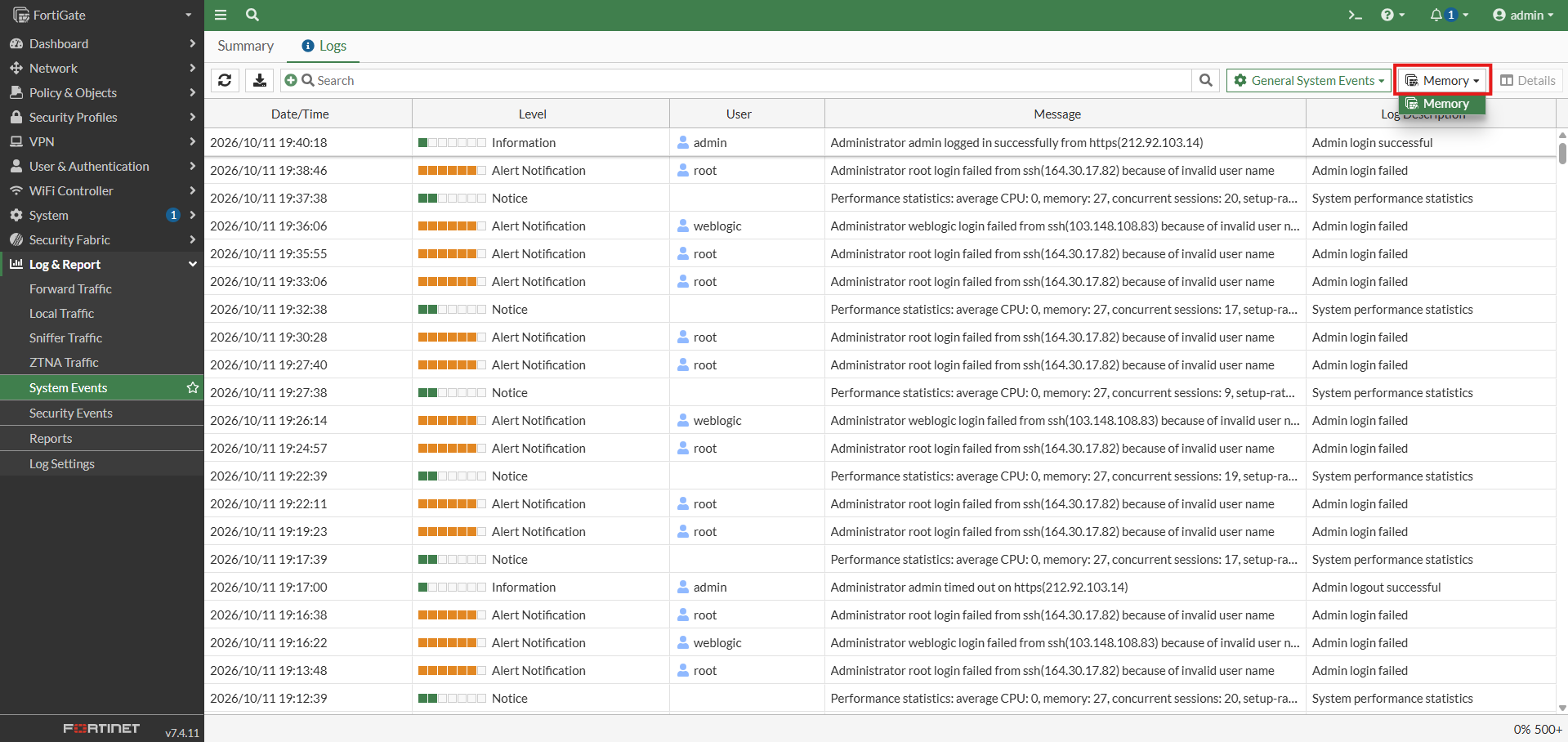
Overview of Toolbar Features
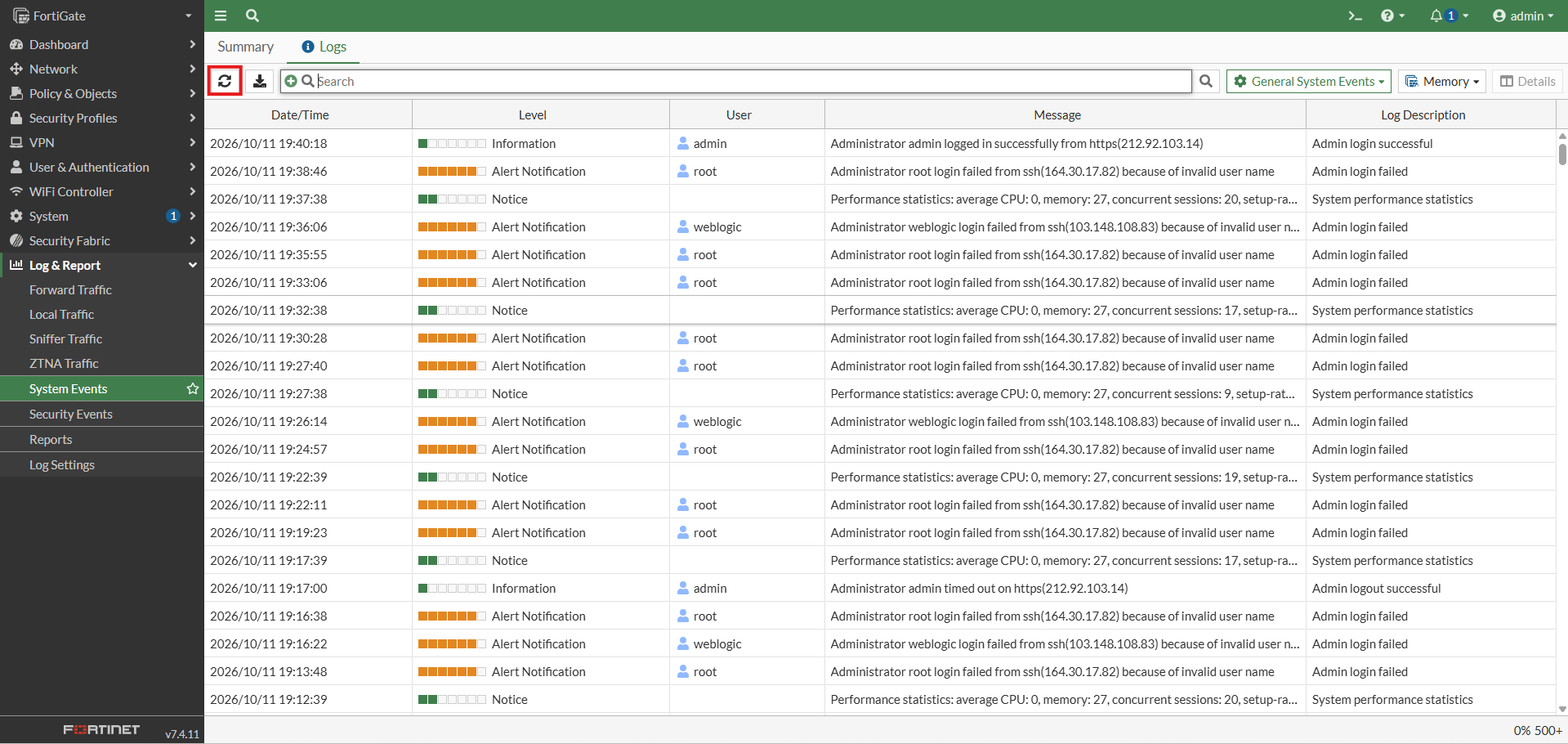
- Refresh: Reloads the log table to display the latest available system events. Use this after a login attempt, configuration change, or other event you want to investigate.
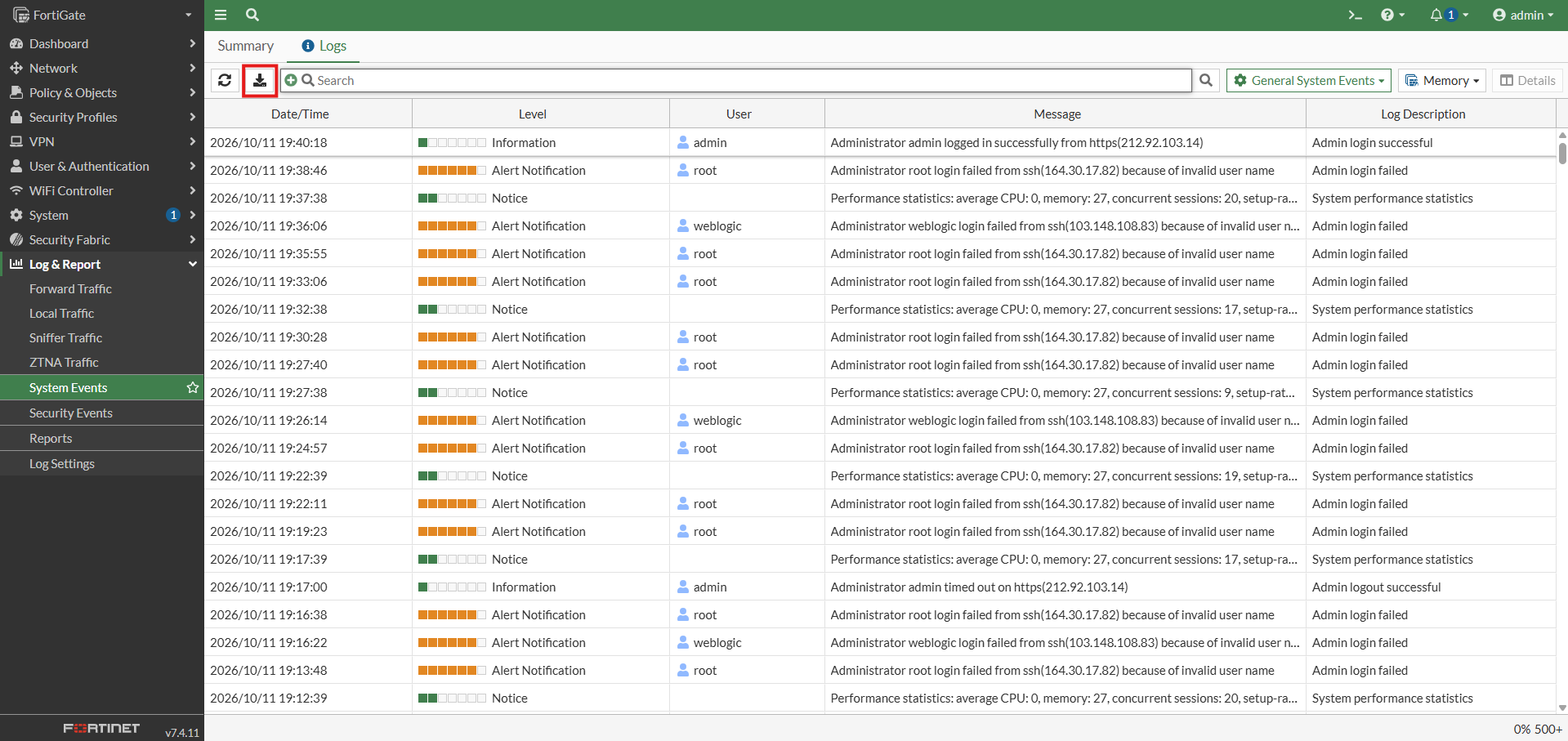
- Download: Exports available logs for offline review or investigation. Export options and limits depend on the logging setup and FortiOS configuration.
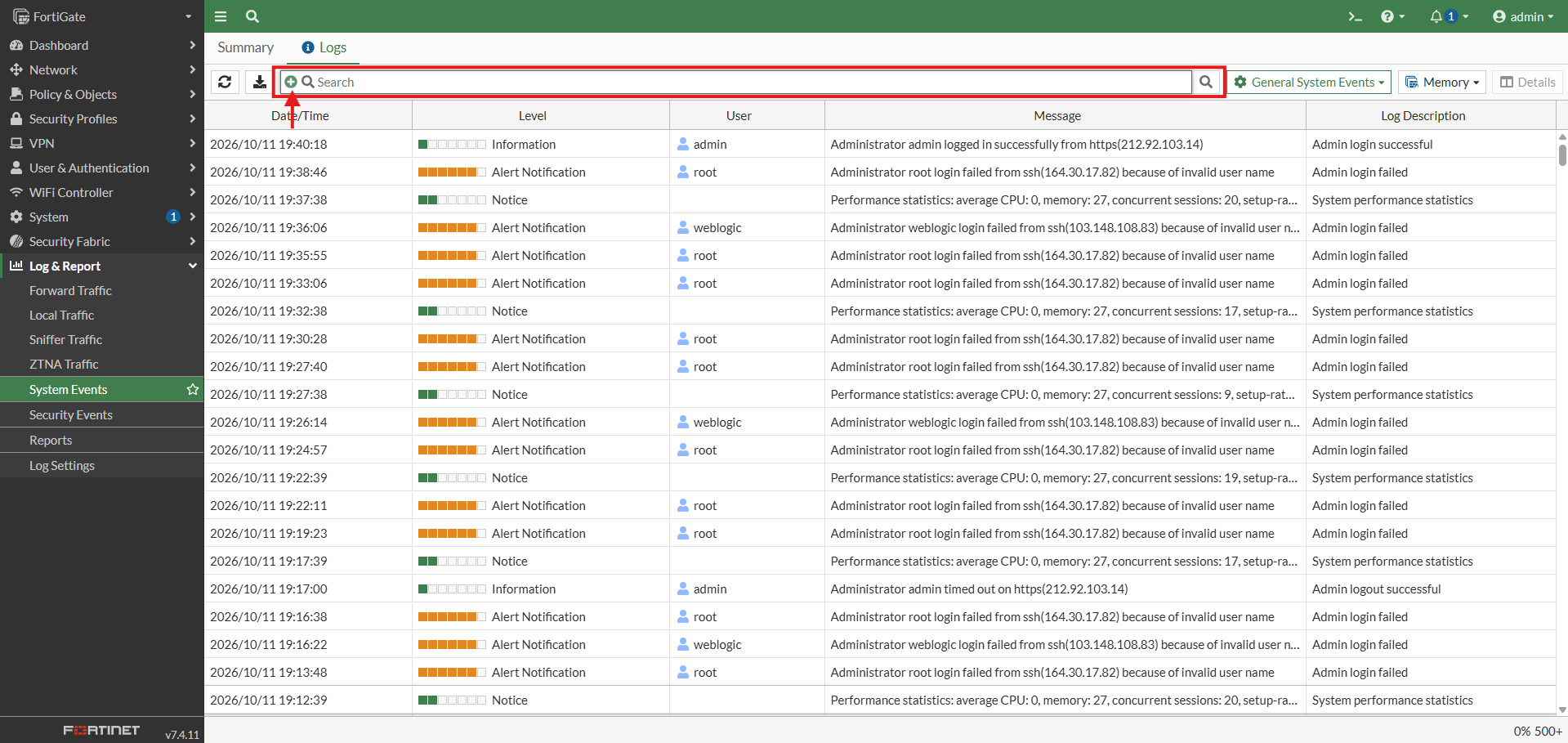
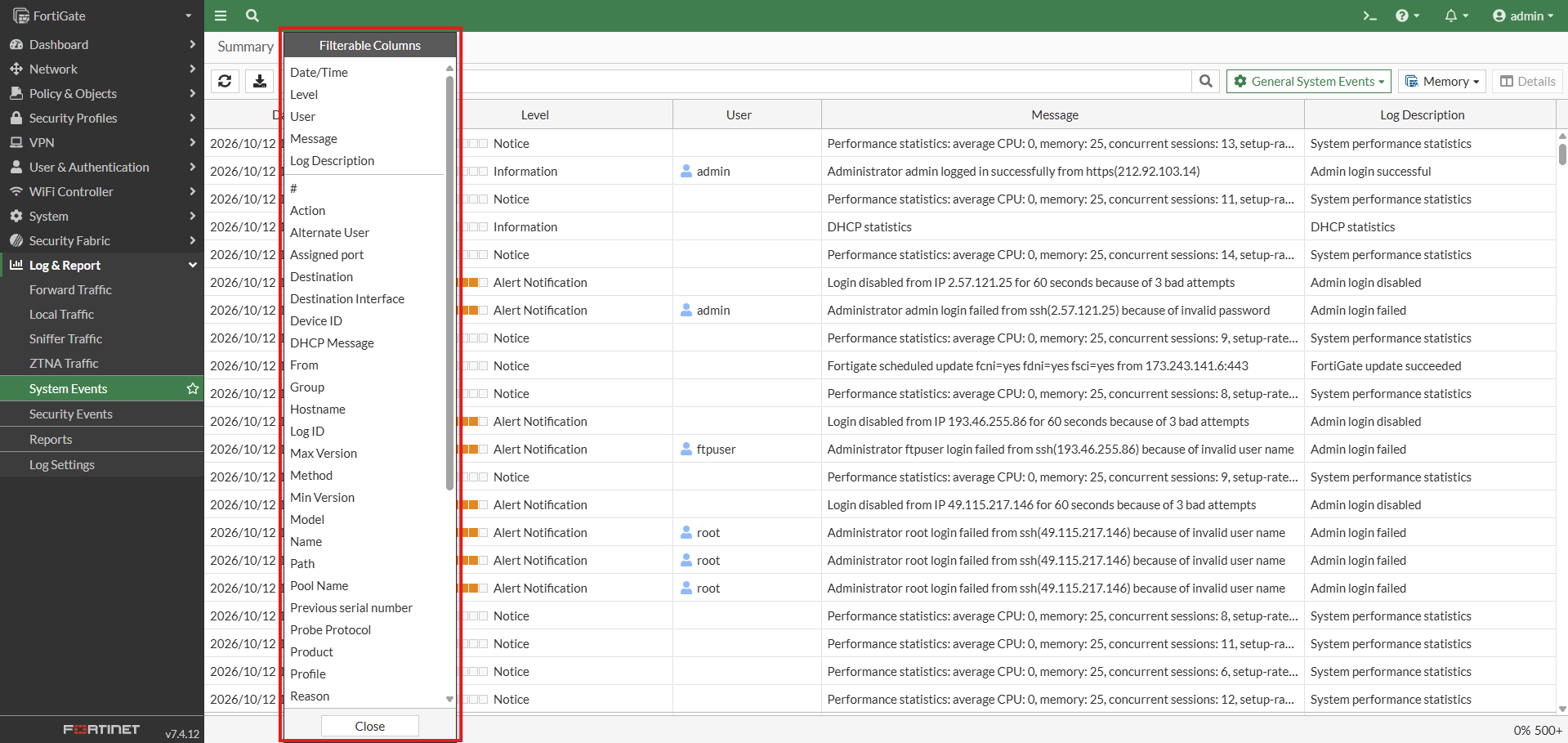
- Filter Button in Search Bar: Click the green + icon to select a filter and apply its value. This feature allows you to filter logs using supported fields, such as User, Level, Log Description, or Date/Time.
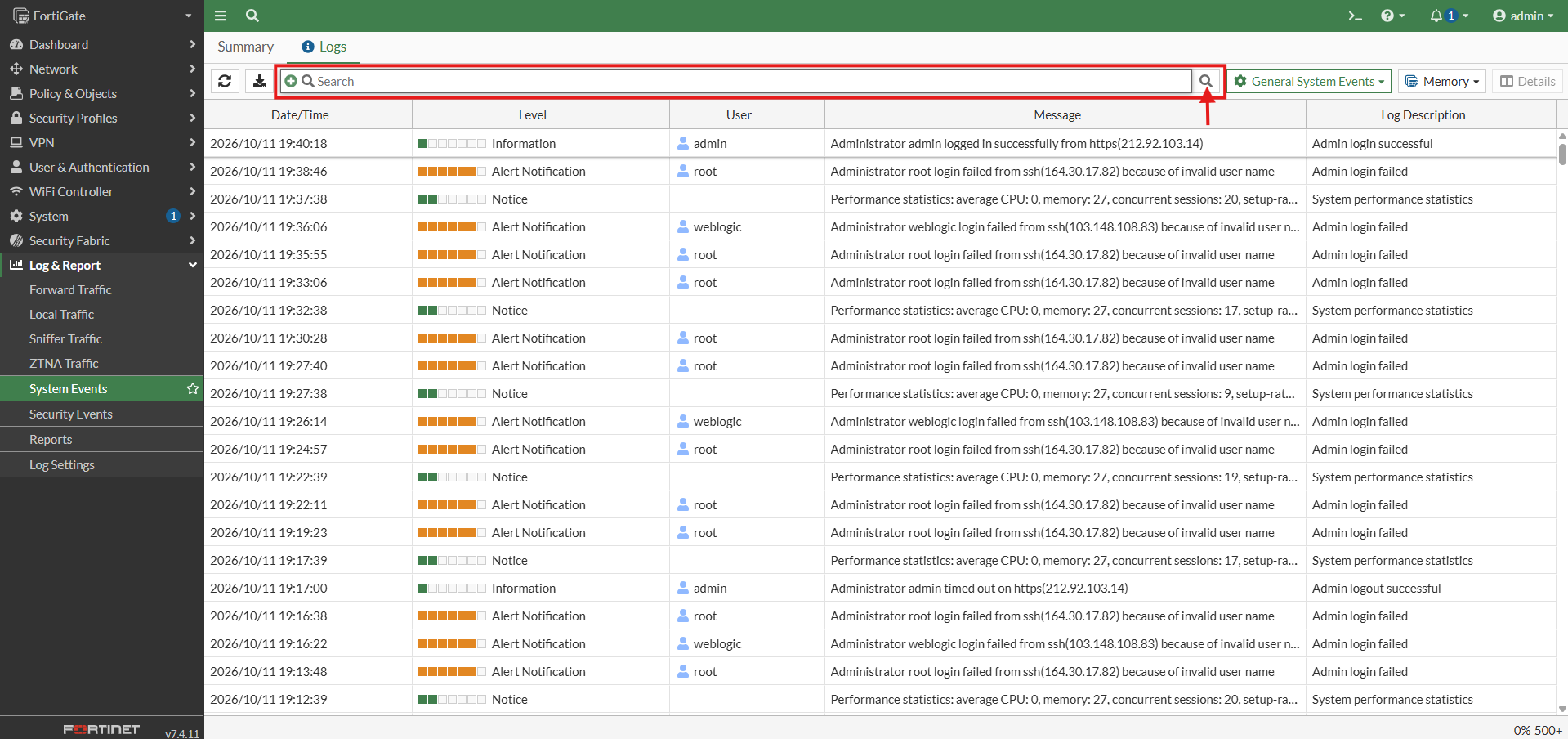
- Search Button in Search Bar: Allows you to search for specific system event logs based on the keywords or filters entered in the search bar.
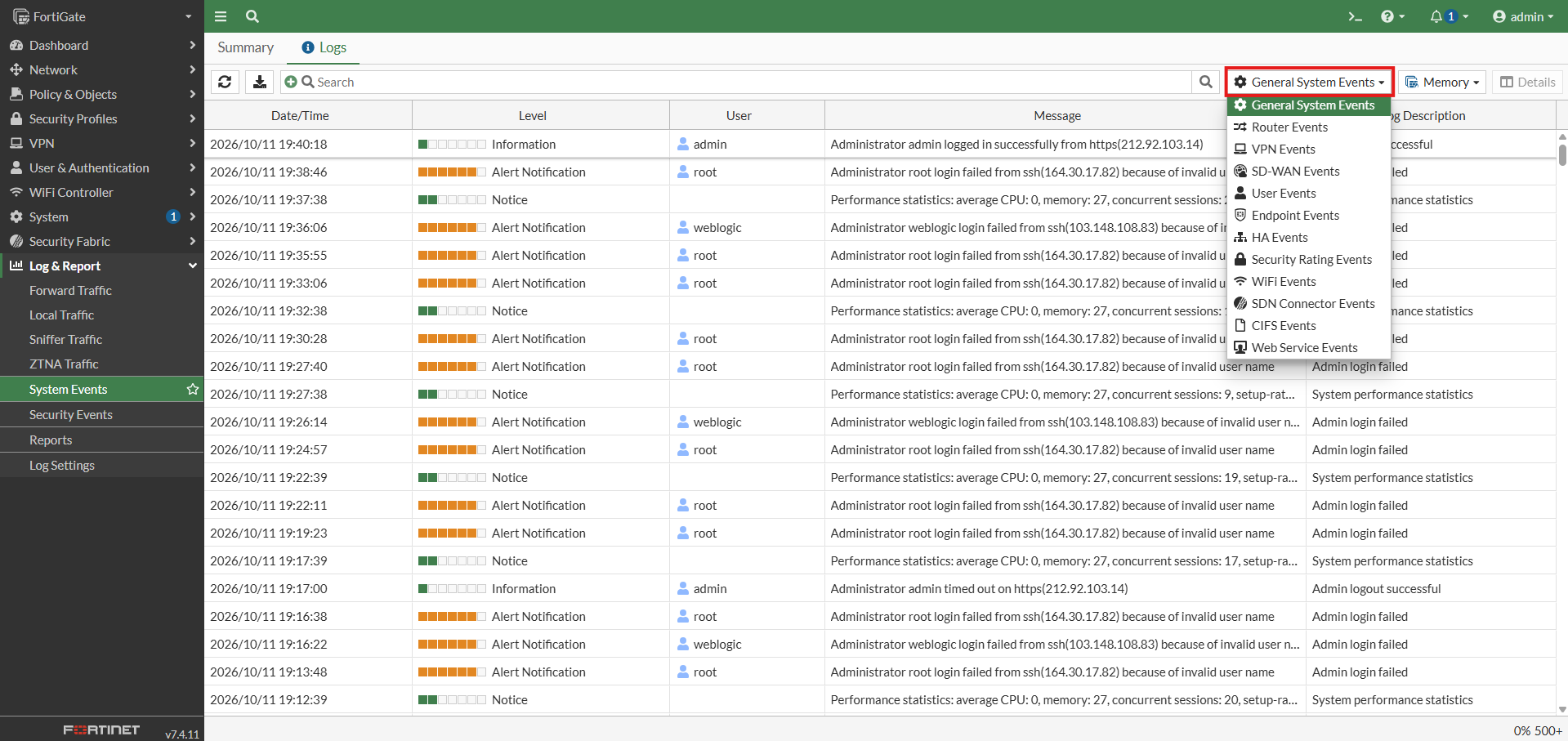
- General System Events dropdown: Switches between different system event categories, such as Router Events, VPN Events, and User Events.
- Memory: Selects where FortiGate retrieves its logs. The screenshot currently shows Memory, meaning logs stored in firewall memory are displayed. Other options, such as FortiGate Cloud or FortiAnalyzer, may appear if configured.
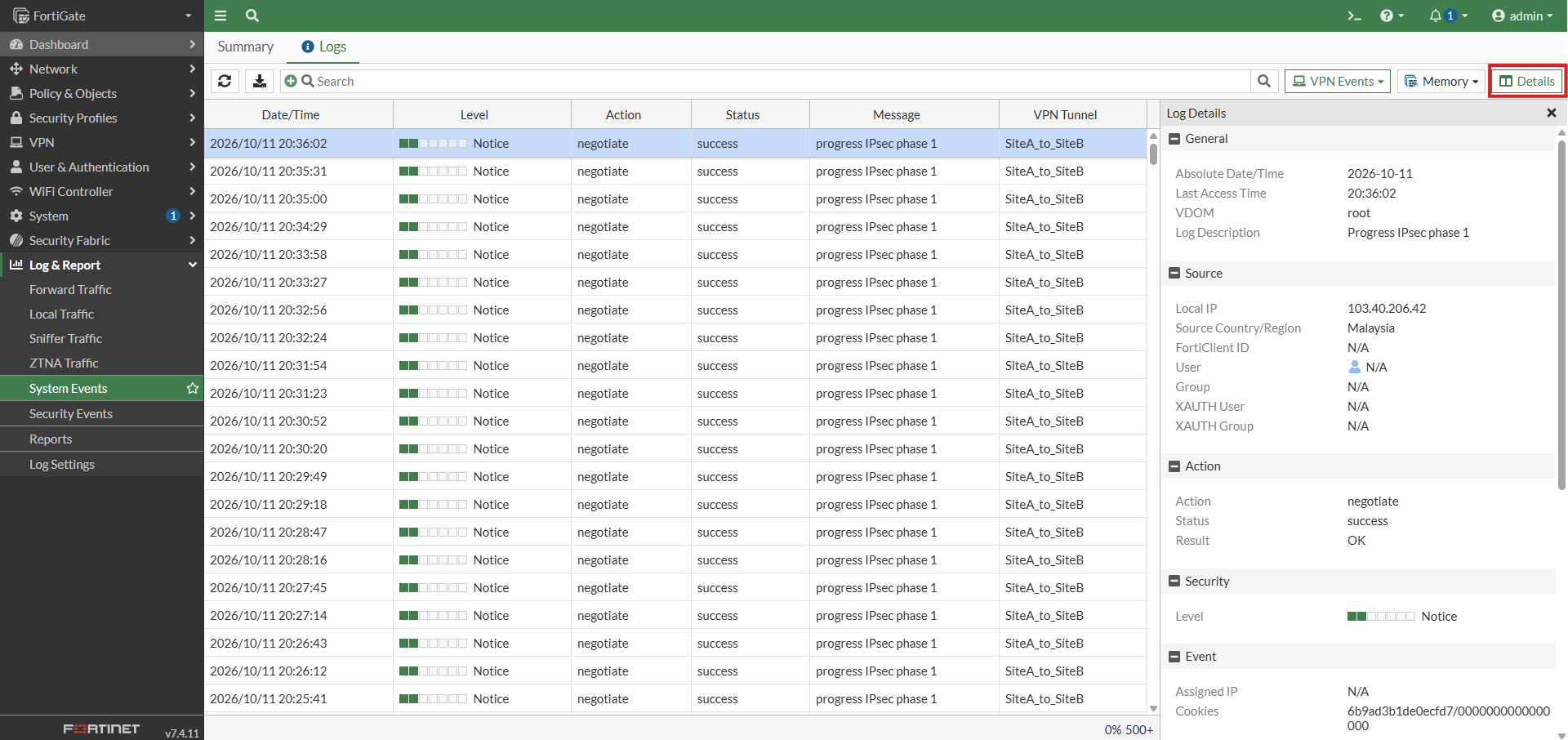
- Details: Opens additional information about a selected log entry, such as event ID, log ID, user, action, timestamp, and associated messages. Select a log entry first to enable this button.
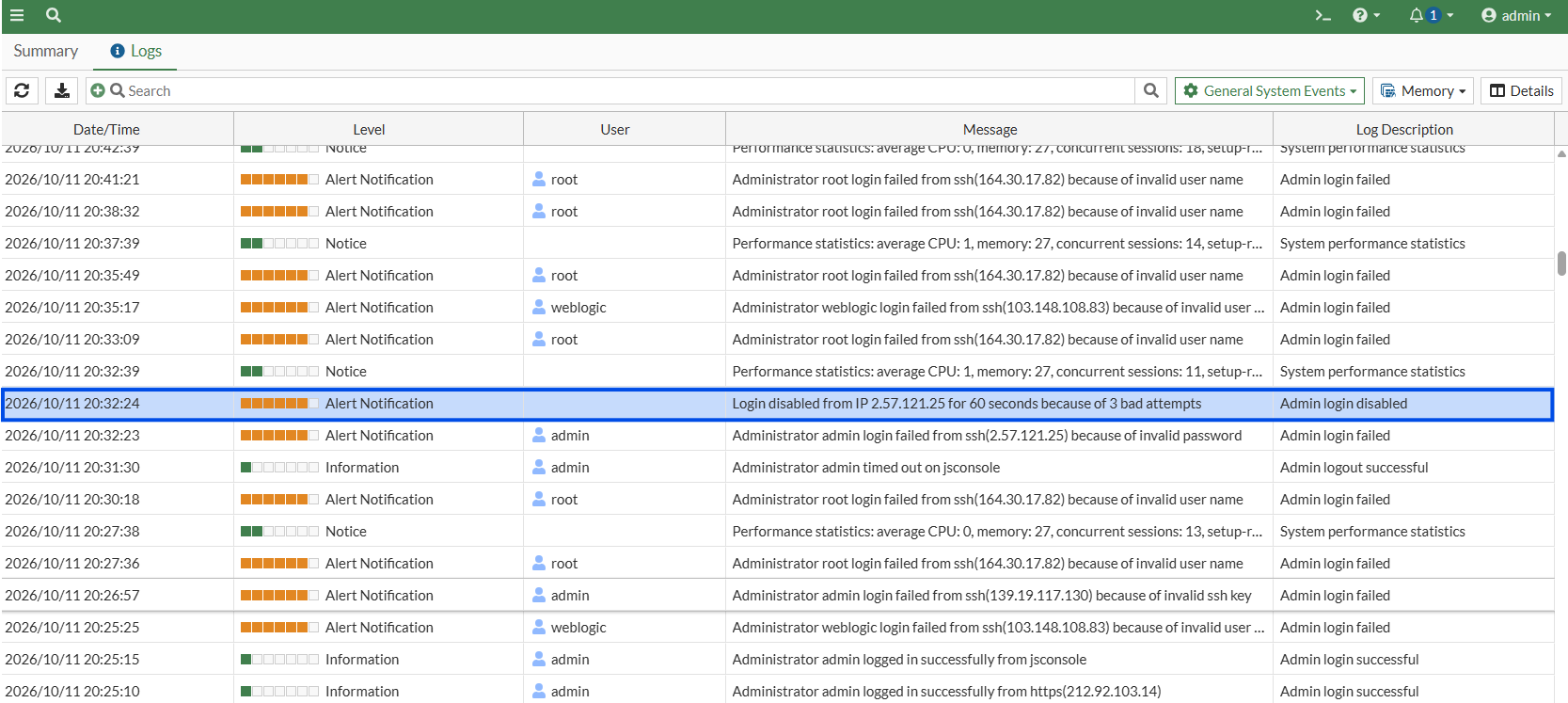
- Examples to read the logs:
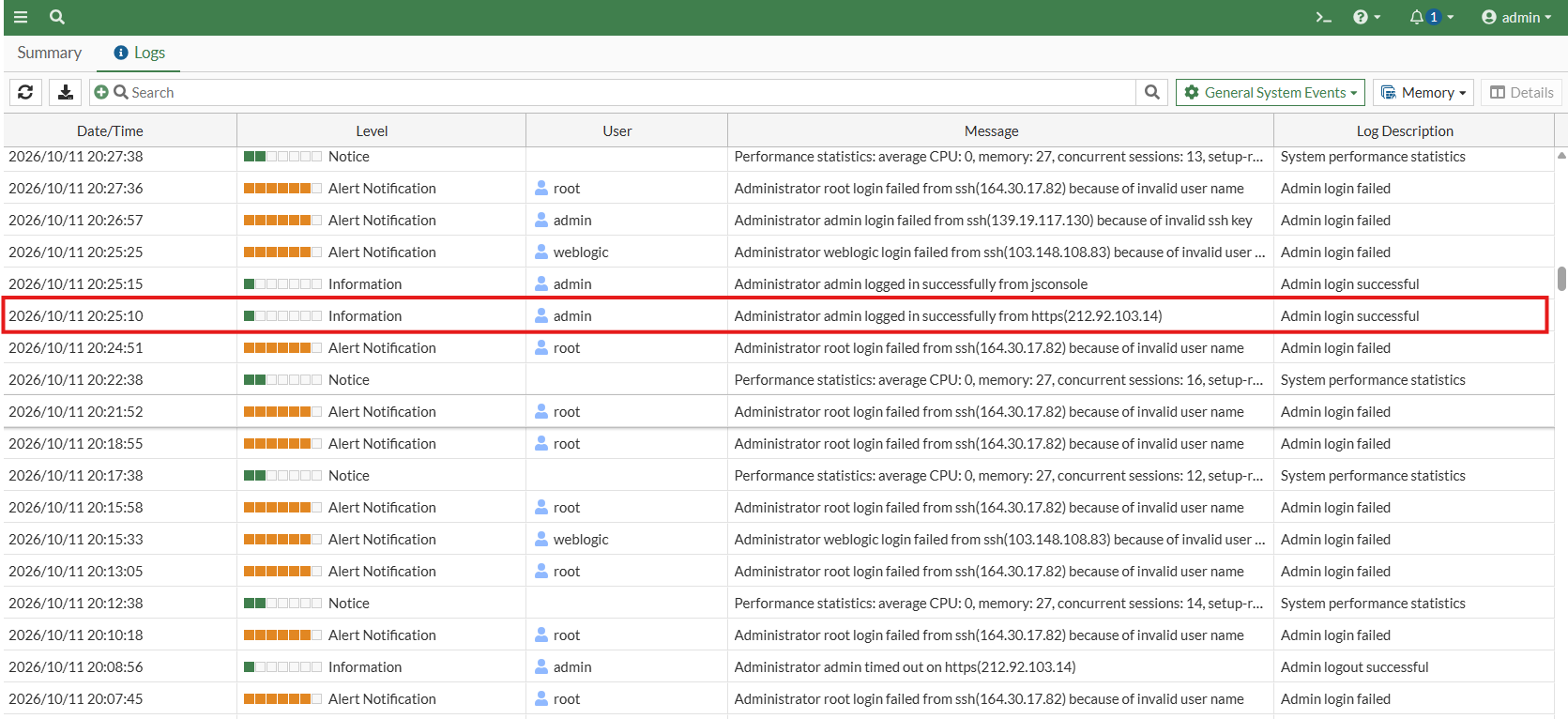
- Administrator admin successfully logged in to FortiGate via HTTPS from IP address 212.92.103.14 at 20:25:10.
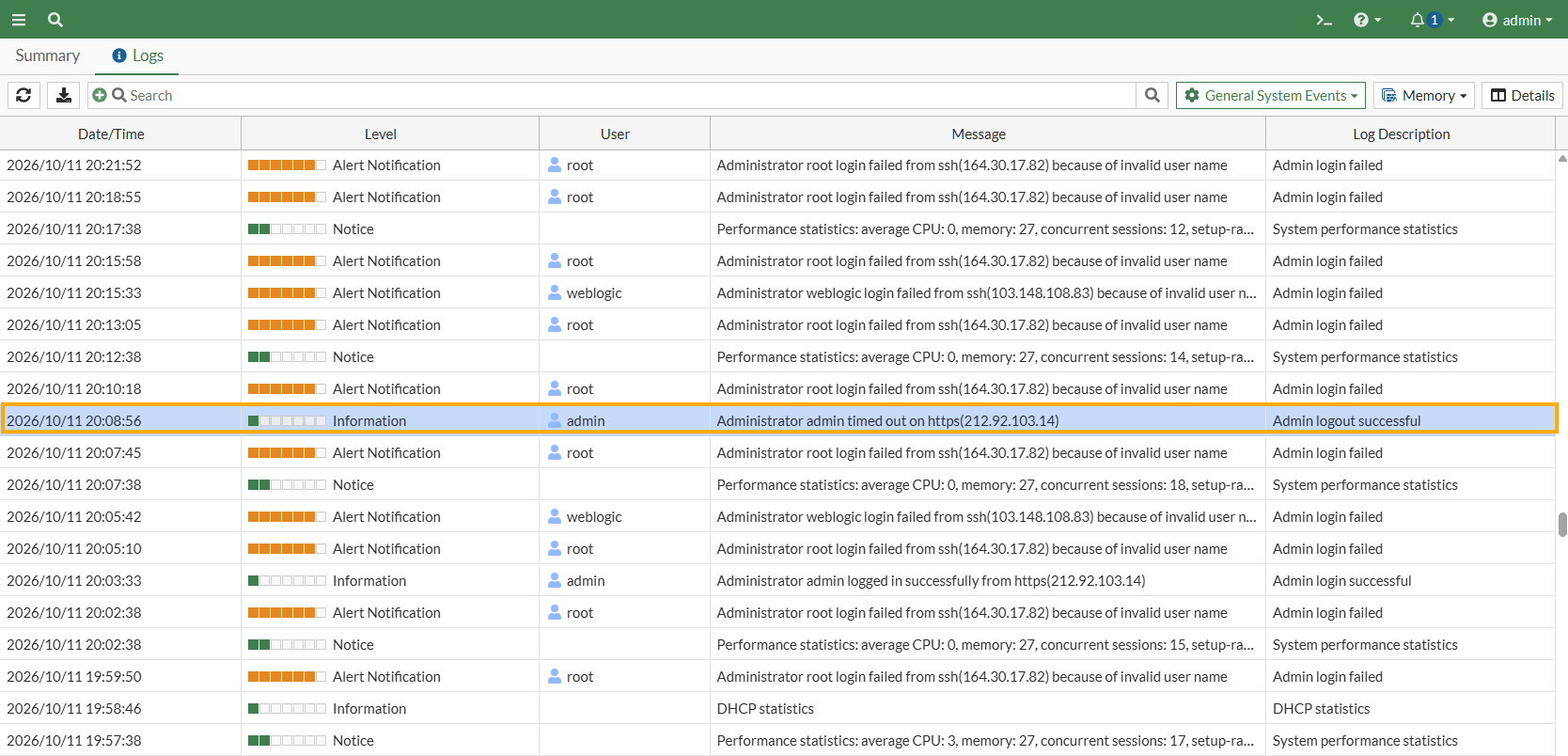
- Administrator admin was automatically logged out due to session timeout at 20:08:56. This was not a manual logout.
- FortiGate temporarily blocked login attempts from IP address 2.57.121.25 for 60 seconds after three failed attempts.
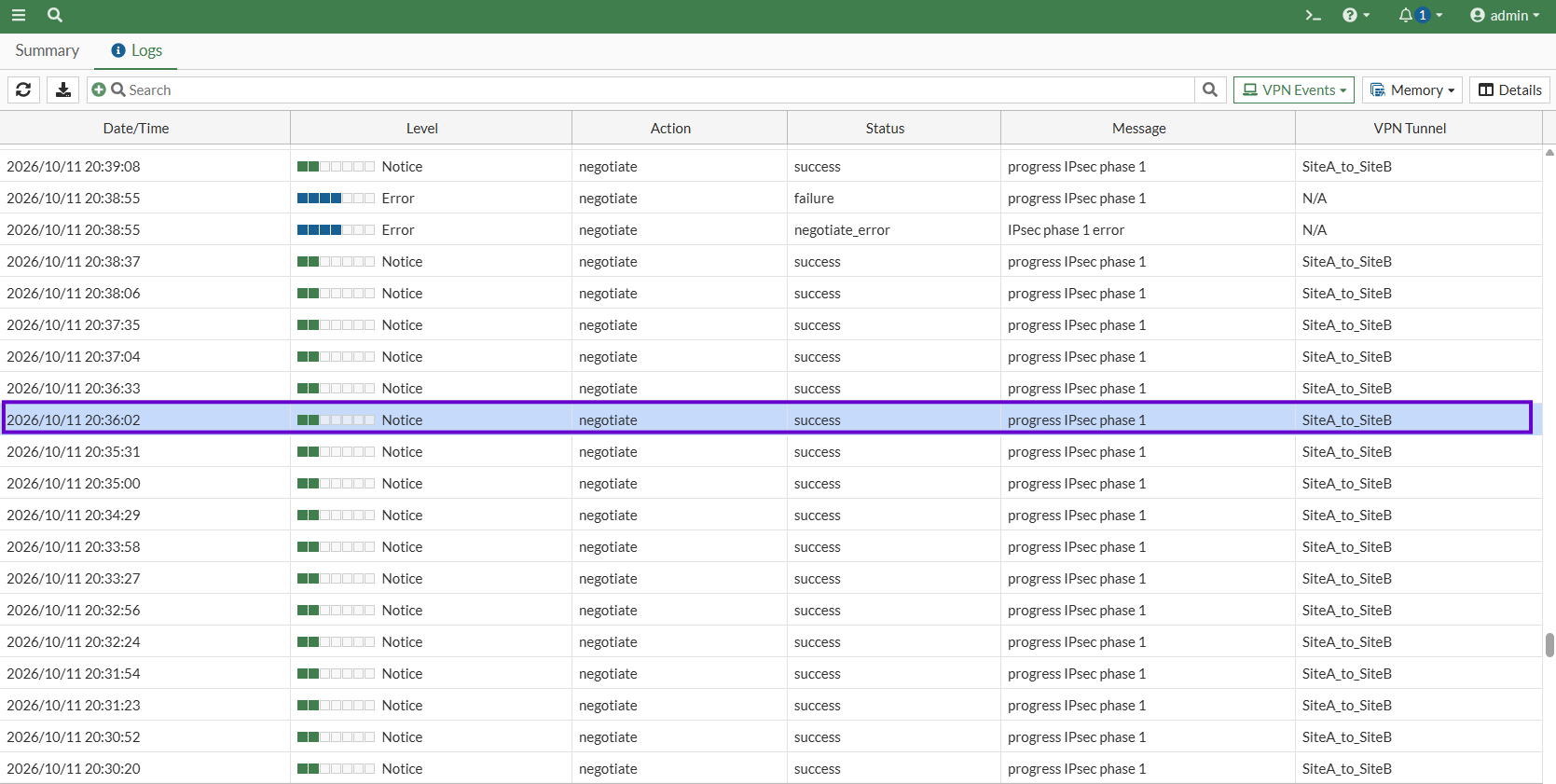
- The IPsec VPN tunnel SiteA_to_SiteB successfully completed Phase 1 negotiation at 20:36:02.
- Administrator admin successfully logged in to FortiGate via HTTPS from IP address 212.92.103.14 at 20:25:10.
How to View Forward Traffic Logs
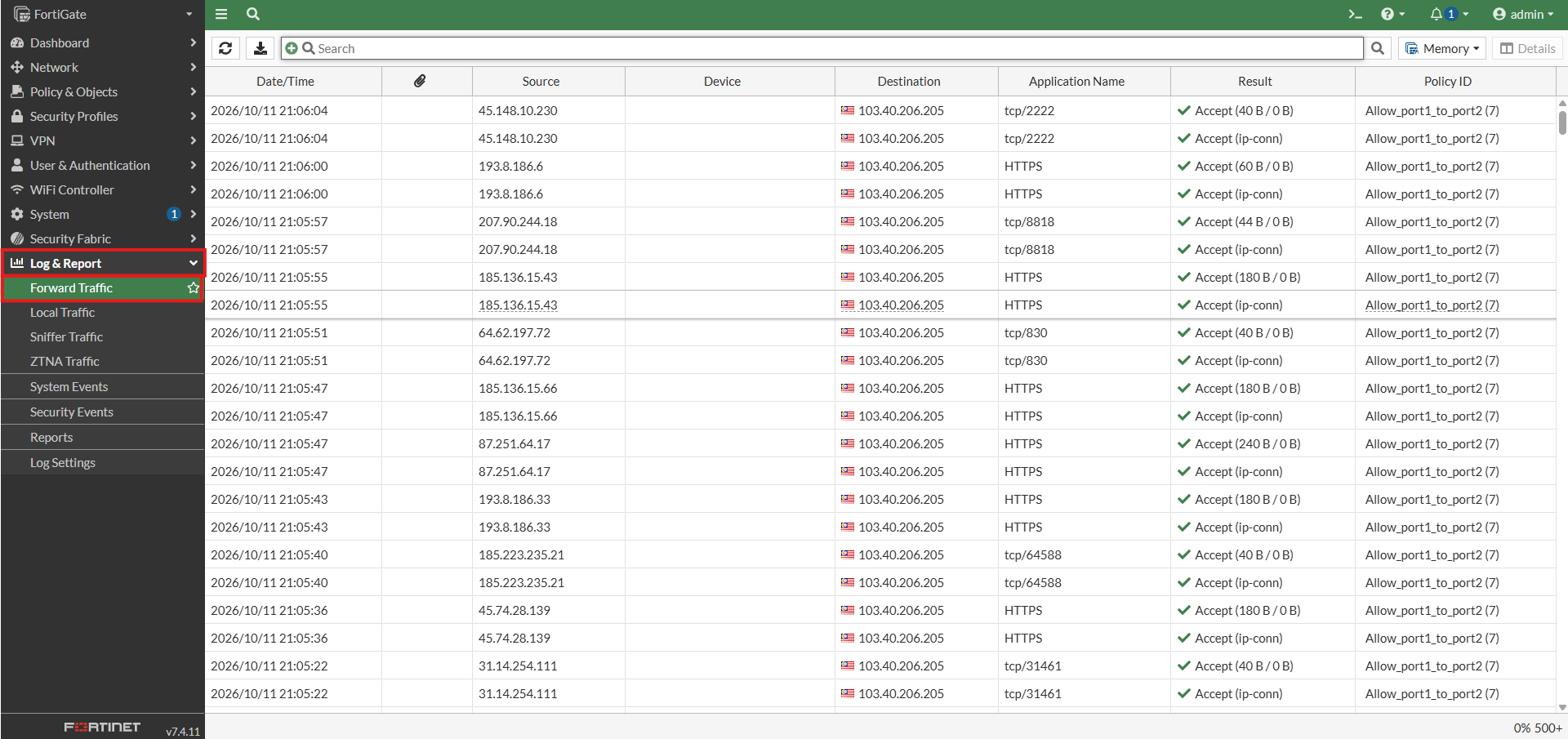
The guide below demonstrates how to view and check the Forward Traffic logs.
- Log in to your FortiGate Web GUI.
- On the left-hand navigation menu, expand Log & Report.
- Click on Forward Traffic to monitor system-level status.
Overview of Toolbar Features
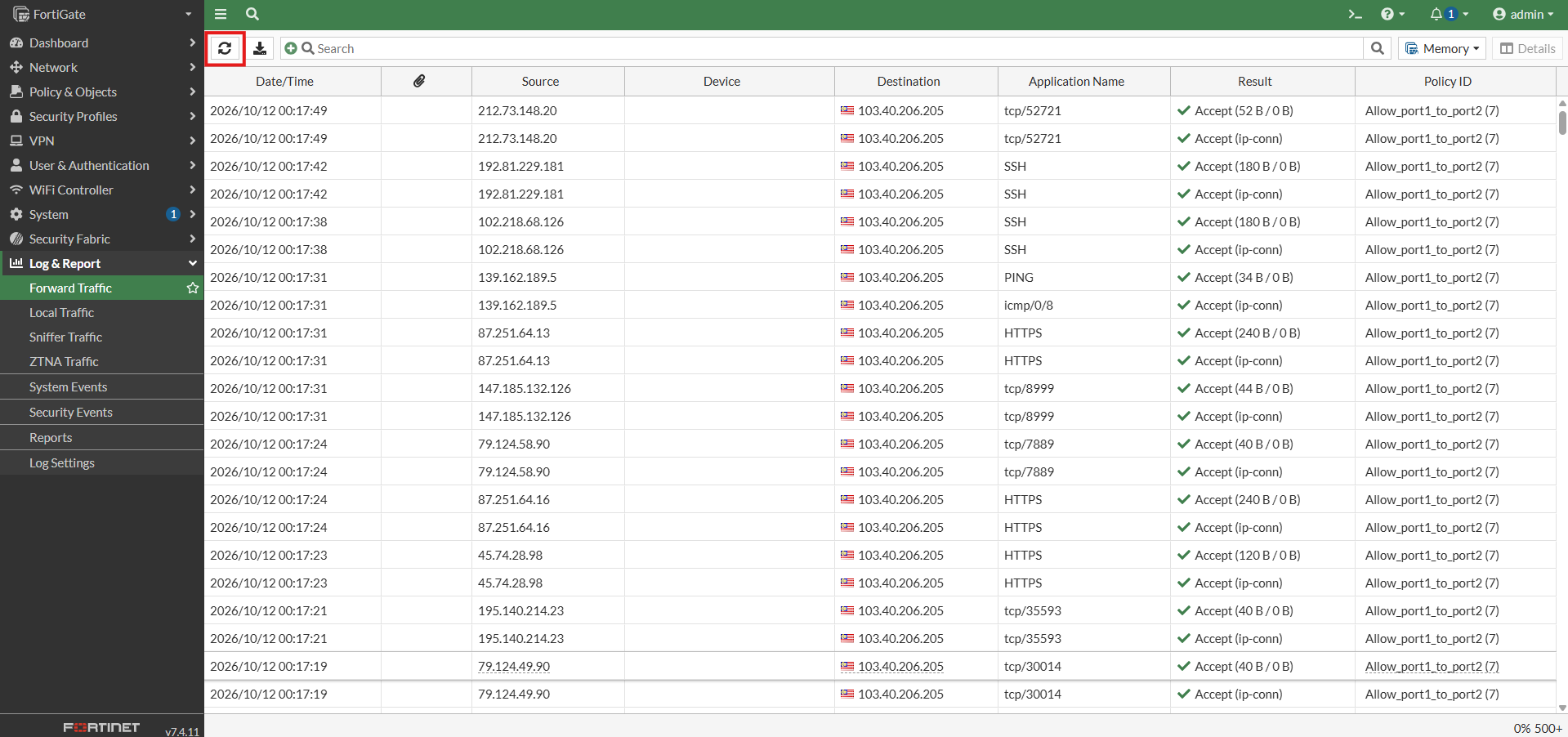
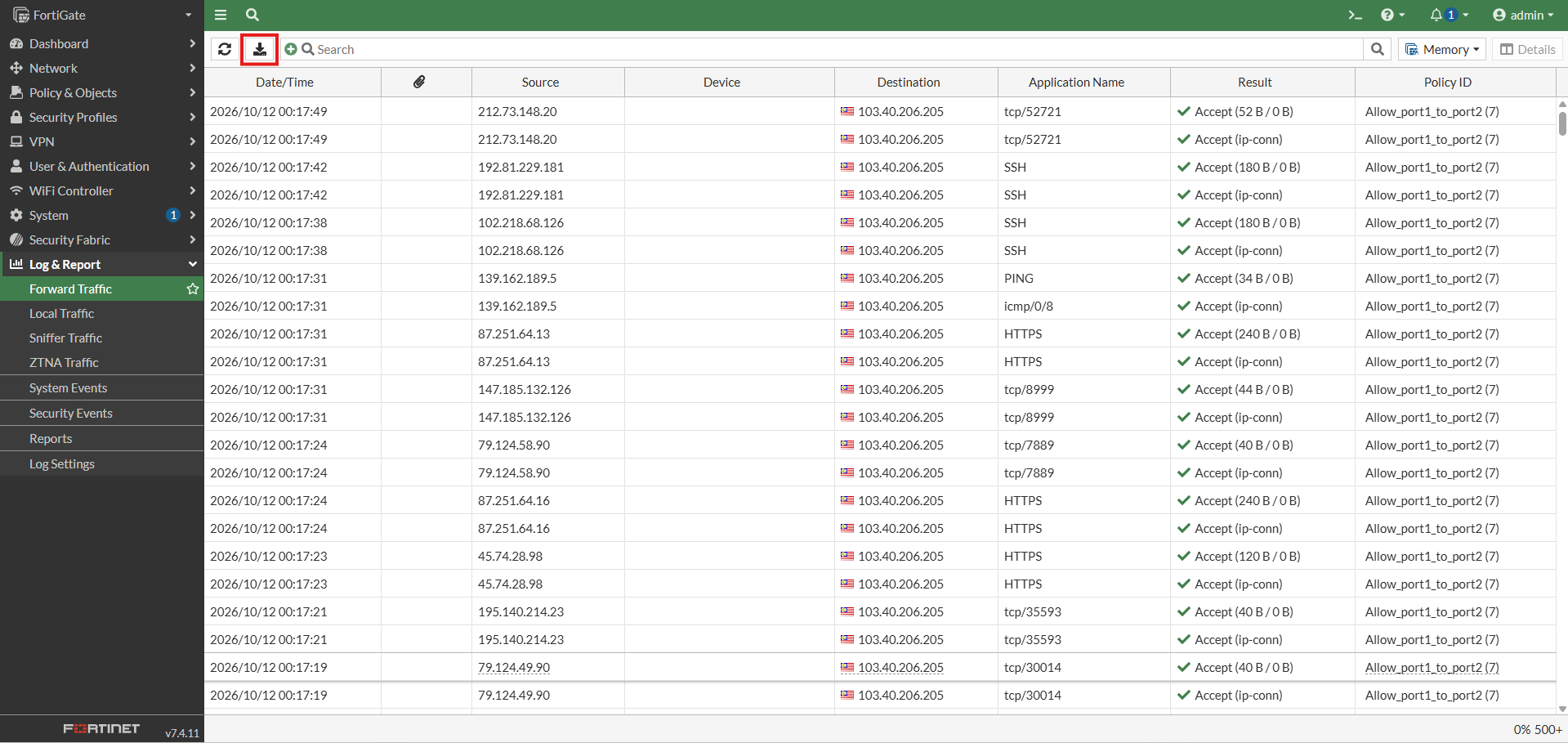
- Refresh: Reloads the traffic logs to display the latest available connection records.
- Download: Exports the available traffic logs for further review or troubleshooting.
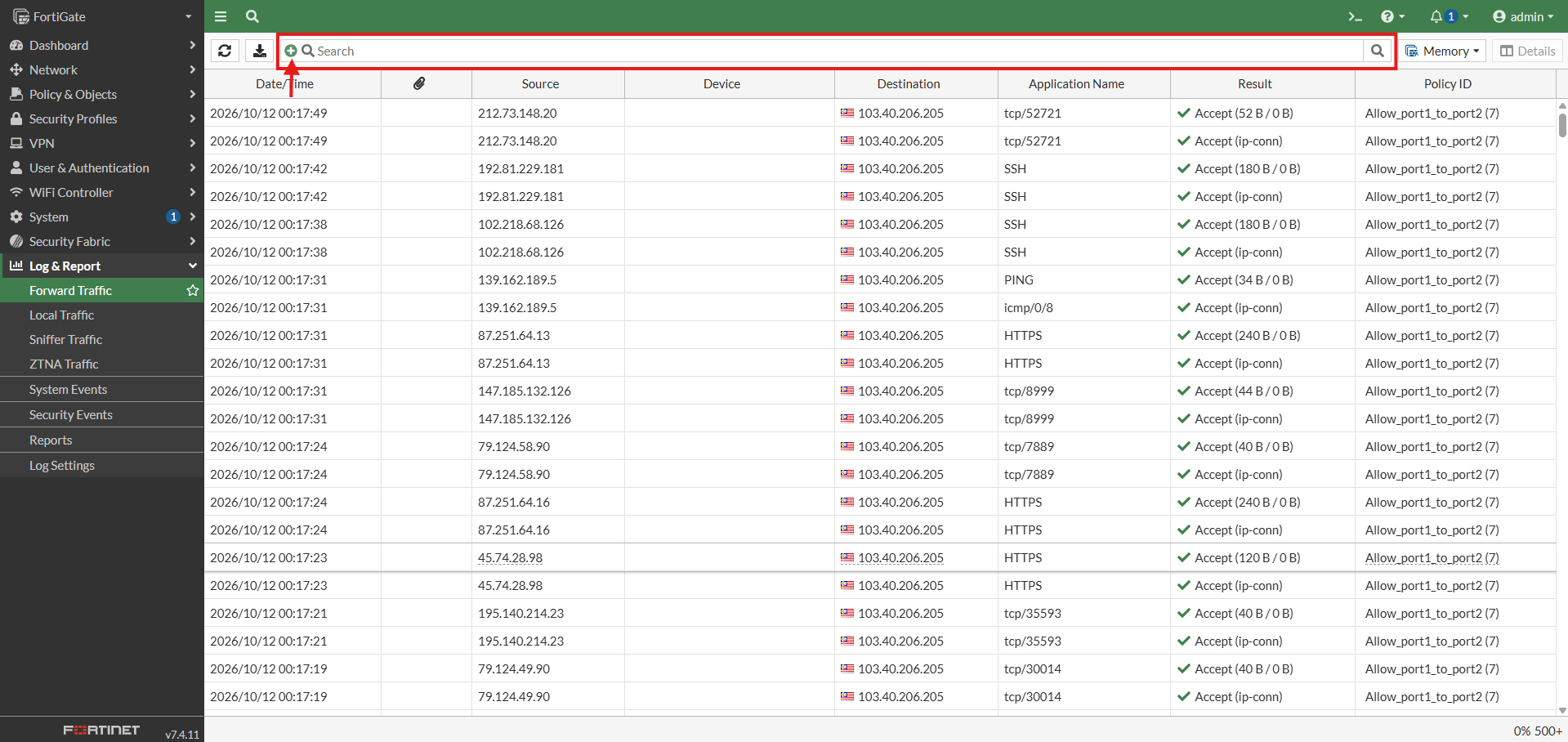
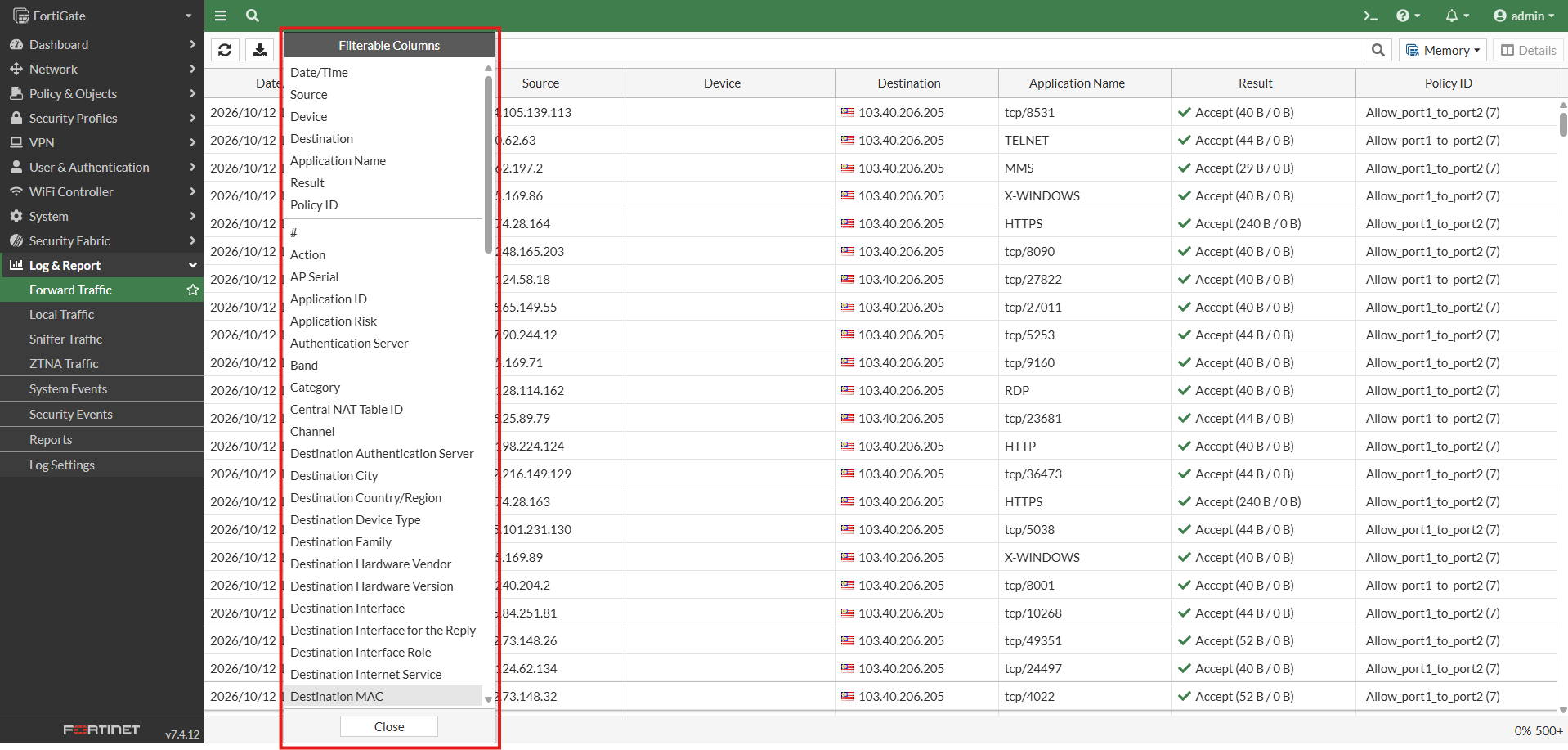
- Filter Button in Search Bar: Allows you to add filters such as Source IP, Destination IP, Action, or Policy ID to narrow the search results.
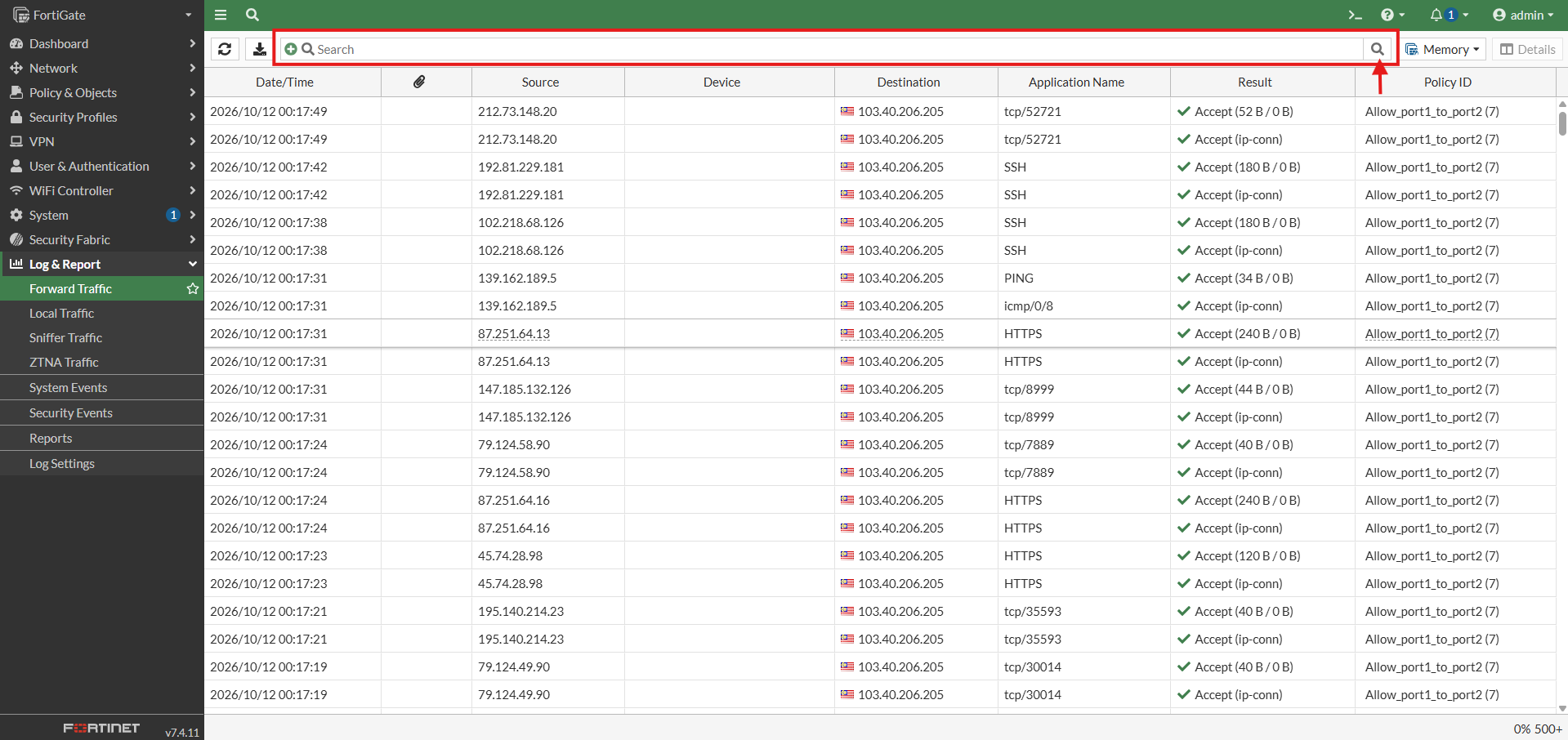
- Search Button in Search Bar: Runs the search based on the entered keywords or selected filters.
- Memory: Displays logs stored in the FortiGate’s memory. Other log sources may be available depending on the configuration.
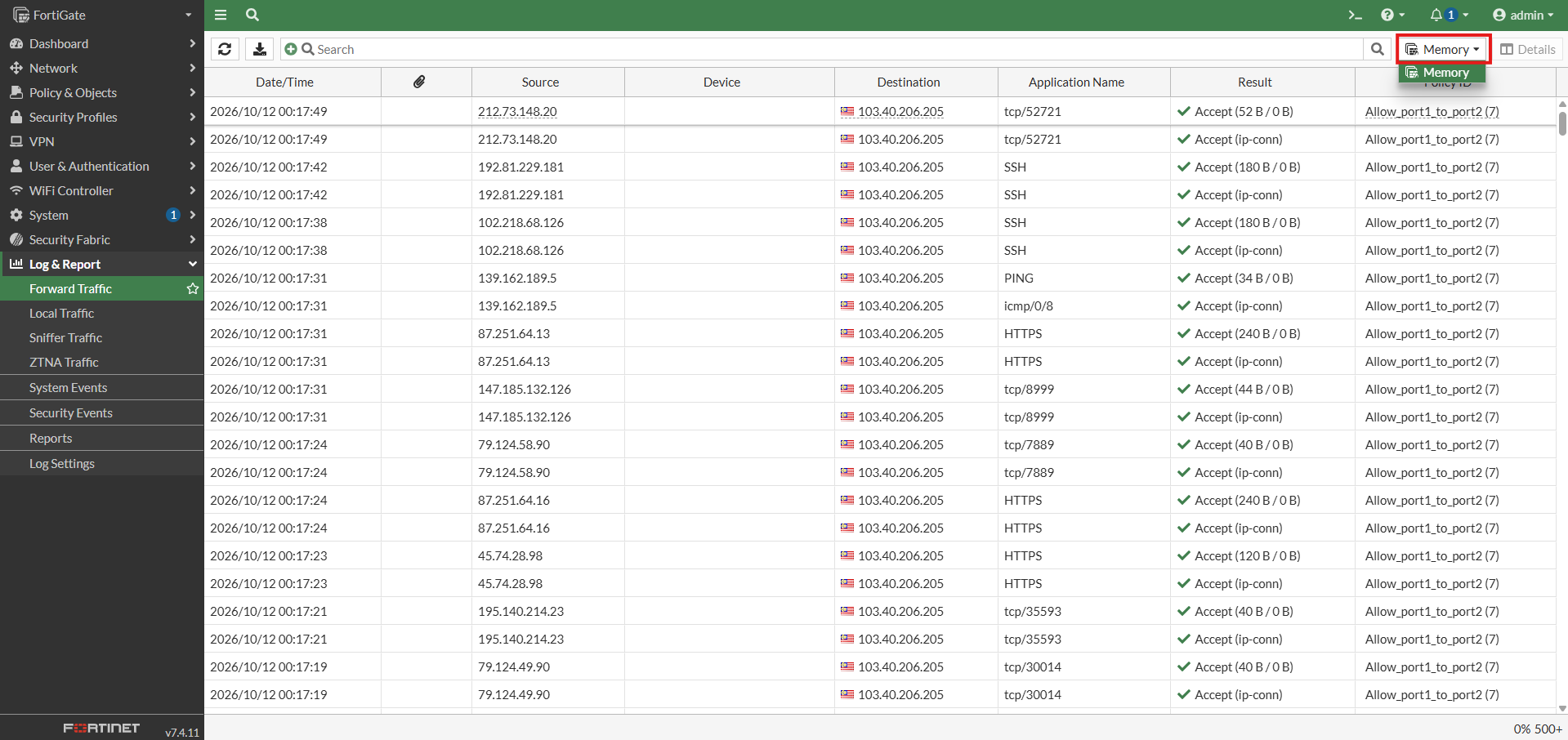
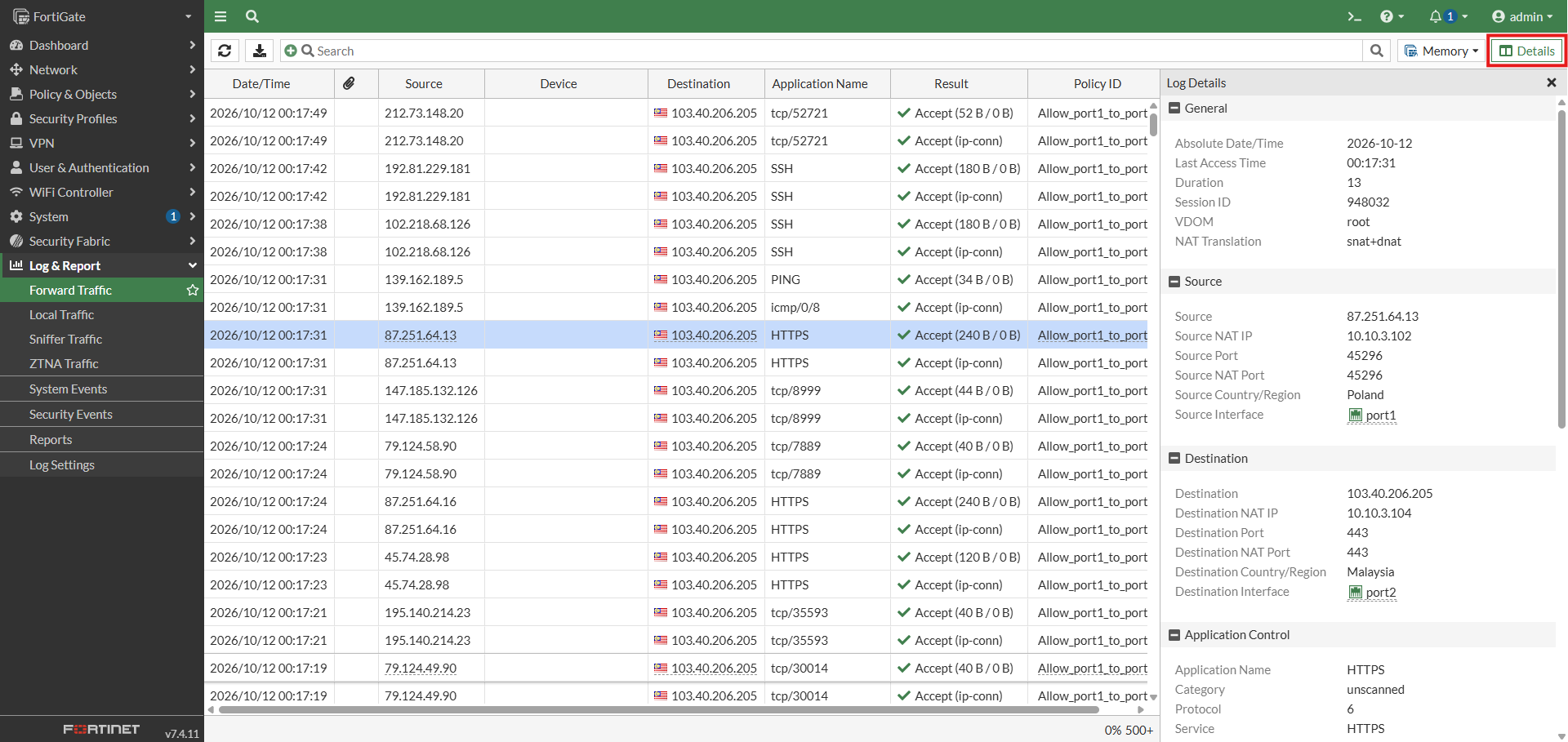
- Details: Displays detailed information about the selected traffic log, including connection details and the firewall policy applied.
- Examples to read the logs:
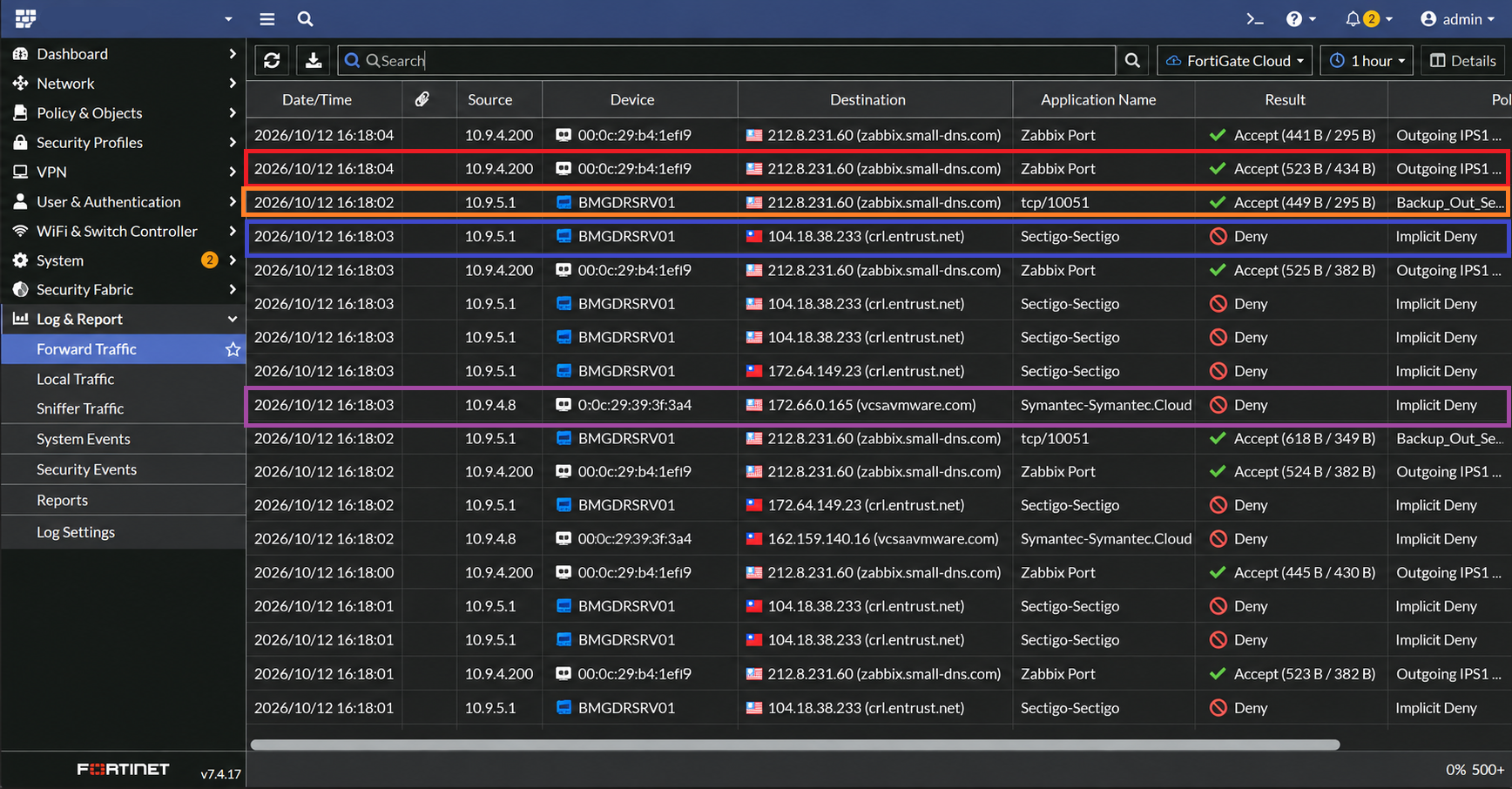
- Source IP 10.9.4.200 successfully passed traffic to 212.8.231.60 via Zabbix Port, with 523 bytes sent and 434 bytes received.
- Source IP 10.9.5.1 was allowed to connect to 212.8.231.60 via TCP port 10051, with 449 bytes sent and 295 bytes received.
- Source IP 10.9.5.1 attempted to connect to 104.18.38.233 (crl.entrust.net), but the traffic was blocked by FortiGate’s Implicit Deny policy.
- Source IP 10.9.4.8 attempted to connect to 172.66.0.165 (vcsa.vmware.com), but the traffic was blocked by FortiGate’s Implicit Deny policy.
Conclusion
By following this guidance, you can effectively test and verify network connectivity between your FortiGate firewall and a target destination by observing real-time system and traffic logs.
For additional assistance or if you encounter any issues, please contact our support team at support@ipserverone.com.