
Search Our Database
How to Set Up 1:1 NAT and Port Forwarding in FortiGate
Introduction
Configuring network address translation and port forwarding on a FortiGate firewall is essential when exposing internal network servers securely to external internet users. This guide explains how network administrators can set up 1:1 NAT and Virtual IPs (Port Forwarding) using the FortiGate Web GUI interface. These configurations ensure incoming public traffic routes accurately to designated internal private IP addresses while preserving underlying firewall security policies. Following these structured configuration steps allows your hosted web applications, mail servers, or remote desktop services to remain reliably accessible to remote clients.
Prerequisite
- Access to FortiGate firewall administration portal with Admin privileges.
- Basic knowledge on Virtual IPs (VIP), NAT rules, and firewall policies.
- Available public IP address assigned on the external WAN interface.
- Target internal server IP address and specific service port details.
- Access privilege for SSH.
Step-by-step guide
Method 1: Setting up 1:1 NAT
Use this method if you need to map an entire dedicated public IP address to a single internal private IP address.
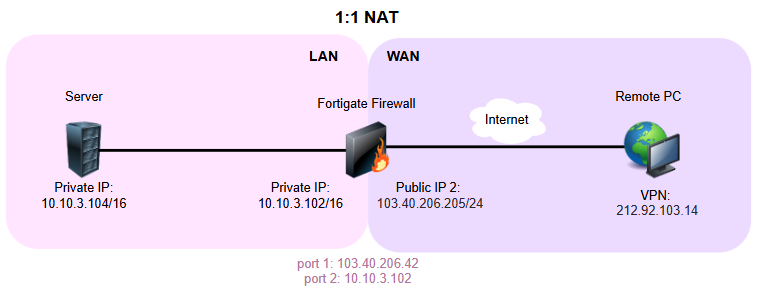
The diagram above is used as a reference for the set up of 1:1 NAT configuration.
Step 1: Set up Address Objects
- Go to Policy & Objects, select Addresses and click on Create New.
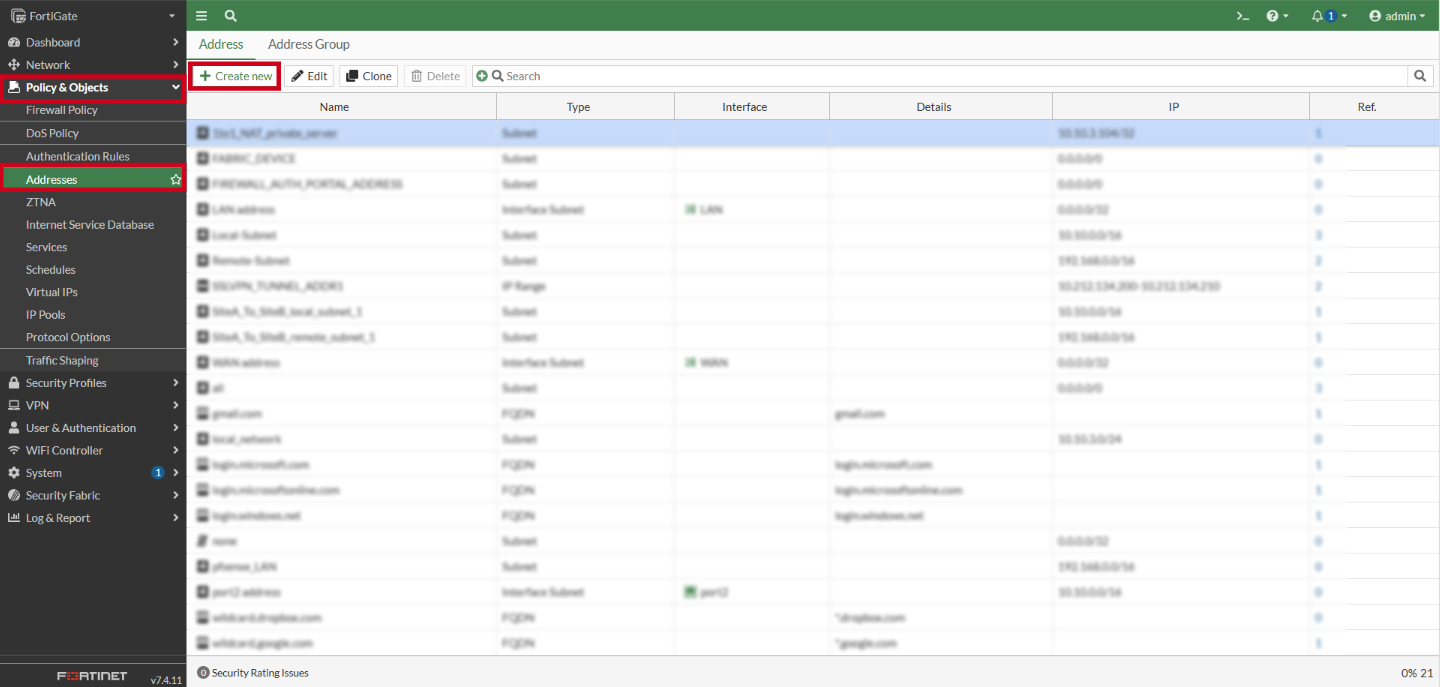
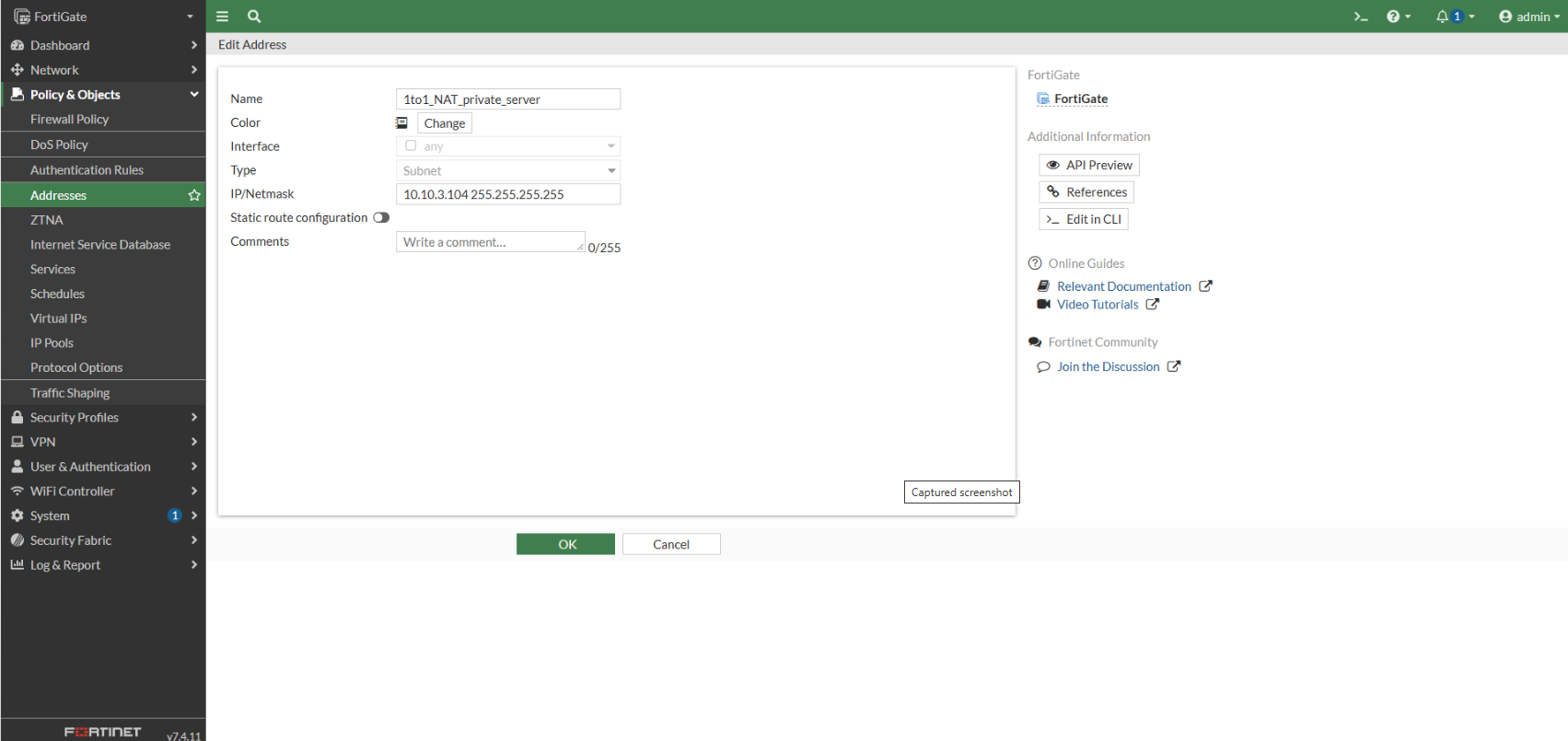
- Configure the following parameters:
- Name: 1to1_NAT_Private_Server
- Interface: Select any from the drop-down list
- Type: select Subnet
- IP/Netmask: Enter the internal server’s private subnet (e.g., 10.10.3.104 255.255.0.0)
- Click OK
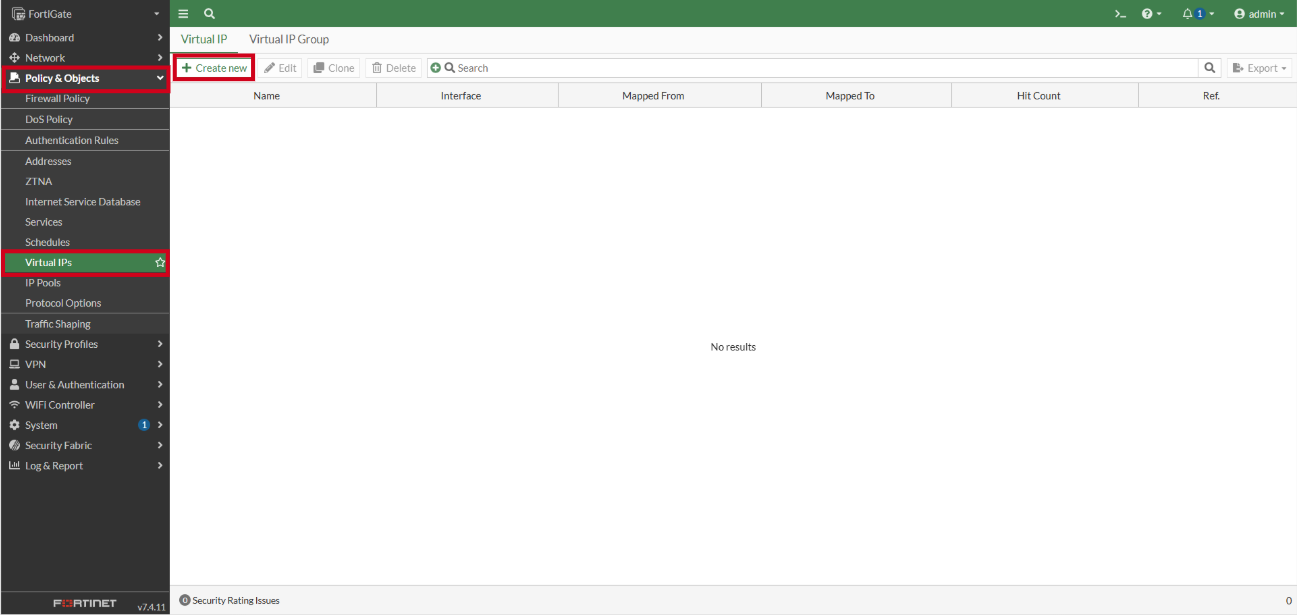
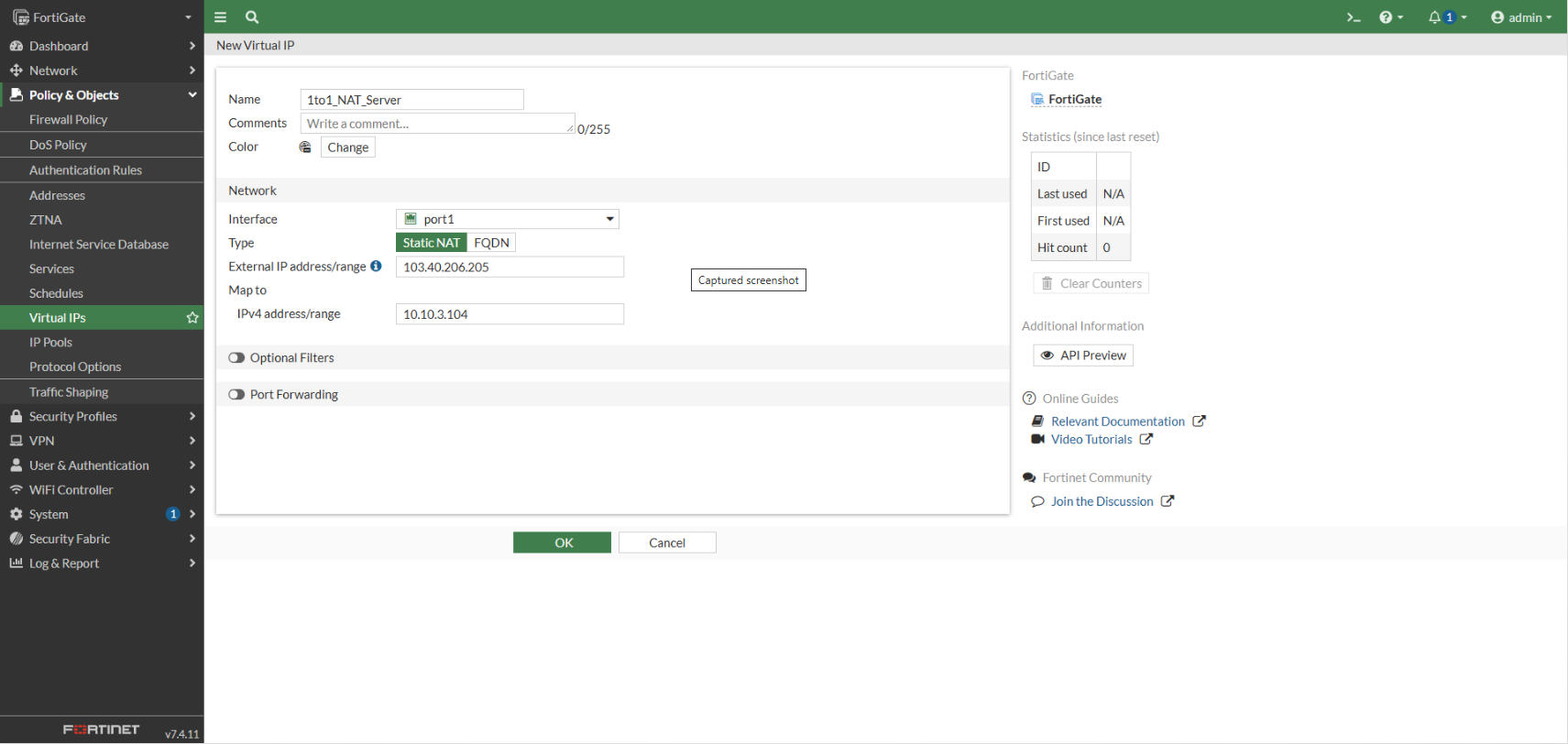
Step 2: Configure Virtual IP
- Navigate to Policy & Objects, select Virtual IPs in the FortiGate navigation menu.
- Click Create New.
- Configure the following parameters:
- Name: 1to1_NAT_Server
- Interface: Set Interface to your WAN interface (e.g., port1).
- External IP Address/Range: Enter the public IP address of the external server (e.g., 103.40.206.205).
- Mapped IP Address/Range: Enter the local server private IP address (e.g., 10.10.3.104).
- Ensure Port Forwarding remains toggled OFF.
- Click OK to save the Virtual IP.
Step 3: Configure Inbound Policy Rules
- Go to Policy & Objects > Firewall Policy and click Create New.
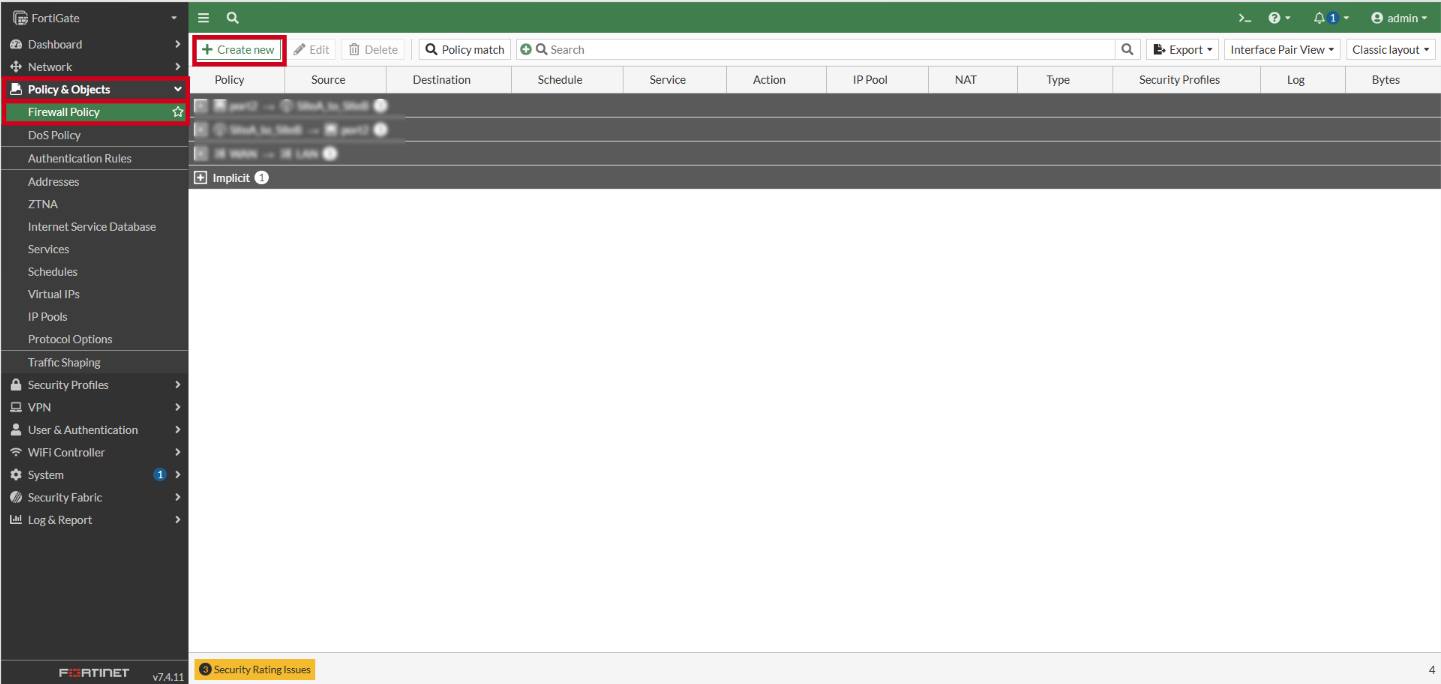
- Configure the firewall policy settings:
- Name: Allow_port1_to_port2
- Incoming Interface: Select WAN interface (e.g., port1)
- Outgoing Interface: Select LAN interface (e.g., port2)
- Source: Select all
- Destination: Select the created VIP (1to1_NAT_Server)
- Service: Select ALL or required protocols
- Action: Select ACCEPT
- Switch on the NAT toggle.
- IP pool configuration: select Use Outgoing Interface Address.
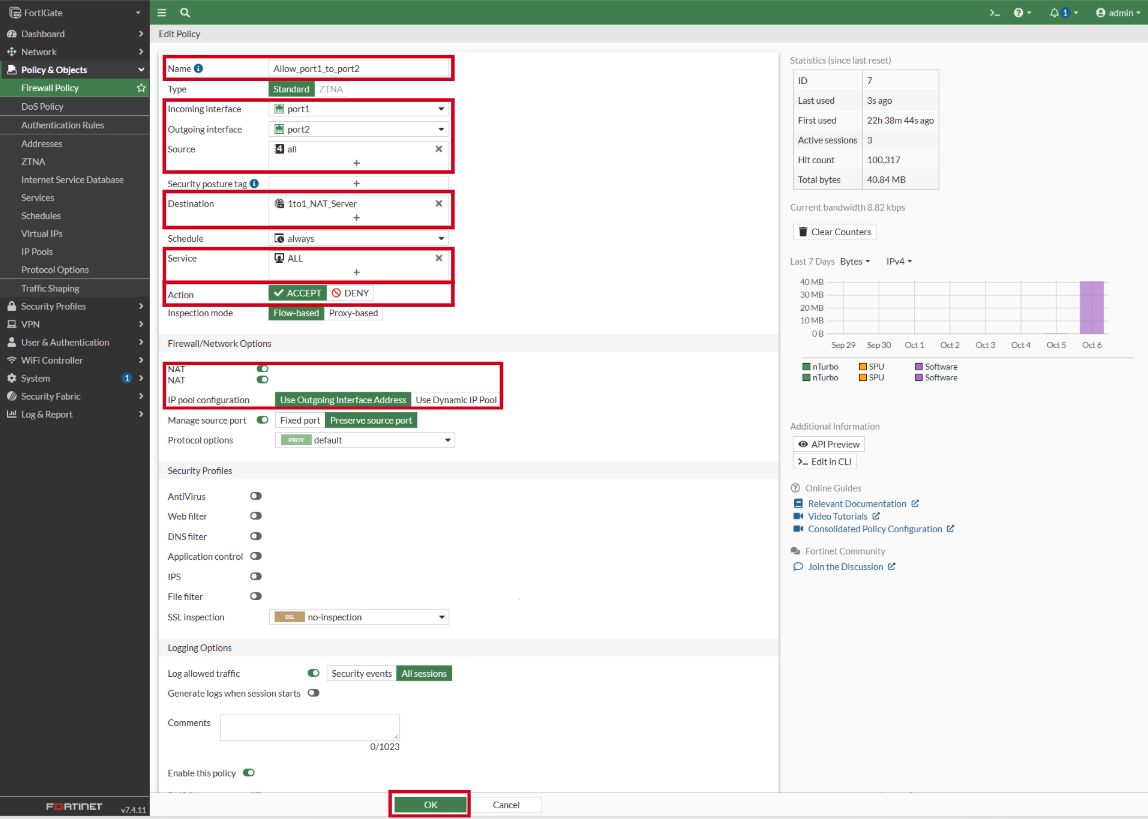
Step 4: Configure Outbound Policy Rules
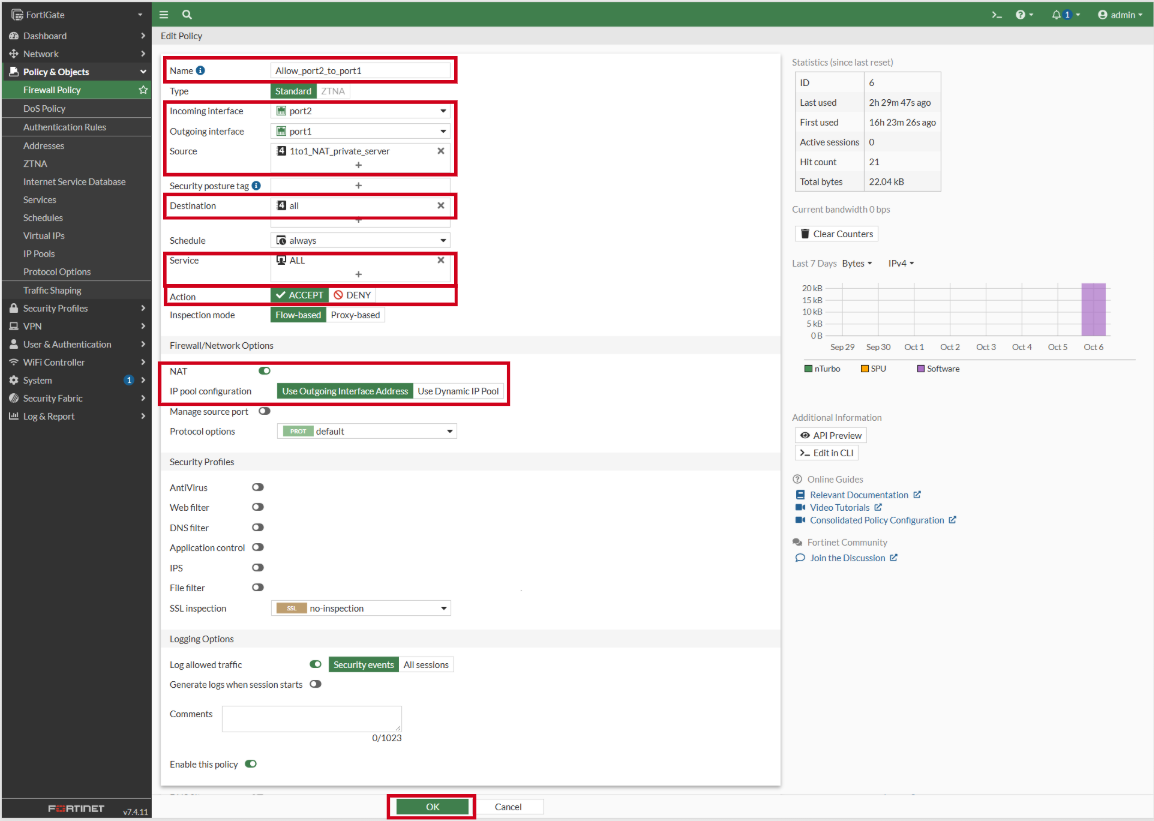
- Go to Policy & Objects, select Firewall Policy and click Create New.
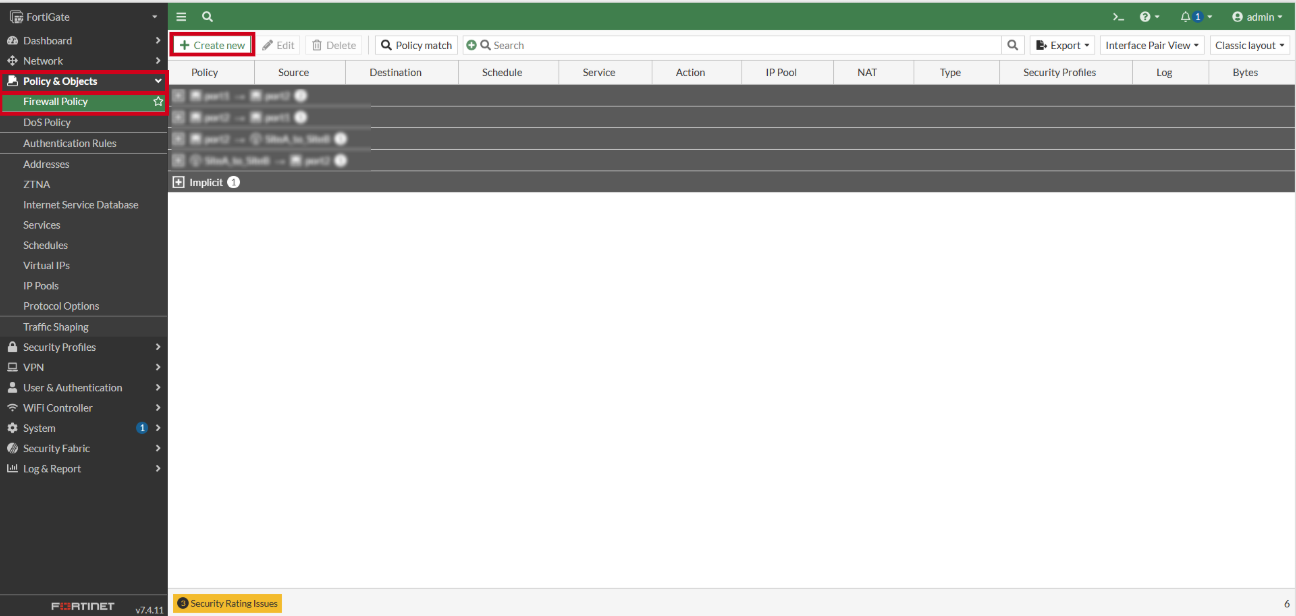
- Configure the firewall policy settings:
- Name: Allow_port2_to_port1
- Incoming Interface: Select LAN interface (e.g., port2)
- Outgoing Interface: Select WAN interface (e.g., port1)
- Source: Select your desired server(s) within the LAN interface (e.g., 1to1_NAT_private_server)
- Destination: Select all
- Service: Select ALL or required protocols
- Action: Select ACCEPT
- Switch on the NAT toggle.
- IP pool configuration: select Use Outgoing Interface Address.
- Click OK to apply the policy.
Step 5: Verify Inbound Traffic
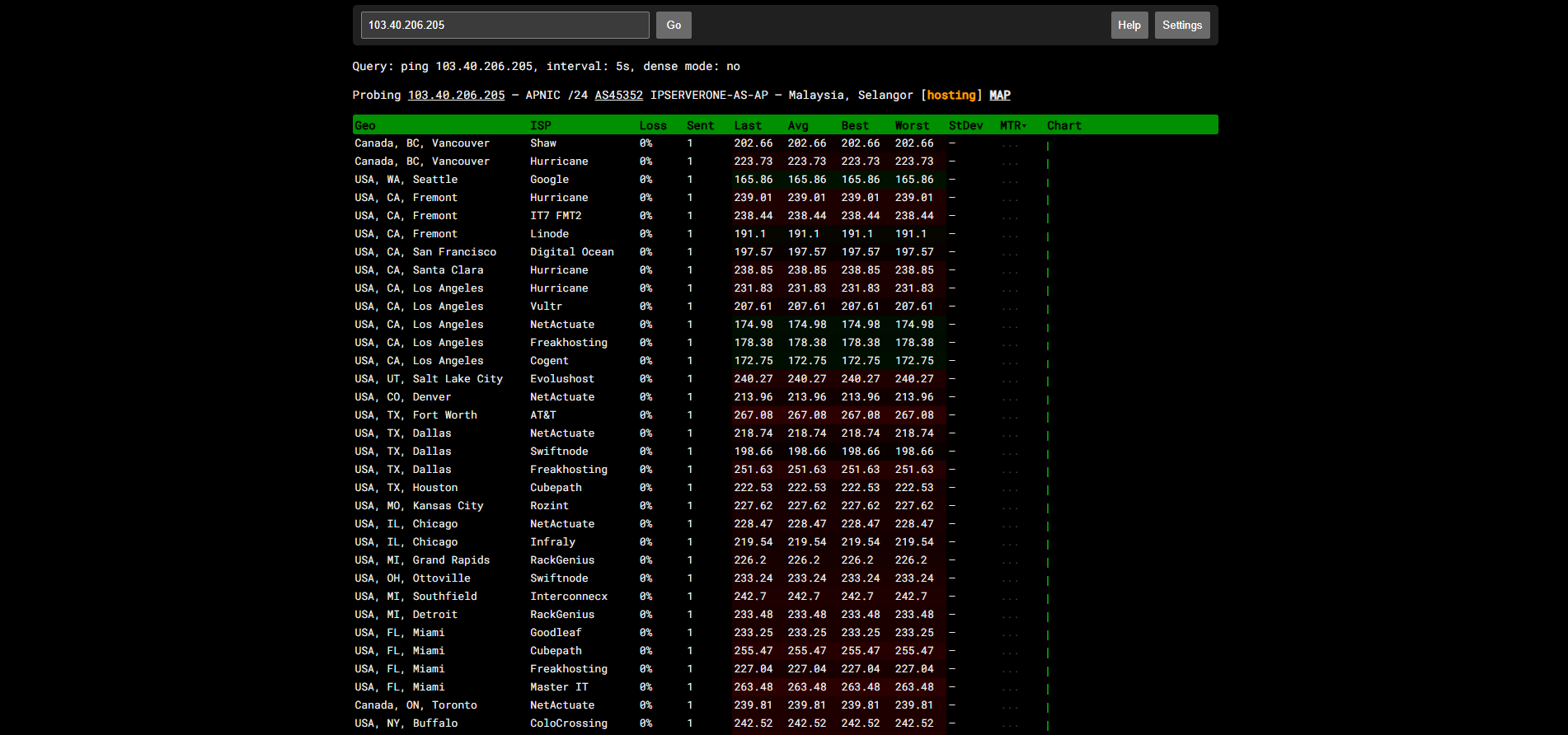
- You may use [https://ping.pe/] to verify the inbound connectivity to your server.
- Enter the external server’s public IP (e.g., 103.40.206.205) address and test the required port to confirm whether the inbound traffic is reachable from the Internet.
- For example:
Step 6: Verify Outbound Traffic
- Log into the internal server and check its external IP address to ensure outbound traffic is using the correct NAT mapping.
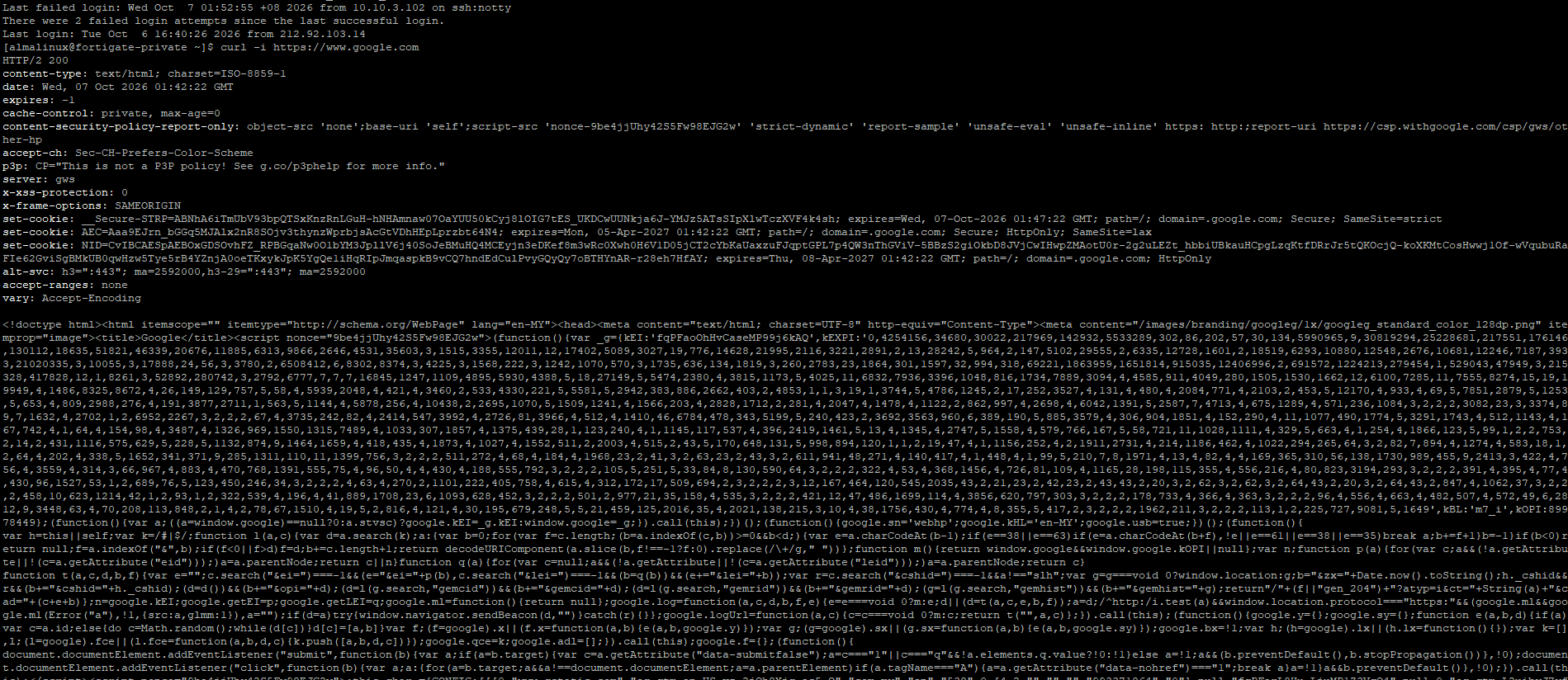
- You may verify the outbound Internet connectivity from the server by running the following command:.
curl -i https://www.google.com
- If the server is able to reach the website and returns an HTTP response, this confirms that outbound HTTPS traffic is working.
- Expected output:
Method 2: Setting up Port Forwarding
Use this method to forward traffic from a specific port on your public IP to a specific port on an internal device.
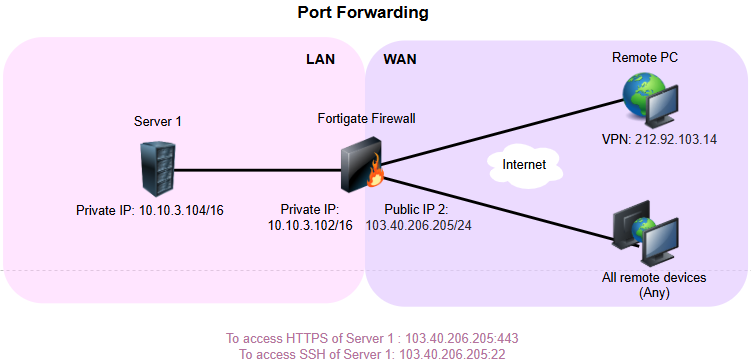
The diagram above is used as a reference for the set up of port forwarding configuration.
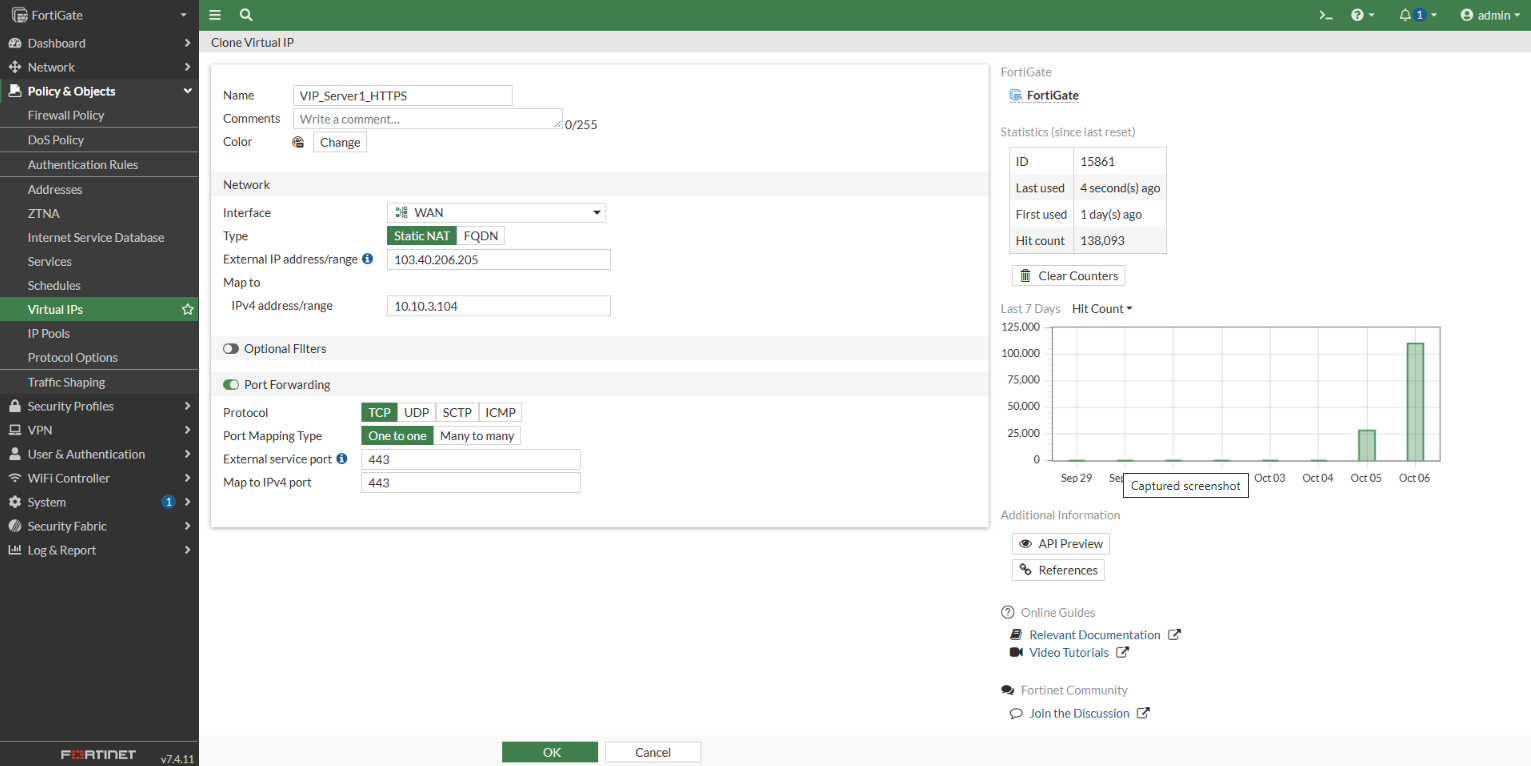
Step 1: Create The Server 1 HTTPS Virtual IP
- Navigate to Policy & Objects, then select Virtual IPs.
- Click Create New.
- Configure the following parameters:
- Name: Enter a descriptive name (e.g., VIP_Server1_HTTPS).
- Interface: Set to your internet/public interface (e.g., WAN).
- External IP Address/Range : Enter the external server’s public IP(e.g., 103.40.206.205).
- Mapped IP Address/Range: Enter the local server private IP (e.g., 10.10.3.104).
- Toggle Port Forwarding to ON.
- Protocol: Select Protocol as TCP.
- External Service Port: Set your desired port for the external server(e.g., 443).
- Map to IPv4 port: Set your desired port for the local server (e.g., 443).
- Click OK to save the Virtual IP.
Step 2: Create The Server 1 SSH Virtual IP
- Navigate to Policy & Objects, then select Virtual IPs.
- Click Create New.
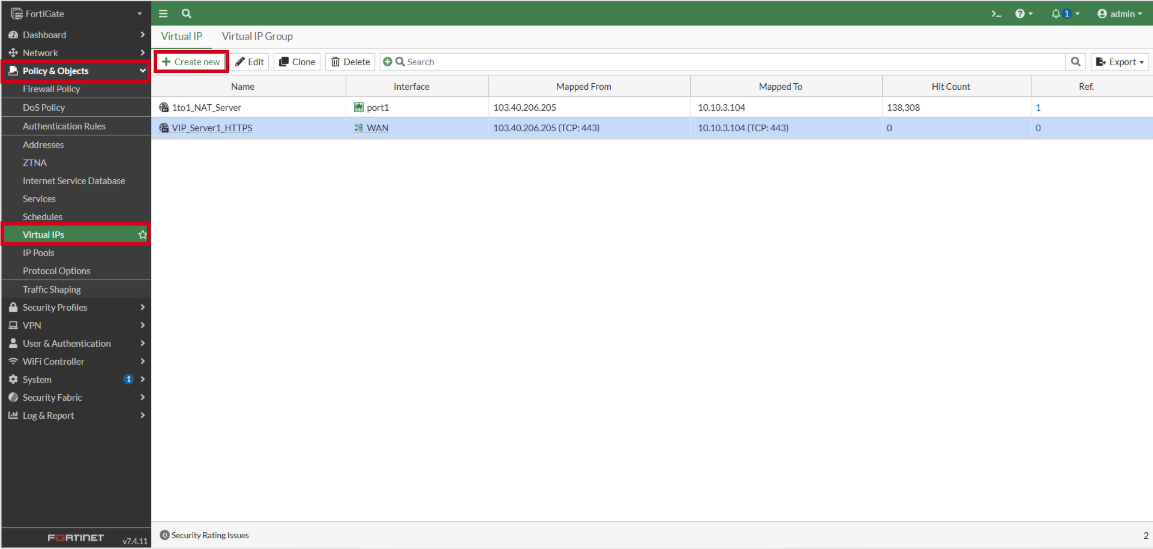
- Configure the following parameters:
- Name: Enter a descriptive name (e.g., VIP_Server1_SSH).
- Interface: Set to your internet/public interface (e.g., WAN).
- External IP Address/Range : Enter the external server’s public IP(e.g., 103.40.206.205).
- Mapped IP Address/Range: Enter the local server private IP (e.g., 10.10.3.104).
- Toggle Port Forwarding to ON.
- Protocol: Select Protocol as TCP.
- External Service Port: Set your desired port for the external server(e.g., 22).
- Map to IPv4 port: Set your desired port for the local server (e.g., 22).
- Click OK to save the Virtual IP.
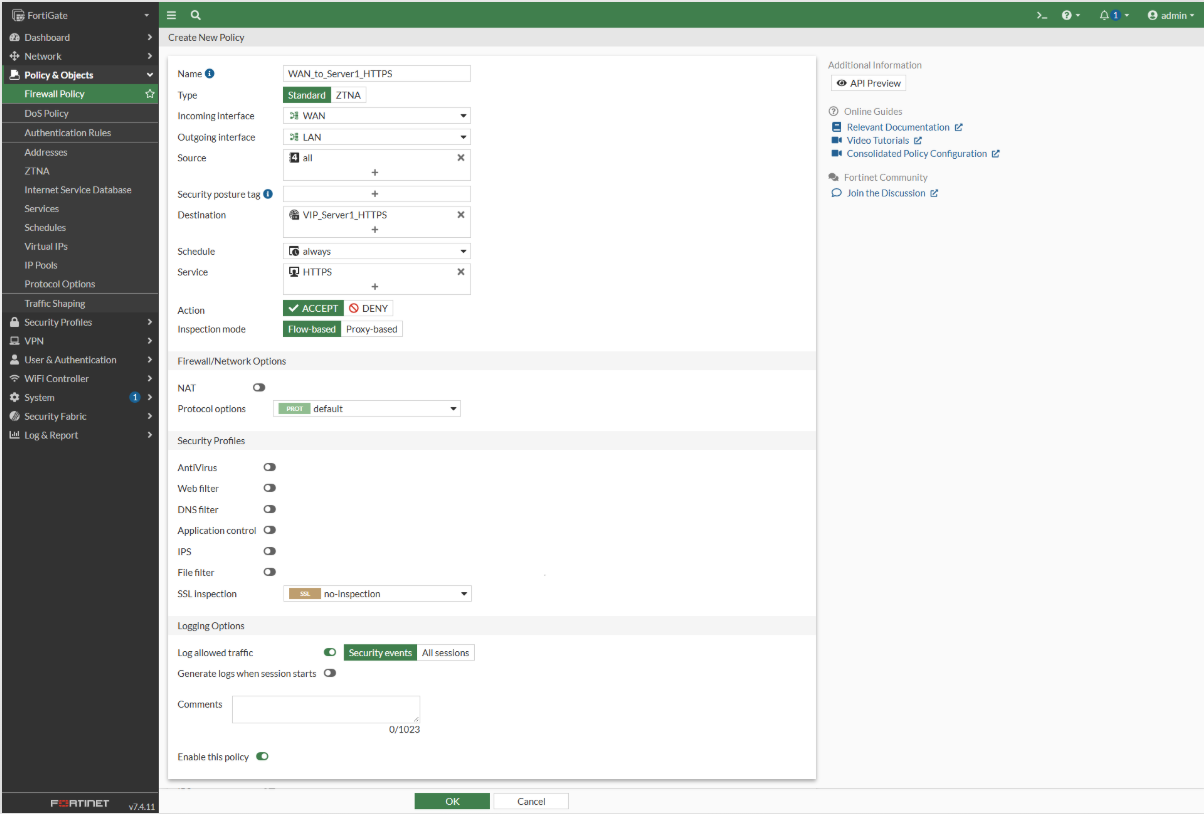
Step 3: Create The Inbound Firewall Policy for Server 1 HTTPS
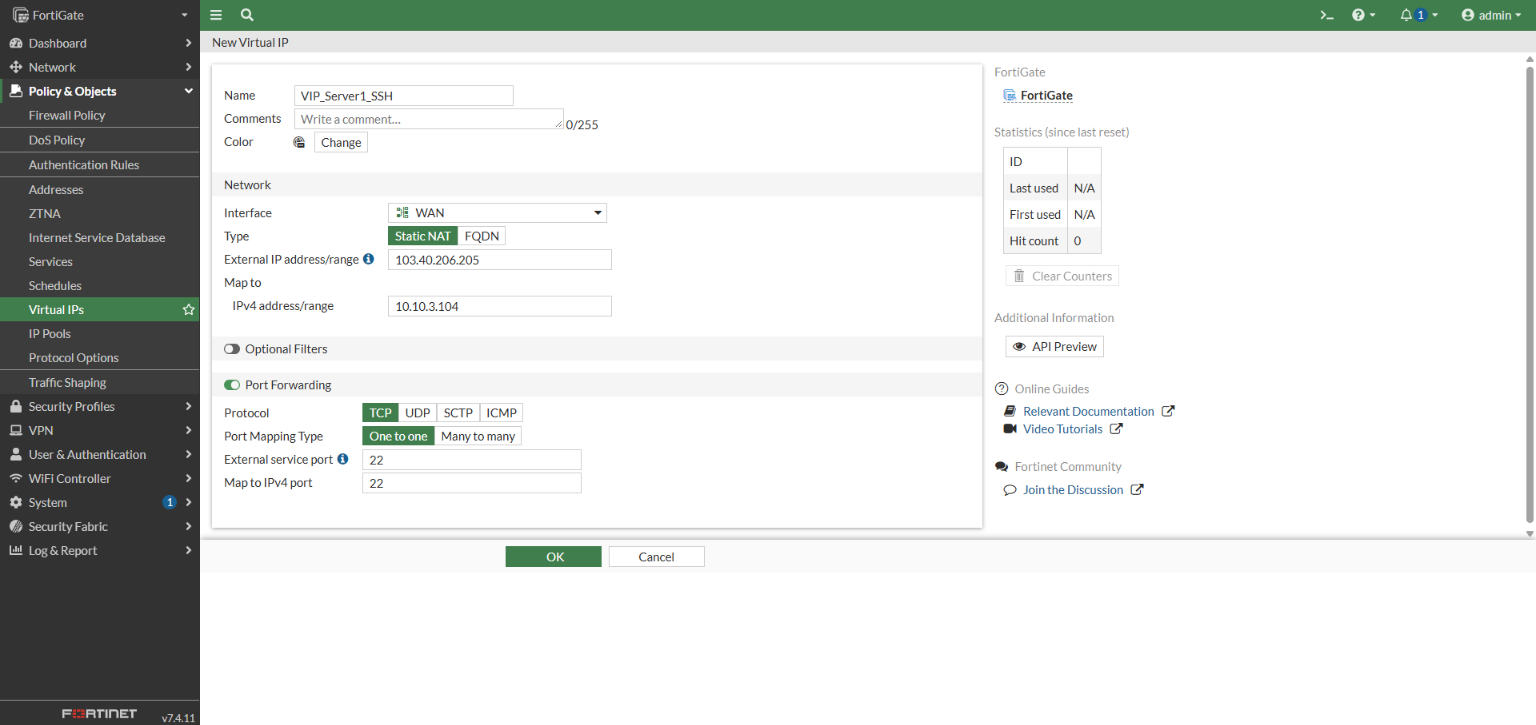
- Navigate to Policy & Objects, then select Firewall Policy.
- Click Create New.
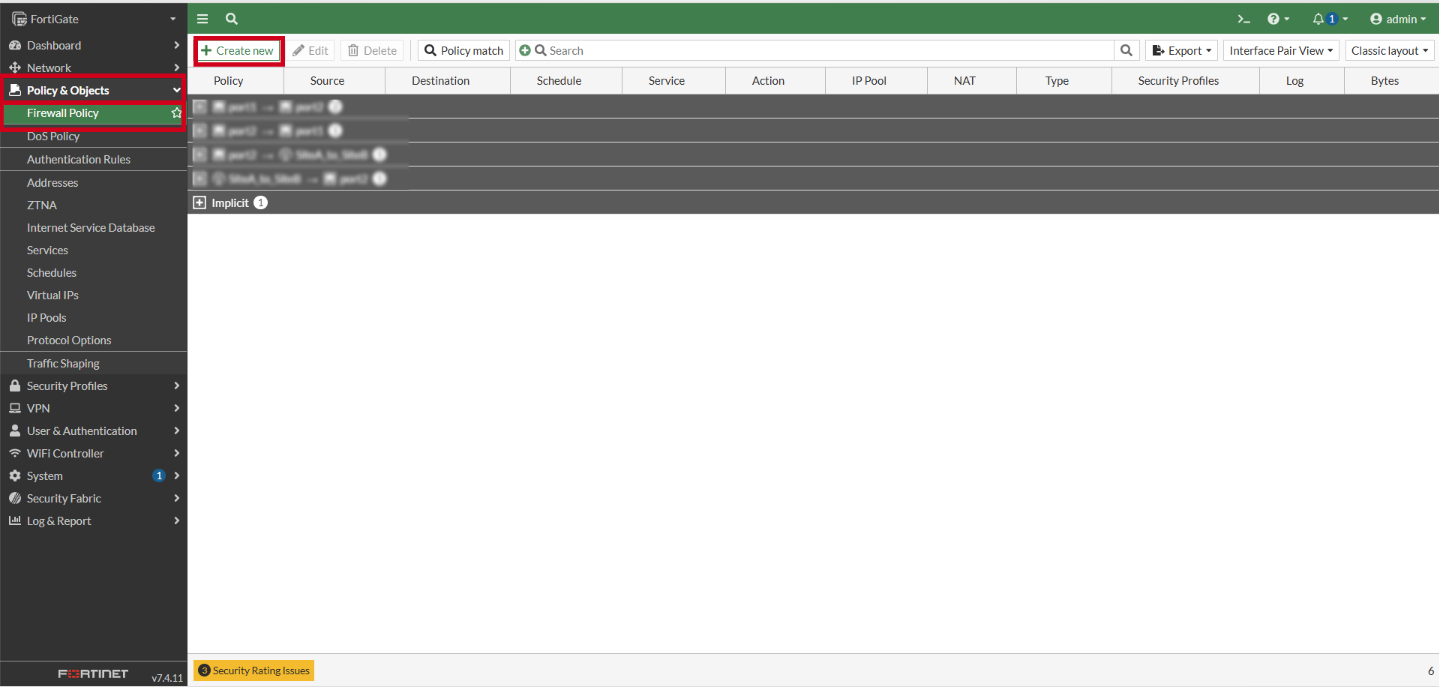
- Configure the following parameters
- Name: Enter a descriptive name (e.g., WAN_to_Server1_HTTPS).
- Incoming Interface: Set to your internet/public interface (e.g., WAN).
- Outgoing Interface: Set to the internal network interface where the destination server lives (e.g., LAN).
- Source: select all.
- Destination: Select the virtual IP that is configured for HTTPS (e.g., VIP_Server1_HTTPS)
- Service: Select HTTPS.
- Toggle NAT to off.
- Click OK to activate the rule.
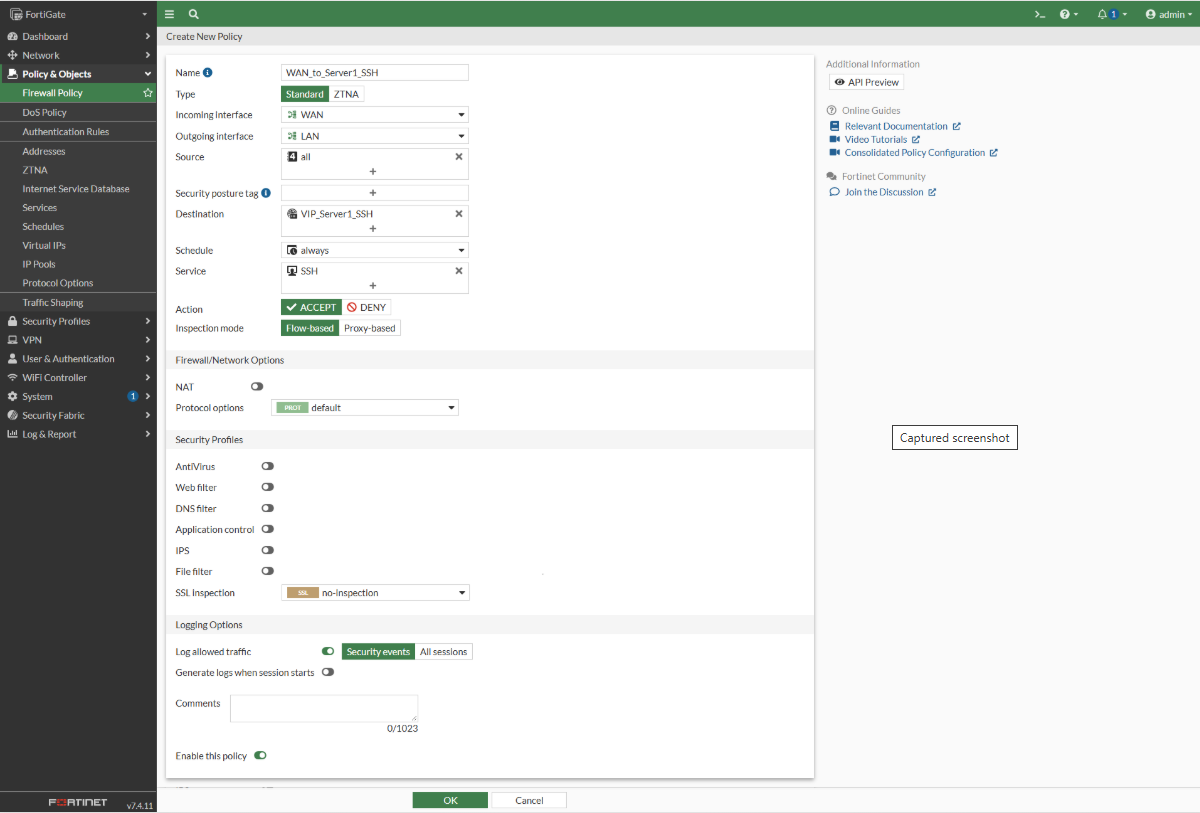
Step 4: Create The Inbound Firewall Policy for Server 1 SSH
- Navigate to Policy & Objects, then select Firewall Policy.
- Click Create New.
- Configure the following parameters
- Name: Enter a descriptive name (e.g., WAN_to_Server1_SSH).
- Incoming Interface: Set to your internet/public interface (e.g., WAN).
- Outgoing Interface: Set to the internal network interface where the destination server lives (e.g., LAN).
- Source: select all.
- Destination: Select the virtual IP that is configured for SSH (e.g., VIP_Server1_SSH)
- Service: Select SSH.
- Toggle NAT to off.
- Click OK to activate the rule.
Step 5: Verify the port forwarding configuration for Server 1 HTTPS.
Make sure the applications are actually listening on the Server 1 by running the following command line:
sudo ss -lntp |grep 443
You should see something similar to:
LISTEN 0 128 0.0.0.0:443
To verify the inbound traffic, run the following command line from an external remote device:
Test-NetConnection 103.40.206.205 -Port 443
Expected output:
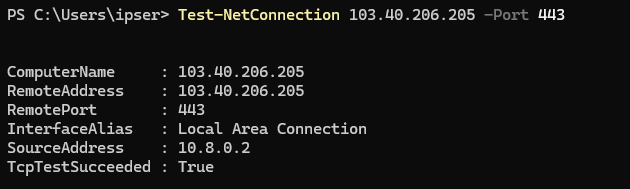
Make sure the TcpTestSucceeded returns with True.
To verify the outbound traffic, run the following command line on the Server 1 :
nc -vz www.google.com 443
You should ideally get:
Connected to www.google.com:443
or
Connected to 2001:4860:482b:7700:::443
Expected output:

Step 6: Verify the port forwarding configuration for Server 1 SSH.
Make sure the applications are actually listening on the Server 1 by running the following command line:
sudo ss -lntp |grep 22
You should see something similar to:
LISTEN 0 128 0.0.0.0:22
To verify the inbound traffic, run the following command line from an external remote device:
Test-NetConnection 103.40.206.205 -Port 22
Expected output:
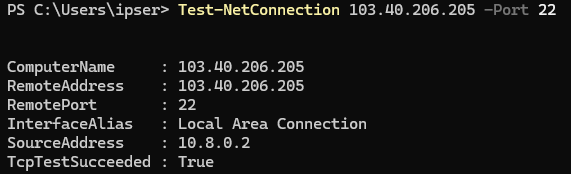
Make sure the TcpTestSucceeded returns with True.
To verify the outbound traffic, run the following command line on the Server 1:
nc -vz <external-server-ip> 22
For instance, we are using the public IP 103.40.206.133 in this example.
You should ideally get:
Connected to 103.40.206.133:22
Expected output:

Conclusion
By following this guidance, you can successfully configure 1:1 NAT and Port Forwarding rules in FortiGate to establish secure inbound access to your internal network devices.
For additional assistance or if you encounter any issues, please contact our support team at support@ipserverone.com.