
Search Our Database
Installing SSL Certificate in DirectAdmin when given SSL Certificate ZIP File (Evolution Skin)
Introduction
SSL certificates are crucial for securing your website by encrypting the data transmitted between the server and the visitor’s browser. If you have recently purchased an Alpha or Wildcard SSL certificate from IPSERVERONE and received an email containing the SSL Certificate ZIP file, this guide will help you install it. We will walk you through the process of uploading and installing your Alpha or Wildcard SSL certificate in DirectAdmin using the Evolution Skin, ensuring your website’s security and integrity for all your visitors.
Prerequisite
- Access to DirectAdmin with User privilege.
- SSL Certificate ZIP file (provided via email).
- Private Key file (sent alongside your SSL Certificate).
Step-by-step Guide
Step 1: Receive email from us
- You will notice that the email has been attached with the SSL Certificate ZIP file and Key that will be used for SSL installation process. Download both attached file and don’t forget to extract the zip file beforehand.
- Right click the .crt file and open as Notepad, the content that shows were the SSL Certificate that will enter later to DirectAdmin.
Step 2: Log in to DirectAdmin
- Log in to your DirectAdmin control panel as a user where your domain is currently hosted.
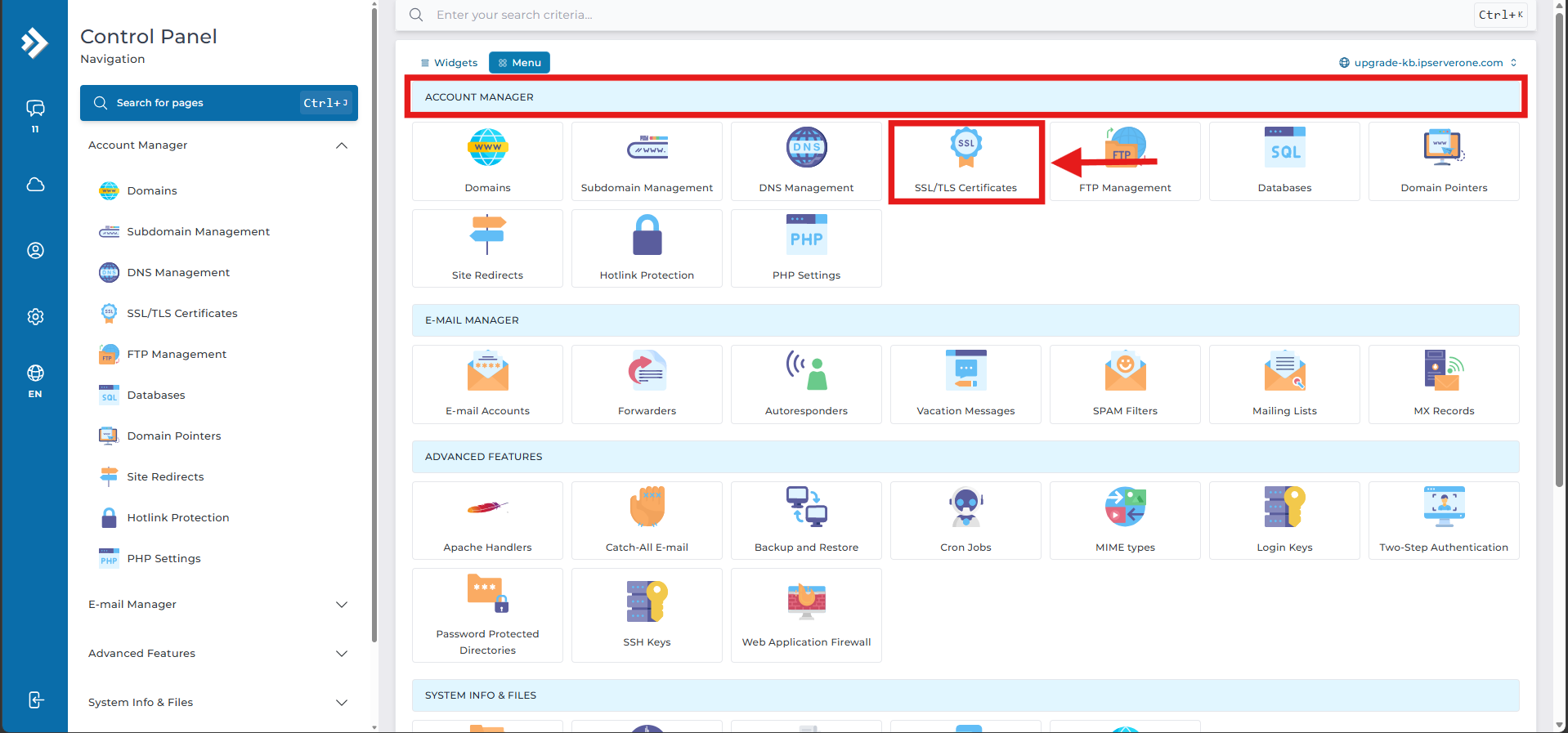
- Once you are on the dashboard, navigate to the Account Manager section on the left-side menu and click on SSL/TLS Certificates.
Step 3: Select Upload Custom Certificate
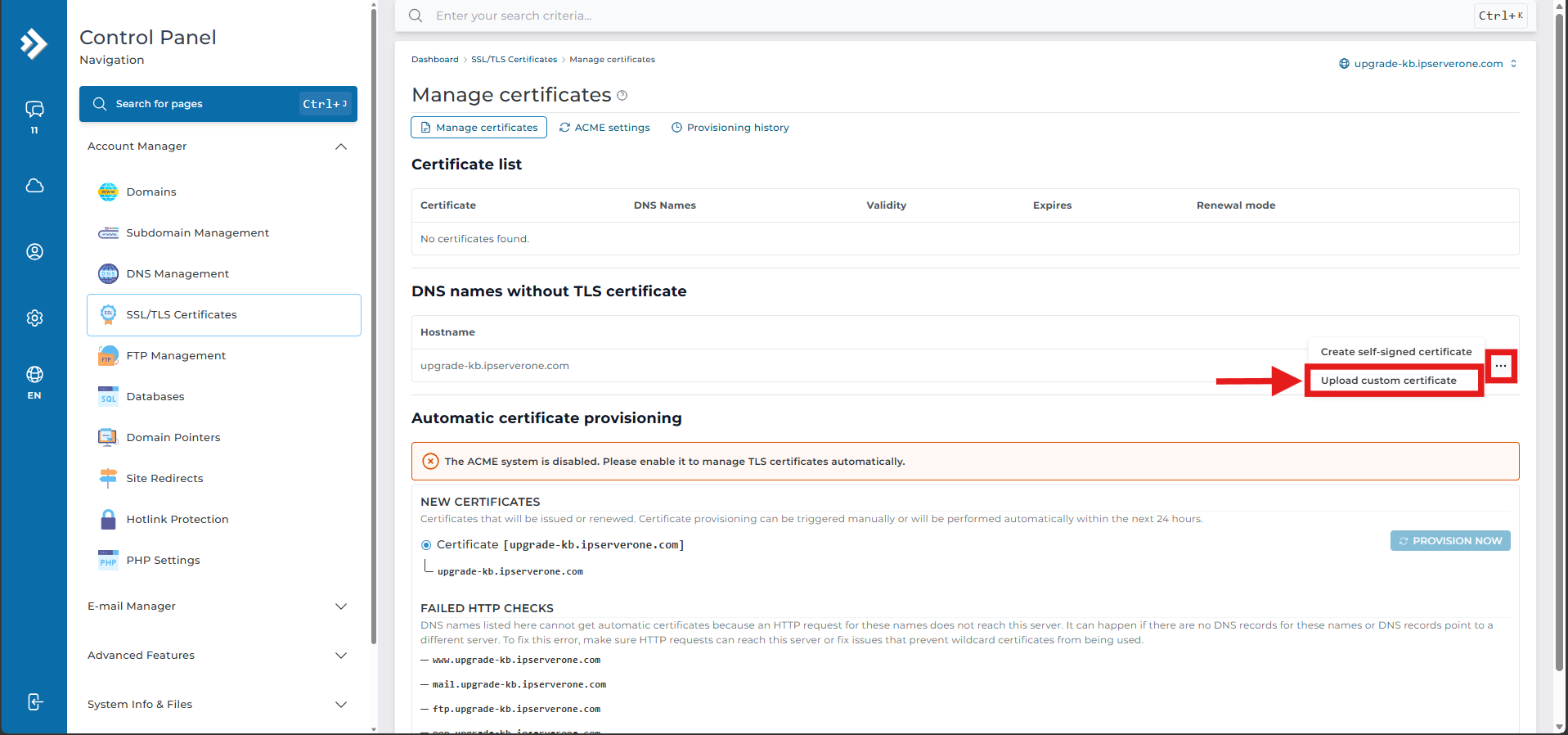
- Under the DNS names without TLS certificate section, locate your domain.
- Click on the 3 dots icon next to your domain name and choose Upload custom certificate.
Step 4: Uploading Certificate to DirectAdmin
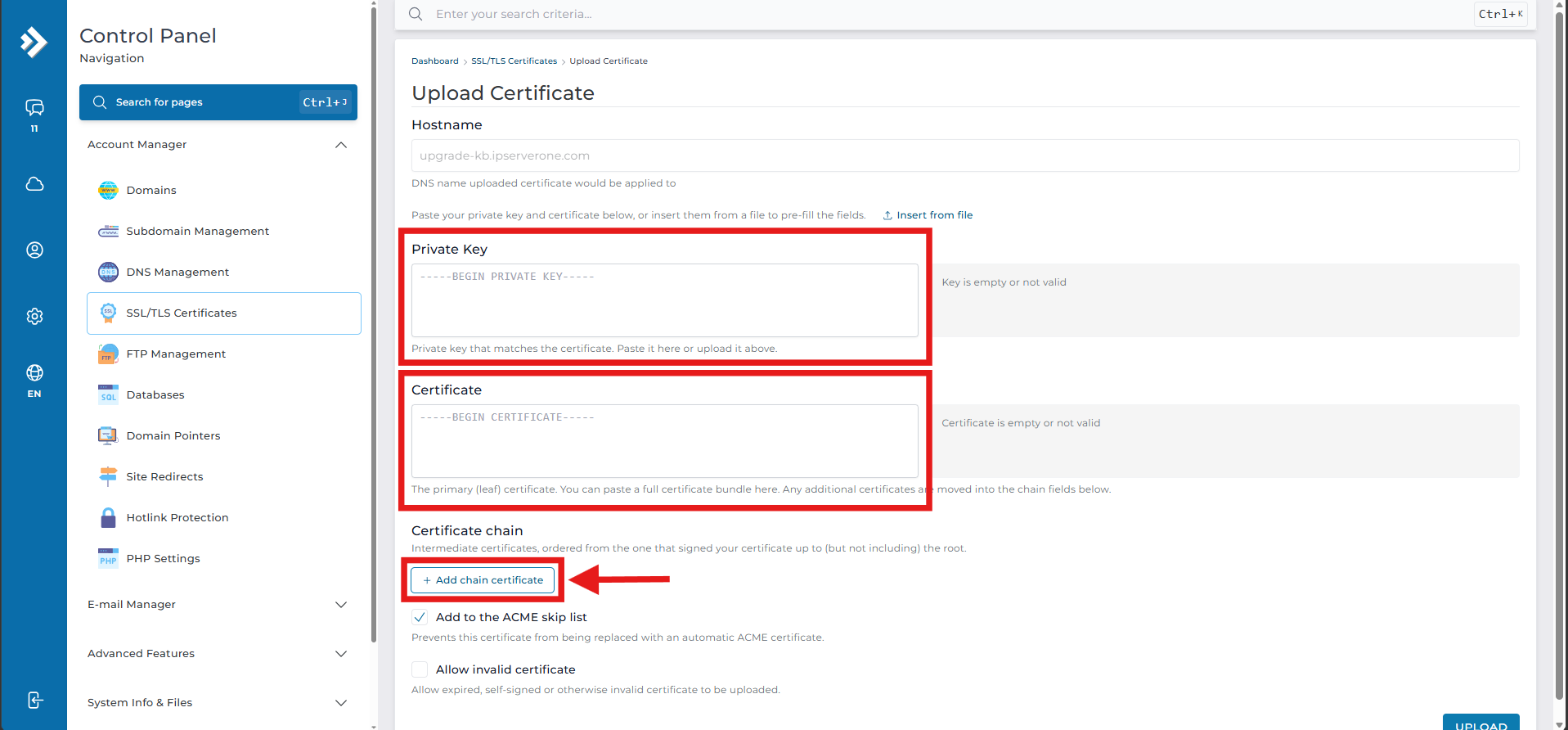
- In the Private Key text area, paste the Private Key code starting from —–BEGIN PRIVATE KEY—– until —–END PRIVATE KEY—–.
- In the Certificate text area, paste the SSL certificate code starting from —–BEGIN CERTIFICATE—– until —–END CERTIFICATE—–.
- Scroll down to the Certificate chain section and click the + Add chain certificate button.
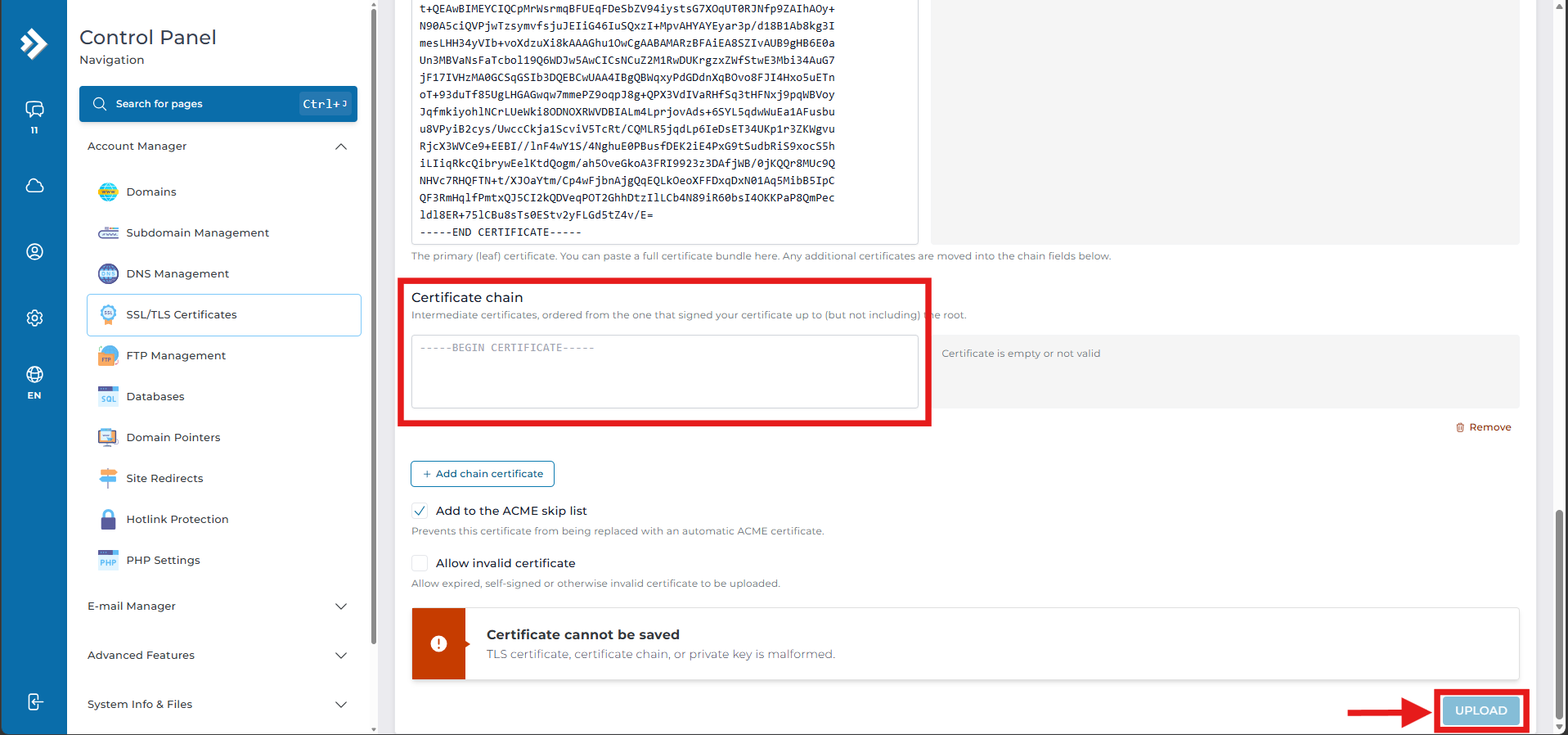
- A new text box will appear under the Certificate chain section. Paste the Chain_RootCA_Bundle file contents that we provided into this box.
- Click the UPLOAD button at the bottom right corner of the page to finalize the installation.
Step 5: Testing Your SSL Certificate
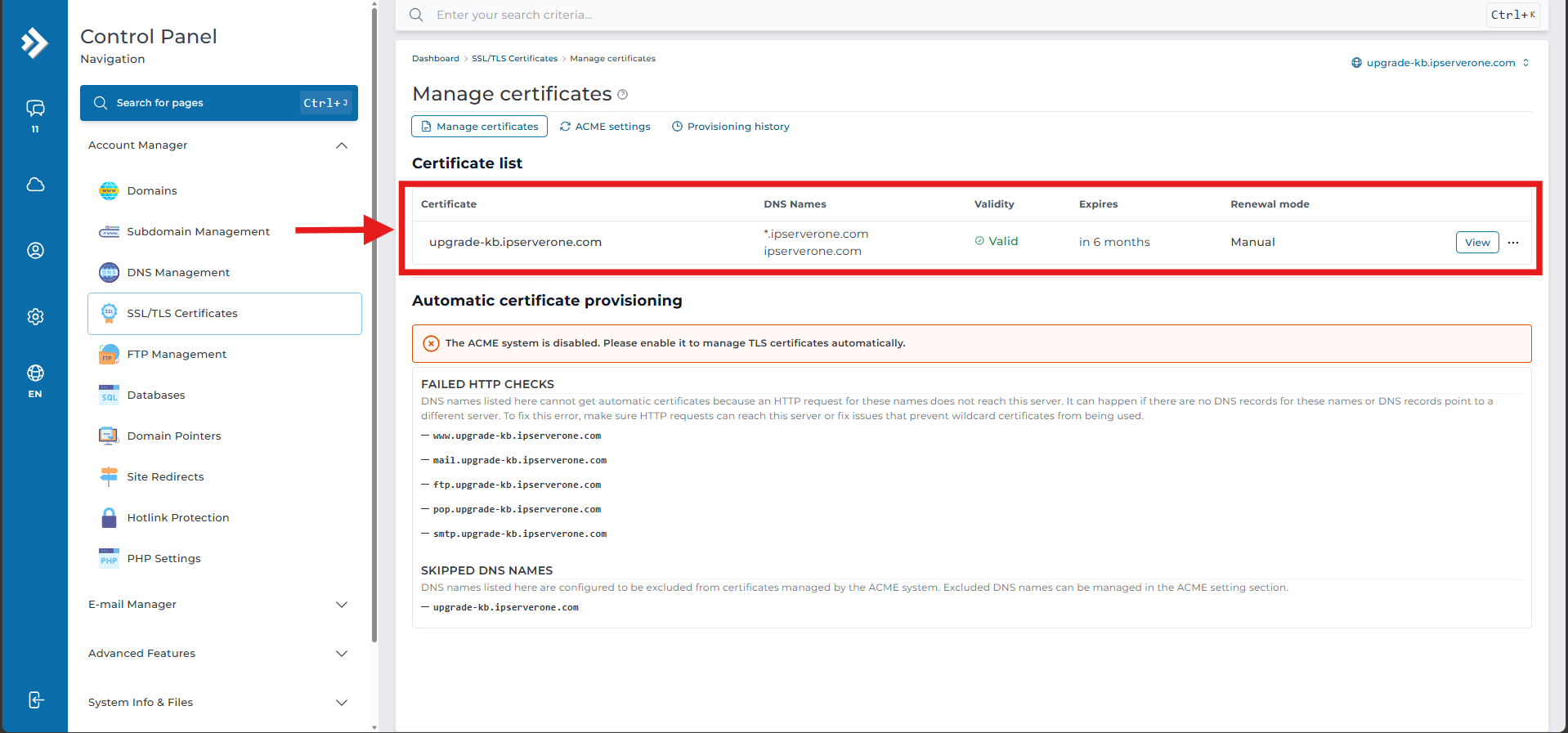
- To verify the installation within DirectAdmin, check the Certificate list at the top of the SSL/TLS Certificates page, your hostname should now appear there with a “Valid” status.
- You can also check your SSL validity externally by visiting [SSL Checker], or simply open your web browser and enter your website’s URL with “https://” at the beginning.
- If your hostname is listed as valid, your website loads correctly without any security warnings, and the SSL checker shows no errors.
Conclusion
By following this guidance, you can successfully install your Alpha or Wildcard SSL certificate through DirectAdmin! You’ve taken an important measure to secure your website and protect your visitors’ information. Security is an ongoing journey, and installing an SSL certificate is a significant milestone. Remember, SSL certificates do expire, so it’s essential to keep track of your certificate’s validity and renew it before it expires to maintain your website’s security and trustworthiness.
Should you encounter any issues or have any questions, our support team at IPSERVERONE is always here to assist you. Don’t hesitate to reach out to us at support@ipserverone.com for any help you need.
Article updated on 16 November 2026 by Huiyun